





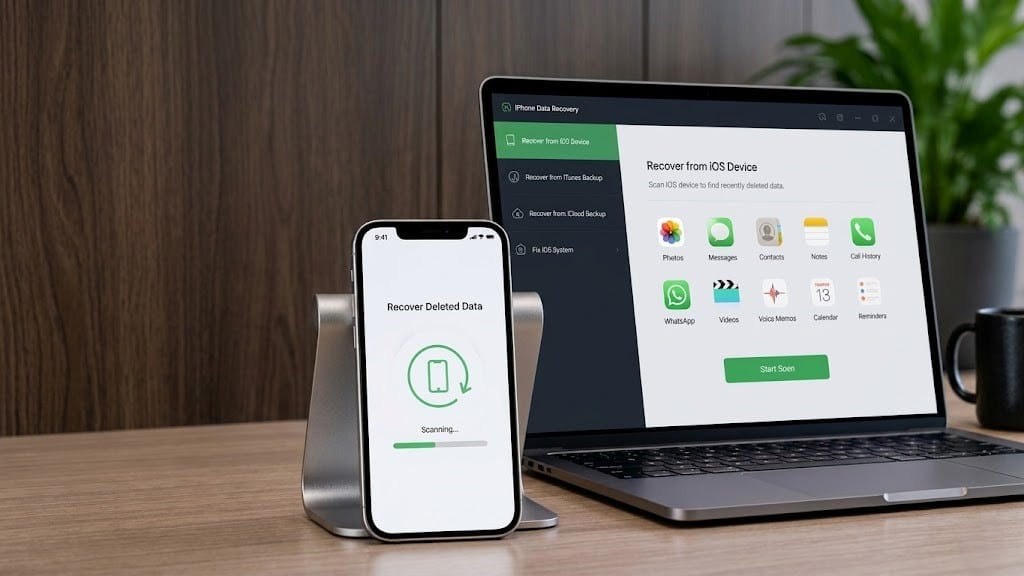
Losing important iPhone data can feel frustrating — but deleted files are not always gone permanently, and recovery is possible in more situations than most users realize.
iPhone data recovery is the process of restoring deleted, lost, or inaccessible files — including photos, videos, messages, contacts, and app data — from an iPhone using backups, recovery software, or professional services.
Whether your data disappeared after an accidental deletion, water damage, an unintentional factory reset, or a sudden iPhone crash, recovery options exist for each scenario.
Success depends on how quickly you act, which iOS version your device runs, and whether a backup exists. This guide covers every method — with and without a backup.
What Is iPhone Data Recovery?
iPhone data recovery is the process of locating and restoring files that have been deleted, lost, or made inaccessible on an iPhone — including photos, videos, messages, contacts, notes, and app data.
When you delete a file on an iPhone, it is not immediately erased from storage. Depending on the file type, it either moves to a Recently Deleted folder — where it stays for 30 days — or gets marked as deleted in the device’s internal database while the underlying data remains temporarily intact.
Think of it like crossing a name out of a directory. The name is no longer listed — but the information it pointed to still exists until something new is written over it.
However, iPhone recovery is more complex than Android recovery. Apple’s file-based encryption system assigns a unique encryption key to every file. When a file is deleted, that key is destroyed — making direct file-level recovery significantly harder than on other platforms.
Recovery success depends on three factors: how quickly you act after data loss, which iOS version the device runs, and whether an iCloud or local iTunes/Finder backup exists.
How Does iPhone Data Recovery Work?
Understanding how iPhones store and delete data explains why some recovery attempts succeed and others fail entirely. Here is what happens at each stage.
How iPhone Flash Storage Works
Every iPhone stores data on NAND flash storage — the same fundamental technology used in SSDs and USB drives, but built directly into the iPhone’s logic board. Unlike traditional hard drives, NAND flash has no moving parts and operates at extremely high speeds.
What makes iPhone flash storage unique from a recovery perspective is Apple’s file-based encryption system, introduced in iOS 8 and significantly strengthened with each major iOS release. Every single file stored on an iPhone receives its own unique encryption key at the moment of creation. When that file is deleted, the key is permanently destroyed — not the file data itself, but the only means of decoding it.
This is the fundamental reason iPhone data recovery is significantly harder than Android recovery. On Android, deleted files often remain physically intact and readable. On iPhone, the encrypted file remains on the storage — but without its unique decryption key, the data is mathematically unreadable by any tool regardless of its capability or price.
The Recently Deleted Folder
Apple builds a 30-day recovery window into specific data types — giving users a straightforward path to restore recently deleted content without any third-party tool.
Files that go to Recently Deleted:
- Photos and videos — accessible via Photos app → Albums → Recently Deleted
- Notes — accessible via Notes app → Recently Deleted folder
- Files in the Files app — accessible via Files → Browse → Recently Deleted
- iCloud Drive files — recoverable from iCloud.com → Recently Deleted for 30 days
Files that do NOT go to Recently Deleted:
- Text messages and iMessages — deleted immediately from the active database
- Contacts and call history — removed from their SQLite database records
- WhatsApp and third-party app data — governed by each app’s own deletion logic
After 30 days, items in Recently Deleted are permanently removed and the recovery window closes entirely.
iCloud Backup Recovery
iCloud automatically backs up iPhone data when the device is connected to Wi-Fi, plugged into power, and the screen is locked. A complete iCloud backup includes photos, messages, contacts, app data, device settings, and more.
How iCloud backup recovery works:
- The backup captures a snapshot of all included data at the time it was made
- Restoring from iCloud backup rolls the entire device back to that snapshot
- Files deleted after the backup was created are recoverable — files deleted before are not
- iCloud only stores the three most recent backups — older data is not retained
Critical limitation: iCloud backup restoration replaces all current device data with the backup version. Any content created after the backup date is permanently overwritten during the restore process.
Free iCloud storage is 5 GB — most users exhaust this quickly. Without sufficient iCloud storage, automatic backups stop running silently, leaving users with outdated or nonexistent backups at the moment data loss occurs.
iTunes and Finder Backup Recovery
iTunes (Windows and older macOS) and Finder (macOS Catalina and later) create local backup copies of the entire iPhone on a computer. These backups are significantly more complete than iCloud backups — they can include Health data, saved passwords, and app data that iCloud does not back up by default.
How local backup recovery works:
- Connect the iPhone to the computer that previously backed it up
- Open Finder or iTunes and select Restore Backup
- Choose the most relevant backup by date and size
- The device restores completely to the backup state
Advantages over iCloud backup:
- Not limited by storage quotas
- Faster restoration on large data sets
- Encrypted local backups include more sensitive data types
Key limitation: Like iCloud restoration, restoring a local backup overwrites all current device content. Selective file recovery from a backup — retrieving only specific photos or messages — requires third-party software rather than Apple’s native restore process.
How Recovery Software Scans iPhone Data
Third-party recovery software accesses iPhone data through three distinct pathways — each with different recovery depth and success rates.
Pathway 1 — Direct device scan: The software connects to the iPhone via USB and accesses the device’s file system through Apple’s standard communication protocols. This pathway requires the iPhone to be functional, unlocked, and trusted on the computer. It can recover data from the Recently Deleted folder, SQLite database fragments, and media metadata — but is limited by iOS encryption on deleted files.
Pathway 2 — iTunes backup scan: The software reads an existing iTunes or Finder backup file stored on the computer — without connecting to the iPhone at all. It extracts recoverable data from the backup’s SQLite databases and file archives. This is the most reliable pathway for recovering deleted messages, contacts, and call history — provided a backup exists that predates the deletion.
Pathway 3 — iCloud backup scan: The software authenticates with the user’s Apple ID and downloads iCloud backup data for analysis. This pathway works even if the physical iPhone is unavailable — damaged, lost, or broken — as long as iCloud backup was enabled and a recent backup exists.
| Recovery Pathway | iPhone Required | Backup Required | Best For |
| Direct device scan | Yes — functional | No | Recently deleted photos, notes |
| iTunes backup scan | No | Yes — local backup | Messages, contacts, app data |
| iCloud backup scan | No | Yes — iCloud backup | All backed-up data types |
Why Overwritten Storage Cannot Be Recovered
Once new data is written to the same storage blocks previously occupied by deleted files — and the encryption key for those blocks has already been destroyed — recovery becomes impossible at any level, including professional forensic tools.
This is why two actions after iPhone data loss cause irreversible damage:
- Continuing to use the iPhone — every photo taken, message received, and app update downloaded writes new data to storage, potentially landing on the blocks that held your deleted files
- Installing recovery software on the iPhone itself — any app installation writes data to the device before the scan even begins
Stop using the iPhone the moment data loss is recognized. Enable airplane mode to prevent background sync, app updates, and cloud processes from writing to storage while you prepare a recovery attempt.
Quick Ways to Recover Data from iPhone
Before attempting advanced recovery methods, run through these five options in order. Most users recover their data within the first three steps.
How to recover deleted iPhone data quickly:
- Check the Recently Deleted folder — open Photos → Albums → Recently Deleted for photos and videos deleted within the last 30 days; check Notes → Recently Deleted for notes and Files → Browse → Recently Deleted for documents
- Restore from iCloud backup — go to Settings → General → Transfer or Reset iPhone → Erase All Content and Settings → on setup screen select Restore from iCloud Backup → sign in with Apple ID and choose the most recent backup containing your lost data
- Restore from Finder or iTunes backup — connect iPhone to the computer that previously backed it up → open Finder (Mac) or iTunes (Windows) → select your device → click Restore Backup → choose the backup by date
- Use iPhone data recovery software — connect iPhone to a PC or Mac → launch a recovery tool such as Dr.Fone, PhoneRescue, or Tenorshare UltData → run a scan → preview recoverable files → save recovered files to your computer
- Contact a professional recovery service — if the iPhone will not power on, has water damage, or a broken screen preventing access — take it to a professional data recovery lab for board-level hardware recovery
Important before starting: Stop using the iPhone immediately after data loss. Enable airplane mode to prevent background processes from writing new data to storage — every write operation reduces recovery chances for files not yet in a backup.
| Method | Backup Required | iPhone Functional | Cost | Best For |
| Recently Deleted folder | No | Yes | Free | Photos, notes, files under 30 days |
| iCloud backup restore | Yes — iCloud | Yes | Free | All backed-up data types |
| iTunes/Finder restore | Yes — local | Yes | Free | Complete device restoration |
| Recovery software | Optional | Preferred | Paid | Selective file recovery |
| Professional service | No | No | $300–$650+ | Physical damage recovery |
iPhone Data Recovery Without Backup
iPhone data recovery without backup is the most searched — and most misunderstood — recovery scenario. Most guides assume a backup exists. This section addresses what actually happens when it does not.
Is Recovery Possible Without a Backup?
The honest answer is: sometimes — and the window is narrow.
Without a backup, recovery depends entirely on whether the deleted data still exists in one of three places: the Recently Deleted folder, a cloud sync service that captured the file independently of a full backup, or the iPhone’s internal SQLite database — where certain data types leave recoverable traces before they are overwritten or vacuumed by iOS.
Two critical factors determine whether recovery without backup succeeds:
Time since deletion: The longer the gap between deletion and recovery attempt, the lower the chances. iOS background processes — iCloud sync, app updates, photo library optimization — continuously write new data to storage. Each write reduces the window for finding intact deleted data.
Device usage after deletion: An iPhone that has been actively used for hours or days after data loss has a significantly lower recovery rate than one powered off or placed in airplane mode immediately. Continued use writes new data to the same storage blocks that previously held your deleted files.
Method 1 — Check the Recently Deleted Folder First
Before any software or service, check whether your data is still in Apple’s built-in recovery window.
Where to check:
- Photos and videos: Photos app → Albums → Recently Deleted (30-day window)
- Notes: Notes app → tap Recently Deleted in the folder list (30-day window)
- Files: Files app → Browse → Recently Deleted (30-day window)
- Emails: Mail app → Mailboxes → Trash folder (varies by email provider)
What is NOT in Recently Deleted:
- Text messages and iMessages — these go directly to the SQLite database with no holding folder
- WhatsApp messages — managed by WhatsApp’s own deletion logic
- Contacts and call history — removed directly from their database records
If the 30-day window has not passed and the data type has a Recently Deleted folder — recovery is instant and free. No software required.
Method 2 — Recover From Cloud Sync Services
Even without a full iCloud backup, individual data types may be independently synced to cloud services — creating a separate recovery pathway that most users overlook entirely.
Cloud sync recovery sources to check:
iCloud Photos: If iCloud Photos was enabled before deletion, photos sync to iCloud independently of the backup process. Check icloud.com → Photos → Albums → Recently Deleted for up to 30 days of deleted photo recovery — accessible from any browser without restoring the device.
Google Photos: Users who installed Google Photos and enabled backup have a separate photo archive entirely independent of Apple’s ecosystem. Check the Google Photos app → Library → Trash — deleted photos remain there for 60 days, double Apple’s window.
WhatsApp Cloud Backup: WhatsApp maintains its own independent backup to iCloud — separate from the main iPhone backup. Go to WhatsApp → Settings → Chats → Chat Backup to check the most recent backup date. If a recent backup exists, uninstalling and reinstalling WhatsApp triggers a restore from that backup automatically.
Conclusion
Recovering deleted data from an iPhone is often possible, but success depends largely on how quickly you act and whether the data has been overwritten. The easiest recovery methods involve checking the Recently Deleted folders, restoring from iCloud or Finder/iTunes backups, or recovering files from cloud sync services such as iCloud Photos, Google Photos, and WhatsApp backups.
If no backup exists, recovery becomes more challenging due to Apple’s advanced file-based encryption system. In these situations, stopping device usage immediately, enabling Airplane Mode, and attempting recovery as soon as possible can significantly improve your chances. Professional recovery software may help recover certain file types, while physically damaged devices often require specialized data recovery services.
The best protection against permanent data loss is prevention. Enable automatic iCloud backups, maintain regular local backups through Finder or iTunes, and verify that cloud synchronization is active for important apps and services. With a proper backup strategy in place, recovering lost iPhone data becomes a simple process rather than a stressful emergency.