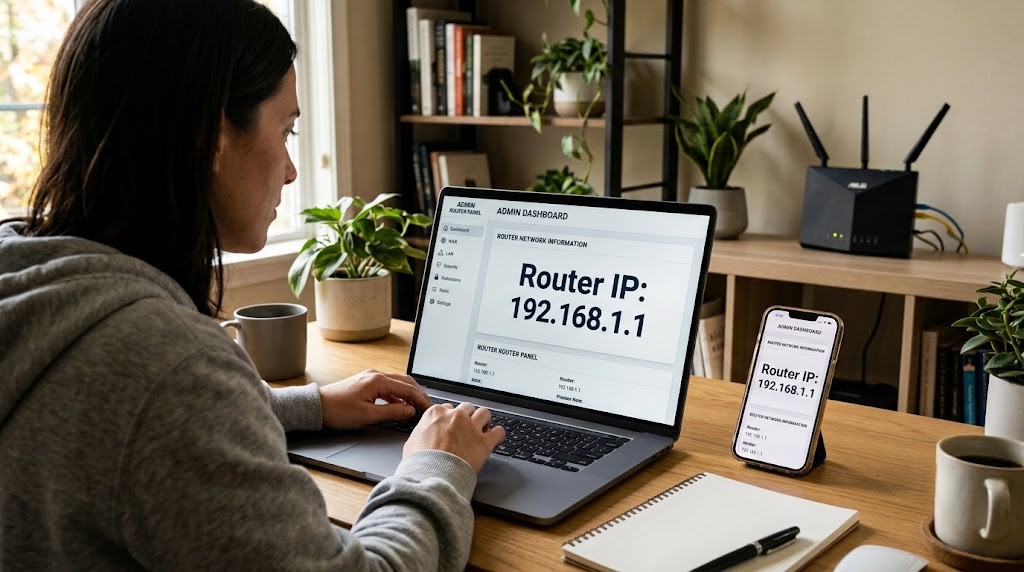


Your router IP address is usually 192.168.1.1 or 192.168.0.1. To find the exact one your device uses, check your network settings: on Windows, run
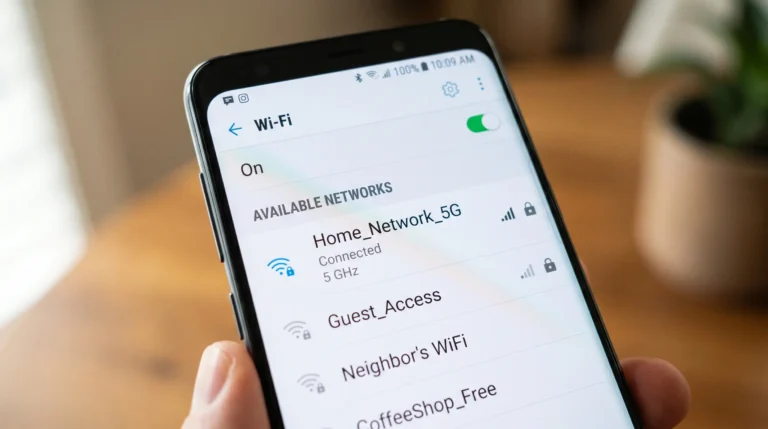
ipconfigand look for “Default Gateway.” On a Mac, check Network settings under Wi-Fi. On a phone, open Wi-Fi settings and tap your network name to see the gateway address. Type that address into a browser to open your router login page.
What Is a Router IP Address
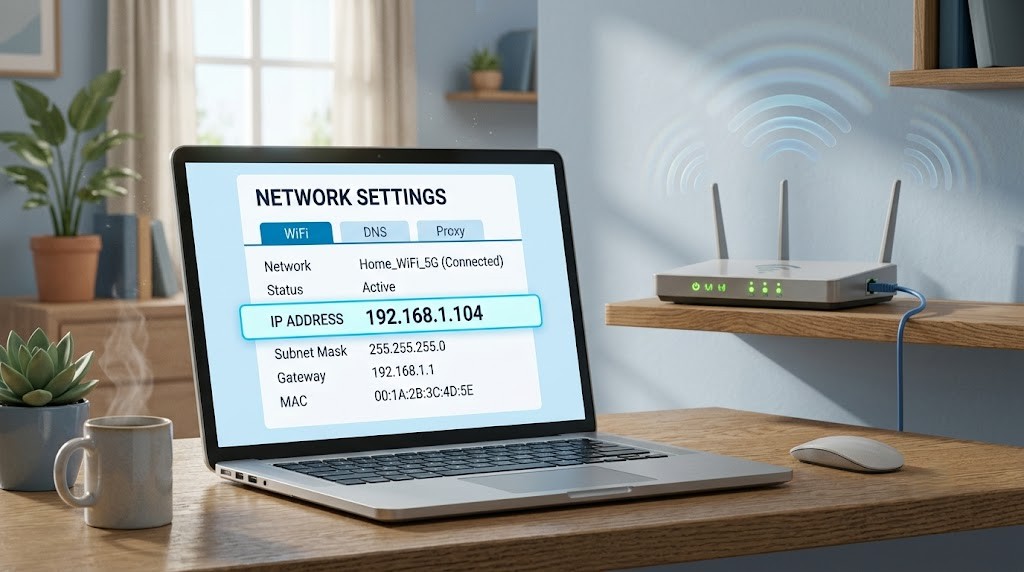
A router IP address is the private number your router uses inside your home network. It works like a street address, but only for devices connected to your Wi-Fi or Ethernet. Every laptop, phone, and smart TV in your house sends data through this address to reach the internet.
This address is often called the default gateway. It’s different from your public IP address, which is the one websites see when you go online. The router IP address only works from inside your own network, so no one outside your home can use it to reach your router’s settings page.
Most home routers use one of these ranges:
- 192.168.0.1 to 192.168.0.255
- 192.168.1.1 to 192.168.1.255
- 10.0.0.1 to 10.0.0.255
You’ll type this address into a browser whenever you need to open the router’s admin panel. That’s where you change your Wi-Fi name, update the password, or check which devices are connected.
Why You Need to Know It
Knowing your router IP address matters for several everyday tasks:
- Changing your Wi-Fi network name or password
- Setting up parental controls
- Updating your router’s firmware
- Setting up port forwarding for gaming or a security camera
- Checking which devices are using your Wi-Fi
- Fixing slow internet or connection drops
Without this address, you can’t reach any of these settings. It’s the front door to your entire home network, so it’s worth knowing how to find it on any device you own.
How to Find Your Router IP Address on Windows
Windows makes this easy through the Command Prompt.
- Press the Windows key, type
cmd, and press Enter. - In the black window that opens, type
ipconfigand press Enter. - Look for the section labeled “Wireless LAN adapter Wi-Fi” or “Ethernet adapter,” depending on how you connect.
- Find the line that says Default Gateway. The number next to it is your router IP address.
You can also find this through Settings. Go to Settings > Network & Internet > Wi-Fi, click your network name, then scroll down to Properties. The gateway address appears under IPv4 details.
How to Find Your Router IP Address on Mac
On a Mac, you have two simple options.
Using System Settings:
- Click the Apple menu and choose System Settings.
- Select Network from the sidebar.
- Click your active connection (Wi-Fi or Ethernet).
- Click Details, then TCP/IP. The Router field shows your gateway address.
Using Terminal:
- Open Terminal from Applications > Utilities.
- Type
netstat -nr | grep defaultand press Enter. - The address next to “default” is your router IP.
How to Find Your Router IP Address on iPhone
- Open Settings and tap Wi-Fi.
- Tap the blue “i” icon next to your connected network.
- Scroll down to the IPV4 ADDRESS section.
- The number labeled Router is your router IP address.
How to Find Your Router IP Address on Android
Steps can vary slightly by phone brand, but the general process is the same.
- Open Settings and tap Wi-Fi & network (or just Wi-Fi).
- Tap your connected network name.
- Tap Advanced or View more if the details aren’t already showing.
- Look for Gateway in the network details. That’s your router IP address.
Common Default Router IP Addresses by Brand
If you can’t check your network settings right away, these are the most common starting points by brand. Always confirm with the steps above if one doesn’t work, since your address may have been changed during setup.
| Brand | Common Default IP |
|---|---|
| TP-Link | 192.168.0.1 or 192.168.1.1 |
| Netgear | 192.168.1.1 |
| Linksys | 192.168.1.1 |
| D-Link | 192.168.0.1 |
| Asus | 192.168.1.1 |
| Belkin | 192.168.2.1 |
| Google Wifi / Nest Wifi | 192.168.86.1 or 192.168.68.1 |
| Xfinity Gateways | 10.0.0.1 |
| Apple AirPort (legacy) | 10.1.1.1 |
What to Do After You Find the IP Address
Once you have the address, here’s how to log in:
- Open any web browser.
- Type the router IP address into the address bar, such as
192.168.1.1. - Press Enter. A login page should load.
- Enter your username and password. If you never changed these, check the sticker on the bottom or back of the router for the default login.
- Once logged in, you can manage Wi-Fi settings, security options, and connected devices.
If the login page does not load, double-check that you’re connected to that router’s network and that you typed the address correctly, without spaces.
Common Mistakes to Avoid
- Typing the IP address into a search engine instead of the address bar. This often leads to unrelated results instead of your router’s login page.
- Assuming every router uses 192.168.1.1. Many brands use different defaults, and previous users may have changed it.
- Ignoring the router’s default login sticker. This sticker usually has both the IP address and the login details printed on it.
- Trying to log in from outside your home network. The router IP address only works when your device is connected to that same Wi-Fi or Ethernet network.
- Forgetting saved changes. Some routers need a restart after you update settings for the changes to apply fully.
Myths vs Facts
Myth: Your router IP address is the same as your public IP address. Fact: They are different. Your router IP address only works inside your home network. Your public IP address is what websites see when you connect to them.
Myth: Changing your router IP address improves your internet speed. Fact: The IP address itself has no effect on speed. Speed depends on your internet plan, router hardware, and Wi-Fi congestion.
Myth: If 192.168.1.1 doesn’t work, your router is broken. Fact: Many routers use a different default address. Checking your network settings will show the correct one for your device.
Expert Tips
Based on real-world troubleshooting with home and small office networks, a few habits make this process easier long term:
- Write down your router’s IP address and login details somewhere safe once you find them, so you don’t need to search for them again.
- Change the default admin password the first time you log in. Factory passwords are widely known and searchable online.
- Keep your router firmware updated. Most admin panels show update options on the main dashboard.
- If you use a mesh Wi-Fi system, check the manufacturer’s app first. Many mesh systems use their own app instead of a browser login.
Troubleshooting Checklist
Use this checklist if the login page won’t load:
Confirm you’re connected to the correct Wi-Fi network or Ethernet cable
Recheck the IP address using the steps for your device
Clear your browser cache or try a different browser
Restart your router and wait one minute before trying again
Try the address in an incognito or private browser window
Check the router’s label for the correct default address
Decision Tree
- Can’t remember your router IP address? → Run the steps for your device above.
- Address loads but login fails? → Check the sticker on your router for the default username and password.
- Login works but settings won’t save? → Restart the router after saving changes.
- Still no luck? → Reset the router to factory settings using the small reset button, then set it up again from scratch.
FAQ
What is my router’s IP address? It’s typically 192.168.1.1 or 192.168.0.1, though it can vary by brand. Check your device’s network settings for the exact address in use.
Is my router IP address the same for every device on my network? Yes. All devices connected to the same router use the same gateway address to reach it.
Can someone outside my home see my router IP address? No. This address only works within your local network and is not visible from the internet.
What if I forget my router login password? Look for the default login printed on the router’s label. If it was changed and forgotten, you may need to reset the router to factory settings.
Does the router IP address change over time? It usually stays the same unless you or someone else manually changes it in the router settings.
Key Takeaways
- A router IP address, or default gateway, is the private address used to reach your router’s admin panel.
- Most routers use 192.168.1.1, 192.168.0.1, or 10.0.0.1 as a default.
- You can find the exact address through network settings on Windows, Mac, iPhone, or Android in under a minute.
- Always confirm the address using your own device rather than assuming a common default will work.
- Change the default login password after your first visit to keep your network secure.
Conclusion
Finding your router IP address takes less than a minute once you know where to check. Whether you’re on Windows, Mac, or a phone, the steps above will get you to your router’s login page quickly. From there, you can manage your Wi-Fi, update your password, and keep your home network running well.