
If your downloads take forever even with a fast internet plan, the problem is rarely your internet speed itself — it is almost always something between your router and your PC preventing that speed from being used fully.
Slow download speed on a PC is most commonly caused by weak Wi-Fi signals, background applications consuming bandwidth, outdated network drivers, Windows settings artificially limiting connections, or ISP throttling during peak hours.
The fix is not always obvious — but it is almost always findable.
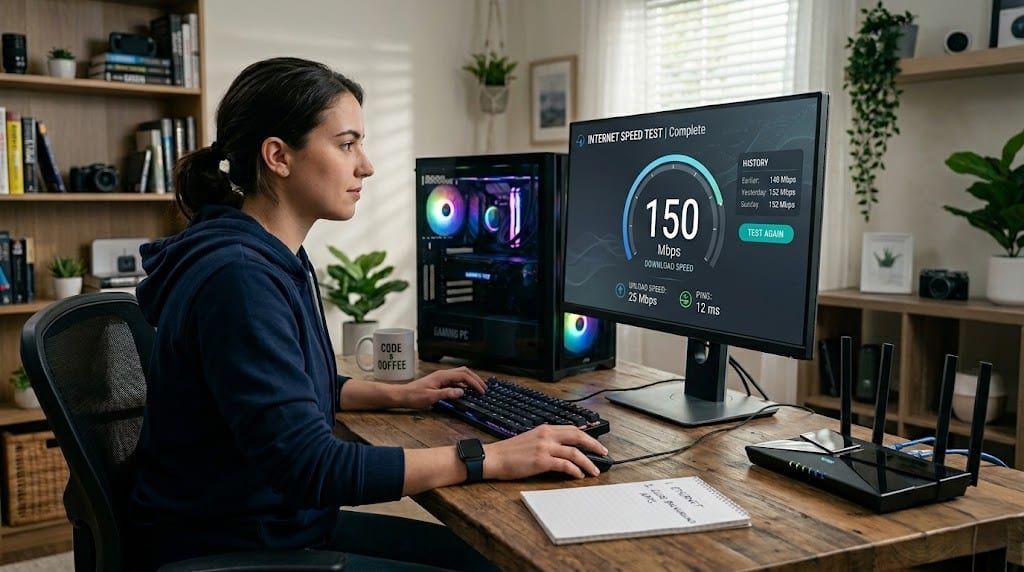
This guide covers 15 working methods to boost download speed on PC, starting from the quickest wins and moving through advanced network and system optimizations.
Why Is My Download Speed So Slow on PC?
Before fixing slow downloads, it helps to understand one distinction that confuses most users.
Internet speed and download speed are not the same thing. Your internet plan delivers a maximum possible speed — your actual download speed depends on how much of that capacity your PC can access at any given moment.
Mbps vs MB/s is the second common source of confusion. Internet speeds are measured in Mbps (megabits per second). Download speeds displayed in browsers and apps are shown in MB/s (megabytes per second). One megabyte equals eight megabits — meaning a 100 Mbps connection delivers roughly 12 MB/s of actual download speed, not 100.
Temporary slowdowns — lasting minutes — are usually caused by network congestion or a background process. Persistent slowdowns that appear every session point to a driver issue, a Windows setting, or an ISP-level limitation that requires an active fix.
What Affects Download Speed on a PC?
Understanding exactly what is limiting your download speed is the fastest path to the right fix. Here are the five most common causes — each with a real-world context that helps identify which one applies to your situation.
1. Weak Wi-Fi Signal
Wi-Fi speed degrades significantly with distance, physical obstructions, and interference from neighboring networks. Every wall, floor, and appliance between your PC and router reduces signal strength — and with it, the maximum download speed your connection can sustain.
A PC showing full Wi-Fi bars does not guarantee full speed. Signal strength indicators measure connection quality, not bandwidth delivery — a device can show strong signal while consistently receiving only 30–40% of the router’s actual output.
Real-world scenario: A user with a 500 Mbps fiber plan runs a speed test next to the router and gets 480 Mbps. Moving to a room two walls away drops the result to 90 Mbps — the plan speed is unchanged but the Wi-Fi signal cannot carry it across the building.
2. Background Apps Using Bandwidth
Applications running silently in the background frequently consume significant bandwidth without any visible indication. Windows Update, OneDrive, Google Drive, Steam auto-updates, and browser sync processes all download data continuously — competing directly with whatever you are trying to download.
The combined bandwidth consumption of multiple background processes often exceeds what a single active download uses, leaving your intended download with only a fraction of the available connection.
Real-world scenario: A user notices their PC downloads files at only 2 MB/s despite a 200 Mbps connection. Opening Task Manager reveals Windows Update silently downloading a 4GB cumulative update in the background — consuming over 80% of available bandwidth while showing no visible progress notification.
3. Outdated Network Drivers
Your network adapter driver controls how your PC communicates with the router and processes incoming data. Outdated drivers contain unresolved bugs, lack optimization for modern network speeds, and can introduce instability that causes inconsistent download performance — particularly on high-speed connections above 200 Mbps.
Network driver issues are especially common after major Windows version upgrades, which sometimes replace manufacturer-optimized drivers with generic Microsoft versions that underperform on specific hardware.
Real-world scenario: A user upgrades from Windows 10 to Windows 11 and immediately notices download speeds drop from a consistent 350 Mbps to an inconsistent 80–120 Mbps. Downloading and installing the network adapter driver directly from the manufacturer’s website restores full speed — the Windows 11 upgrade had replaced the optimized driver with a generic version.
4. ISP Throttling
Internet Service Providers deliberately reduce connection speeds under specific conditions — during peak usage hours, after monthly data thresholds are reached, or when detecting high-bandwidth traffic types such as game downloads, streaming, or file transfers. This practice is called throttling and produces slow downloads that appear only during certain times or with certain content types.
ISP throttling is particularly difficult to identify because speed tests — which ISPs are known to deliberately not throttle — often return normal results even when actual download speeds are being limited.
Real-world scenario: A user runs a Speedtest and receives their full 300 Mbps plan speed. Opening Steam immediately afterward produces download speeds of only 8–15 Mbps. The ISP is throttling game download traffic specifically — the Speedtest passes because ISPs recognize and exempt speed test servers from throttling.
5. Slow Storage Drive (HDD Bottleneck)
Every file you download must be written to your storage drive as it arrives. If your drive cannot write data as fast as it arrives from the network, the download process stalls — waiting for the drive to catch up before accepting more data. This makes the storage drive itself a download speed bottleneck.
Traditional HDDs have average write speeds of 80–120 MB/s — well below what modern internet connections deliver. A standard SATA SSD writes at 400–550 MB/s, and NVMe SSDs exceed 3,000 MB/s, eliminating storage as a bottleneck entirely on connections under 4 Gbps.
Real-world scenario: A user with a 1 Gbps fiber connection downloads games to an old HDD and never exceeds 90 MB/s regardless of network settings or fixes applied. Moving the same download to an SSD immediately produces speeds above 300 MB/s — the HDD write speed was capping every download regardless of available bandwidth.
How to Boost Download Speed on PC (Quick Fix)
Before moving into detailed methods, run through these steps first. Most users recover significant download speed within this list alone.
How to boost download speed on PC quickly:
- Restart your router and PC — unplug the router for 30 seconds, plug back in, wait for full reconnection, then restart your PC to clear any cached network errors and refresh the connection
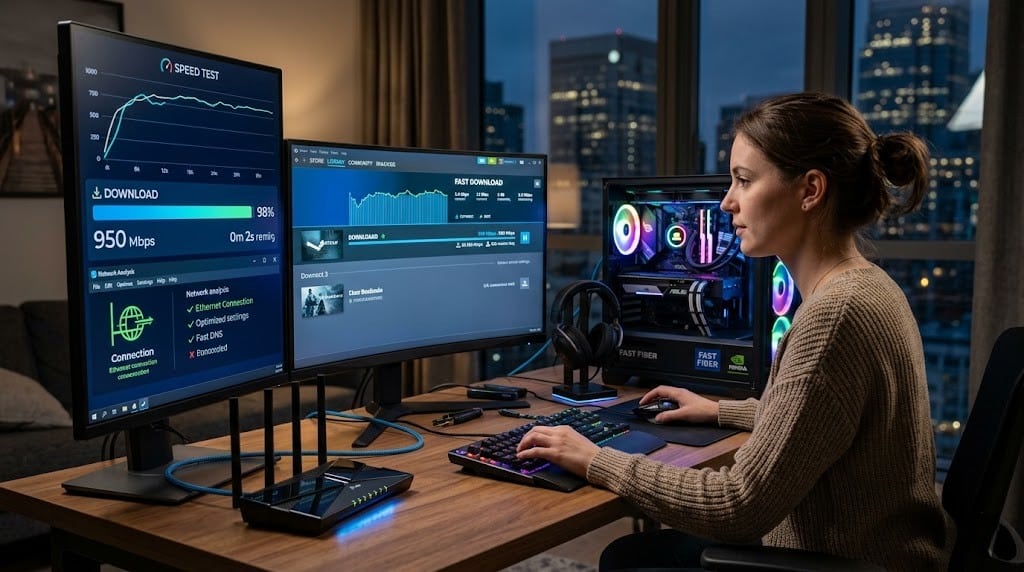
- Switch to Ethernet — connect your PC directly to the router using a Cat6 cable for an immediate, consistent speed improvement over any Wi-Fi connection — this single change produces the largest speed gain for most users
- Close background applications — press Ctrl + Shift + Esc to open Task Manager, click the Network column to sort by bandwidth usage, and close every non-essential application consuming measurable network traffic
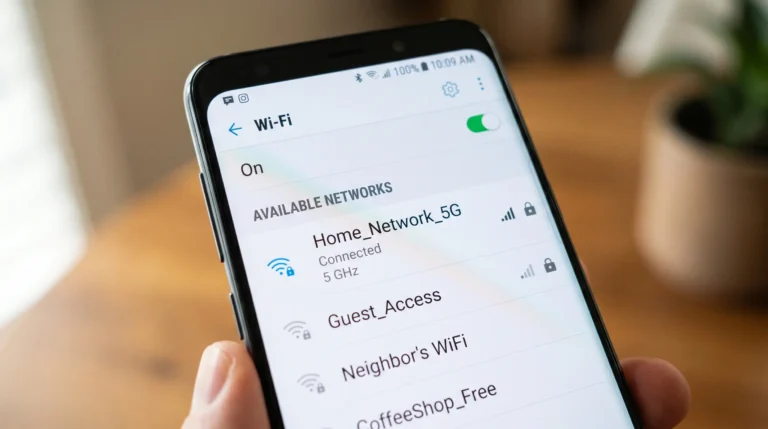
- Switch to 5 GHz Wi-Fi — open Settings → Network & Internet → Wi-Fi and connect to your router’s 5 GHz network instead of 2.4 GHz for faster speeds and significantly less interference from neighboring devices
- Update your network driver — right-click Start → Device Manager → Network Adapters → right-click your adapter → select Update Driver to resolve compatibility and performance issues introduced by outdated driver versions
- Disable metered connection — go to Settings → Network & Internet → Wi-Fi or Ethernet → Properties and turn off Metered Connection to remove any artificial Windows bandwidth restrictions on your active connection
Result: Steps 2 and 3 alone — switching to Ethernet and closing background apps — resolve the majority of slow download complaints on PCs with fast internet plans. Run a speed test after each step to measure the exact improvement each change produces.
Step-by-Step Methods to Boost Download Speed on PC
Work through these methods in order — starting from the highest-impact changes and progressing toward fine-tuning optimizations.
Method 1 — Use Ethernet Instead of Wi-Fi
Why it works: A wired connection eliminates signal interference, distance degradation, and wireless congestion entirely — delivering consistent speeds close to your plan’s maximum. Most users see an immediate 2x–5x improvement switching from Wi-Fi to Ethernet.
Steps:
- Connect a Cat6 Ethernet cable between your PC and router
- Windows automatically detects and prioritizes the wired connection
- Run a speed test immediately after connecting to confirm the improvement
- If no Ethernet port is available on your PC — use a USB-C to Ethernet adapter
Method 2 — Move Closer to Your Router
Why it works: Wi-Fi signal strength drops sharply with distance and physical obstructions. Halving the distance between your PC and router can double usable Wi-Fi bandwidth in environments with thick walls or multiple floors.
Steps:
- Temporarily move your PC or laptop within direct line-of-sight of the router
- Run a speed test at this closer position versus your normal location
- If speed improves significantly — consider a Wi-Fi extender or mesh network node for your usual location
- Avoid placing the router inside cabinets, behind TVs, or near microwaves — all reduce signal output meaningfully
Method 3 — Switch to 5 GHz or 6 GHz Wi-Fi
Why it works: The 2.4 GHz band is used by dozens of neighboring devices and networks simultaneously — producing severe congestion that reduces download speeds. The 5 GHz band operates on less congested channels and delivers significantly higher throughput at close-to-medium range.
Steps:
- Open Settings → Network & Internet → Wi-Fi
- Look for your router’s 5 GHz network — usually labeled with “5G” or “_5GHz” in the network name
- Connect to the 5 GHz network and run a speed test to confirm improvement
- If your router broadcasts a 6 GHz network (Wi-Fi 6E or Wi-Fi 7) — connect to that for maximum available wireless speed
Method 4 — Update Network Drivers
Why it works: Outdated network adapter drivers contain unresolved performance bugs and lack optimization for modern connection speeds. Installing the latest manufacturer driver restores full adapter performance and resolves instability introduced by Windows version upgrades.
Steps:
- Right-click Start → Device Manager → Network Adapters
- Right-click your network adapter and select Update Driver
- Choose Search automatically first — if no update is found, visit your adapter manufacturer’s website directly
- Download and install the latest driver manually for the most current version
- Restart after installation and run a speed test
Method 5 — Disable Windows Metered Connection
Why it works: Windows applies bandwidth restrictions to connections marked as metered — originally designed for mobile data plans. When enabled on a home broadband connection, it artificially caps download speeds across all applications.
Steps:
- Go to Settings → Network & Internet
- Select your active Wi-Fi or Ethernet connection
- Click Properties
- Scroll to Metered Connection and toggle it Off
- Restart your browser or download application and test speed
Method 6 — Change DNS Server to Cloudflare or Google
Why it works: Your ISP’s default DNS servers are often slow and route downloads to distant CDN servers. Switching to a faster DNS provider like Cloudflare or Google sends accurate location signals to content delivery networks — connecting you to the nearest available download server instead of an overloaded distant one.
Steps:
- Open Control Panel → Network and Sharing Center → Change Adapter Settings
- Right-click your active connection and select Properties
- Select Internet Protocol Version 4 (TCP/IPv4) and click Properties
- Select Use the following DNS server addresses and enter:
- Cloudflare: Primary 1.1.1.1 / Secondary 1.0.0.1
- Google: Primary 8.8.8.8 / Secondary 8.8.4.4
- Click OK and run ipconfig /flushdns in Command Prompt to apply immediately
Method 7 — Pause Background Downloads and Sync Processes
Why it works: Windows Update, OneDrive, Google Drive, and Steam all download and upload data continuously in the background — consuming bandwidth your active download needs. Pausing them during large downloads produces an immediate speed increase.
Steps:
- Open Task Manager → Performance → Open Resource Monitor → Network tab
- Identify every process showing measurable network activity
- Pause Windows Update: Settings → Windows Update → Pause Updates
- Pause OneDrive: right-click the OneDrive tray icon → Pause Syncing
- Pause Steam updates: Steam → Settings → Downloads → uncheck Allow downloads during gameplay or manually pause active updates
Method 8 — Clear Browser Cache
Why it works: A bloated browser cache forces the browser to process and compare large volumes of stored data during every download request — adding overhead that reduces download initiation speed and throughput on larger files.
Steps:
- In Chrome: press Ctrl + Shift + Delete → All time → Cached images and files → Clear data
- In Edge: press Ctrl + Shift + Delete → All time → Cached images and files → Clear now
- Restart the browser after clearing cache before testing download speed
Method 9 — Restart Your Router Properly
Why it works: Routers accumulate memory errors, stale connection tables, and thermal throttling over days of continuous operation. A proper power-cycle restart clears all of these — restoring full routing performance.
Steps:
- Power off the router completely by unplugging the power cable
- Wait a full 60 seconds — not just 10 — to allow capacitors to fully discharge
- Plug back in and wait for all indicator lights to stabilize before testing
- If slow speeds are recurring — schedule a weekly router restart using your router’s built-in scheduler if available
Method 10 — Use a Download Manager
Why it works: Standard browsers download files through a single connection thread. Download managers open multiple simultaneous connections to the same server — splitting the file into segments and downloading all parts in parallel, bypassing per-connection speed limits some servers impose.
Steps:
- Install Free Download Manager (free) or Internet Download Manager (paid) from their official sites
- Configure the number of simultaneous connections to 8–16 depending on your connection speed
- Use the download manager for all large file downloads — particularly from web servers that cap single-connection speeds
- For Steam and Epic — use their built-in bandwidth settings rather than a download manager, as game launchers handle segmented downloads natively.
How to Boost Internet Speed on Windows 10 and Windows 11
Beyond network hardware and router settings, Windows itself contains several built-in configurations that directly limit or reduce download speed when left at default values. These four adjustments target Windows-specific bottlenecks that generic guides miss entirely.
1. Disable Startup Applications Consuming Network Resources
How it affects internet speed: Several startup applications — cloud sync tools, update managers, and communication platforms — begin downloading and uploading data the moment Windows loads, before you open a single application yourself. This consumes available bandwidth during the period when most users begin their largest downloads.
Steps:
- Press Ctrl + Shift + Esc to open Task Manager
- Click the Startup tab
- Review every enabled startup item and identify network-dependent applications — OneDrive, Google Drive, Dropbox, Discord, Steam, Epic Games Launcher
- Right-click each non-essential application and select Disable
- Restart Windows and confirm that background network activity has reduced via Resource Monitor → Network tab
2. Adjust Windows Delivery Optimization Settings
How it affects internet speed: Windows Delivery Optimization uses your PC’s bandwidth to upload Windows update data to other devices — both on your local network and across the internet. When left at default settings, this peer-to-peer upload process actively consumes download bandwidth without any visible notification.
This is one of the most overlooked causes of persistent slow downloads on Windows 10 and Windows 11 — and one that no competitor blog addresses with sufficient clarity.
Steps for Windows 11:
- Go to Settings → Windows Update → Advanced Options
- Select Delivery Optimization
- Toggle off Allow downloads from other PCs to stop peer-to-peer bandwidth sharing entirely
- Alternatively — click Advanced Settings and set both Foreground and Background download bandwidth to 100% of available connection
- Scroll down and set Upload bandwidth to a low value — 10–20% — to prevent uploads from competing with your downloads
Steps for Windows 10:
- Go to Settings → Update & Security → Delivery Optimization
- Toggle off Allow downloads from other PCs
- Click Advanced Options and remove all bandwidth limitations
3. Optimize DNS Settings at the Windows Level
How it affects internet speed: Windows uses your ISP’s default DNS resolver unless manually changed. Slow DNS resolution adds measurable delay to every download request — particularly for CDN-based downloads from Steam, Epic, Microsoft, and Adobe where the DNS response determines which download server your PC connects to.
Changing DNS at the Windows network adapter level applies the improvement globally across all browsers, download managers, and applications simultaneously.
Steps:
- Open Control Panel → Network and Sharing Center → Change Adapter Settings
- Right-click your active connection → Properties
- Select Internet Protocol Version 4 (TCP/IPv4) → Properties
- Enter Cloudflare DNS: Primary 1.1.1.1 / Secondary 1.0.0.1
- Click OK and immediately run this command in Command Prompt (Admin):
ipconfig /flushdns
- Run a speed test and a DNS benchmark tool to confirm improvement
4. Keep Windows and Network Drivers Updated
How it affects internet speed: Windows updates frequently include network stack improvements, TCP/IP optimizations, and security patches that directly affect data transfer performance. Skipping updates leaves known performance bugs in place — particularly on Wi-Fi connections where driver-level improvements are released regularly.
Steps:
- Go to Settings → Windows Update → Check for Updates
- Install all available updates including Optional Updates — network driver updates are frequently listed here rather than in the main update queue
- After Windows Update completes — open Device Manager → Network Adapters
- Right-click your adapter and check for driver updates separately — Windows Update does not always deliver the latest manufacturer driver version
- Restart after all updates complete and run a speed test to confirm baseline improvement
Windows-specific insight: The combination of disabling Delivery Optimization uploads and switching DNS to Cloudflare produces the largest measurable speed improvement for Windows users on connections between 100–500 Mbps — without touching any hardware or router settings. These two changes take under five minutes and are fully reversible.
How to Check If the Problem Is Your PC or Your Internet Provider
This is the diagnostic section every competitor skips — and the one that prevents users from spending hours fixing the wrong thing. Before applying any advanced fix, these four tests identify whether the bottleneck lives inside your PC, inside your router, or at your ISP level.
Test 1 — Speed Test Comparison (Baseline Measurement)
Why it helps: A speed test measures the raw connection speed between your PC and a test server — independent of any application or download. Comparing this result against your plan speed immediately tells you whether your full internet speed is reaching your PC at all.
How to run it:
- Close every application on your PC before testing
- Connect via Ethernet if possible for an accurate baseline
- Visit speedtest.net or fast.com and run the test
- Run the test three times and note the average result
What the results mean:
| Speed Test Result | Diagnosis |
| 90–100% of plan speed | Full internet speed is reaching PC — problem is application or PC-level |
| 50–90% of plan speed | Partial loss — likely Wi-Fi signal, router congestion, or driver issue |
| Below 50% of plan speed | Significant loss — router problem, ISP issue, or network driver fault |
| Passes speed test but specific downloads are slow | Server-side limitation or ISP throttling of specific traffic |
Test 2 — Test on Another Device
Why it helps: Running the same speed test on a second device — a phone, tablet, or another laptop connected to the same network — isolates whether the slow speed is specific to your PC or affects the entire network. If the second device also shows slow speeds, the problem is the router or ISP, not your PC.
How to run it:
- Connect a second device to the same Wi-Fi network or Ethernet switch
- Run an identical speed test on the second device using the same test server
- Compare results directly against your PC’s speed test
What the results mean:
| Comparison Result | Diagnosis |
| Second device also slow | Router, modem, or ISP is the bottleneck — PC settings are not the cause |
| Second device is fast, PC is slow | Problem is isolated to your PC — drivers, Windows settings, or hardware |
| Both devices slow at peak hours only | ISP network congestion or throttling during high-traffic periods |
| Both devices slow on Wi-Fi, fast on Ethernet | Router Wi-Fi performance issue — 2.4 GHz congestion or router hardware limit |
Test 3 — Check Download Server Limitations
Why it helps: Many users run a perfect speed test result and still experience slow downloads — because the download server itself is the bottleneck, not their connection. Steam, game launchers, and file hosting services all have per-server and per-region capacity limits that cap individual download speeds regardless of how fast your connection is.
This is one of the most misdiagnosed slow download situations — users apply fix after fix to their PC while the actual limit is sitting on the server they are downloading from.
How to identify server-side limits:
- Download the same file from two different sources simultaneously — one from Steam, one from a browser download
- Compare download speeds between both sources in real time
- Check Steam’s download region: Steam → Settings → Downloads → Download Region — switching to a less congested region often doubles download speed immediately
- Test downloading a large file from Microsoft or Google directly — these servers are rarely congested and provide a clean baseline of your true download capability
What the results mean:
| Server Test Result | Diagnosis |
| Browser download fast, Steam slow | Steam server or region is congested — change download region |
| Both sources equally slow | PC or ISP is the bottleneck — not the server |
| Speed varies by time of day on same server | Server congestion during peak hours — download during off-peak times |
| Microsoft/Google download fast, game launcher slow | Launcher-specific settings are capping speed — check bandwidth limits in launcher settings |
Test 4 — Identify ISP Throttling
Why it helps: ISPs deliberately slow specific traffic types — game downloads, streaming, file transfers — while leaving speed test traffic unaffected. This produces a frustrating pattern where speed tests pass perfectly but real-world downloads remain slow. Identifying throttling requires bypassing the ISP’s ability to inspect your traffic.
How to test for throttling:
- Run a baseline speed test without any VPN and record the result
- Install a reputable VPN and connect to a server close to your physical location
- Run the identical speed test again immediately with the VPN active
- Then test actual download speeds — from Steam or a browser — with and without the VPN
What the results mean:
| VPN Test Result | Diagnosis |
| VPN download significantly faster than non-VPN | ISP is throttling specific traffic types — VPN encryption prevents inspection |
| Speed test faster with VPN, downloads unchanged | ISP throttling speed test traffic paradoxically — contact ISP directly |
| Both speed test and downloads faster with VPN | Strong ISP throttling — consider upgrading plan or switching provider |
| No difference with or without VPN | ISP throttling is not the cause — focus on PC-level fixes |
Important: A VPN adds encryption overhead that slightly reduces raw speed. If your VPN test shows meaningfully faster downloads — not just marginally different results — throttling is confirmed.
Combined Diagnostic Summary
| Test Sequence Result | Final Diagnosis | First Action |
| Speed test at 90%+ but downloads slow | Server-side or application limit | Change download region or launcher settings |
| Speed test below 50% on PC only | PC driver or Windows setting | Update network driver, disable metered connection |
| Speed test slow on all devices | Router or ISP problem | Restart router, contact ISP |
| VPN significantly faster | ISP throttling confirmed | Contact ISP or use VPN for large downloads |
| Speed test slow at peak hours only | ISP network congestion | Download during off-peak hours (late night or early morning) |
Real-World Scenarios: Slow Download Speed on PC

The fastest path to the right fix is often recognizing your own situation in someone else’s experience. Here are four scenarios that PC users encounter most frequently — along with exactly what caused the slow speed and the most direct path to resolving it.
Scenario 1: Fast Internet Plan but Steam Downloads Are Painfully Slow
A user upgrades their home internet to a 1 Gbps fiber plan. Speedtest.net confirms 940 Mbps — almost exactly what they are paying for. Excited to finally download games at full speed, they open Steam and start a 50GB game download. The Steam download speed sits at 8–12 MB/s and barely moves. Nothing in their PC has changed. The speed test still passes perfectly every time they check.
They spend two hours updating drivers, disabling background apps, and adjusting Windows settings — none of it makes any difference.
What actually happened: Steam was set to a download region that was severely overloaded. Steam’s content delivery network routes downloads based on the region selected in settings — not the user’s physical location automatically. The selected region’s servers were handling thousands of simultaneous downloads during peak evening hours, capping every user’s individual speed regardless of their connection quality. The PC, the drivers, and the Windows settings were all entirely fine.
What to do:
- Open Steam → Settings → Downloads → Download Region
- Switch to a different region — try cities in different time zones where it is currently off-peak, such as central European servers during North American evenings
- Clear the Steam download cache: Steam → Settings → Downloads → Clear Download Cache
- Confirm no bandwidth limit is set in Steam’s download settings — the field should show zero for unlimited
- Test two or three different regions and keep whichever produces the highest sustained speed
Scenario 2: Download Speed Drops Significantly After Connecting to VPN
A user reads that a VPN can bypass ISP throttling and increase download speeds. They subscribe to a popular VPN service, connect to a server, and immediately run a speed test. Their download speed drops from 200 Mbps to 40 Mbps. Confused — since the article they read said VPN would help — they assume their ISP is now throttling the VPN itself.
They contact the VPN provider’s support, try three different servers, and still see the same dramatic speed reduction on every connection.
What actually happened: The user’s ISP was not throttling their connection at all — their original 200 Mbps was genuine, unthrottled speed. The VPN introduced two sources of overhead that reduced it significantly: encryption processing on an older CPU that could not handle VPN encryption at high throughput, and routing through a distant VPN server that added unnecessary latency and bandwidth loss. A VPN only increases download speed when the ISP is actively throttling specific traffic — without throttling, it always reduces speed due to encryption overhead and routing detours.
What to do:
- Run the VPN A/B throttling test properly: speed test without VPN first, then with VPN connected to the nearest available server
- If non-VPN speed is consistently close to your plan maximum — your ISP is not throttling and a VPN will not help download speed
- If you must use a VPN — always connect to the geographically closest server available to minimize routing overhead
- For large downloads where VPN is not required for privacy reasons — disconnect VPN entirely and download directly
Scenario 3: Wi-Fi Repeater Cuts Download Speed in Half
A user installs a Wi-Fi repeater to extend coverage to a back room where their PC sits. Before the repeater, their PC received a weak but functional Wi-Fi signal. After installing the repeater, the signal strength indicator shows full bars — the strongest connection the PC has ever displayed. Satisfied, they run a speed test expecting an improvement.
The result comes back at exactly half their previous speed — despite showing perfect signal strength. The more they investigate, the more confused they become — full bars should mean fast speed.
What actually happened: A standard Wi-Fi repeater receives the router’s signal on one frequency band and rebroadcasts it on the same band. This creates a fundamental problem: the repeater must use half of its available bandwidth to receive incoming data from the router, and the other half to transmit it to the PC — a process called half-duplex operation. The result is always approximately 50% speed loss regardless of signal strength, because signal strength and bandwidth capacity are completely separate measurements. Full bars simply means the signal is strong — it says nothing about how much data that signal can carry.
What to do:
- Replace the single-band repeater with a dual-band or tri-band mesh network node — these use a dedicated backhaul channel to communicate with the router, eliminating the half-duplex speed loss
- Alternatively, run a powerline adapter pair between the router location and the back room — these use existing electrical wiring to deliver a wired-equivalent connection without Wi-Fi signal degradation
- As a quick test — connect the PC directly to the router via a long Ethernet cable to confirm what the actual maximum available speed is before investing in new hardware
Scenario 4: Enabling Parallel Downloading in Chrome Triples Download Speed
A user regularly downloads large files — software installers, video files, archived datasets — through Chrome. Their connection is a solid 300 Mbps but Chrome downloads rarely exceed 30–40 MB/s. They have tried clearing cache, disabling extensions, and switching DNS — nothing moves the needle.
A colleague mentions an experimental Chrome flag related to parallel downloading. Skeptical but out of options, the user enables it and retests the same download source.
The download speed immediately jumps to 90–110 MB/s on the same file from the same server — nearly matching what their connection should theoretically deliver.
What actually happened: By default, Chrome downloads each file through a single connection thread. Many download servers impose a per-connection speed cap — typically 30–50 MB/s — to prevent any single user from monopolizing server bandwidth. Chrome’s parallel downloading feature splits each file into multiple segments and downloads all segments simultaneously through separate connection threads, effectively bypassing the per-connection cap. The server’s total available bandwidth far exceeded the per-connection limit — parallel downloading simply accessed more of it at once.
What to do:
- Type chrome://flags in Chrome’s address bar and press Enter
- Search for Parallel Downloading in the flags search bar
- Change the setting from Default to Enabled
- Relaunch Chrome when prompted
- Test with a large file download from the same server that was previously slow — the improvement is immediate and consistent on servers that impose per-connection limits
- If Chrome parallel downloading is insufficient for very large files — install Free Download Manager which applies the same multi-threaded approach with more granular connection control
Pattern to note: Scenario 1 and Scenario 4 are entirely server or application-level issues — no PC hardware or Windows setting is involved. Scenario 2 is a user expectation mismatch — VPN only helps when throttling is confirmed. Scenario 3 is a hardware architecture problem that no software fix can resolve. Identifying which pattern matches your situation before applying fixes saves hours of misdirected troubleshooting.
Common Myths About Download Speed on PC
Not every tip you read online about boosting download speed is accurate. These three myths waste time, money, and occasionally introduce new problems.
Myth 1: “Internet Booster Software Always Works”
Reality: The vast majority of internet booster applications sold online produce no measurable speed improvement and several are outright malware. Your download speed is determined by your ISP connection, hardware, and network configuration — no third-party software can increase bandwidth beyond what your plan delivers. The only legitimate software-level improvements come from Windows settings adjustments and driver updates covered earlier in this guide.
Myth 2: “A VPN Always Increases Download Speed”
Reality: A VPN only increases download speed when your ISP is actively throttling specific traffic. Without throttling, a VPN always reduces speed due to encryption overhead and routing detours through remote servers. Run the throttling test from the diagnosis section before subscribing to any VPN service for speed purposes.
Myth 3: “Adding More RAM Increases Internet Speed”
Reality: RAM and download speed operate on completely separate system pathways. Adding RAM improves how many applications your PC can run simultaneously — it has no effect on network throughput, bandwidth capacity, or connection stability. The only hardware upgrades that genuinely affect download speed are your network adapter, storage drive, and Ethernet cable quality.
Rule of thumb: If a product or tool promises to increase your internet speed without changing any hardware or network configuration — approach it with significant skepticism. Legitimate speed improvements always trace back to a specific, identifiable bottleneck being resolved.
Best Practices to Maintain Fast Download Speeds on PC
Fixing slow downloads once is useful — preventing them from returning is better. These five habits keep your download speed consistently at its maximum.
Use a Modern Router
Routers older than 4–5 years lack support for modern Wi-Fi standards — Wi-Fi 6 and Wi-Fi 6E — and cannot deliver speeds above 300–400 Mbps regardless of your internet plan. Upgrading to a Wi-Fi 6 compatible router immediately unlocks the full capacity of any connection above 400 Mbps.
Keep Router and Driver Firmware Updated
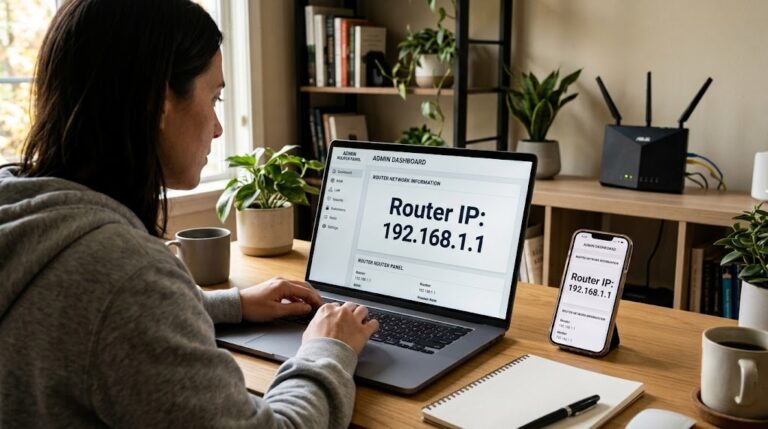
Router firmware updates resolve known throughput bugs and security vulnerabilities that degrade connection performance over time. Check your router’s admin panel monthly at 192.168.1.1 for available firmware updates alongside regular network driver checks.
Avoid Peak-Hour Network Congestion
Schedule large downloads — game updates, system backups, large file transfers — during off-peak hours. Late night and early morning downloads consistently produce 20–40% faster speeds on most ISP networks due to significantly reduced network-wide traffic.
Use an SSD Instead of HDD for Downloads
Store all active downloads on an SSD rather than an HDD. As covered earlier, HDDs cap write speeds at 80–120 MB/s — making the storage drive the bottleneck on any connection faster than 640–960 Mbps. An SSD eliminates this limitation entirely.
Restart Your Router Weekly
A weekly router restart clears accumulated memory errors, refreshes DHCP leases, and resets connection tables that degrade routing performance over time. Most modern routers support scheduled restarts through their admin panel — set it for a low-usage hour and never think about it again.
Maintenance principle: The four leading causes of download speed degradation over time — outdated hardware, firmware bugs, storage bottlenecks, and router memory errors — are all preventable through routine checks that take under 30 minutes per month combined.
Frequently Asked Questions: How to Boost Download Speed on PC
Q1. How can I increase my download speed on PC?
The fastest ways to boost download speed on PC are switching from Wi-Fi to a wired Ethernet connection, closing background applications consuming bandwidth through Task Manager, and disabling Windows metered connection in network settings. Changing your DNS server to Cloudflare (1.1.1.1) or Google (8.8.8.8) produces additional improvement — particularly for game launcher and CDN-based downloads. These four changes combined resolve the majority of slow download complaints on PCs with fast internet plans.
Q2. Why is my internet fast but my downloads are still slow?
A fast speed test result with slow actual downloads almost always points to one of three causes — a congested download server, ISP throttling of specific traffic types, or a Windows setting artificially limiting bandwidth. Run the speed test comparison and VPN throttling test from the diagnosis section to identify which applies to your situation. Switching your Steam download region or disabling Windows Delivery Optimization peer-to-peer uploads resolves this for most users.
Q3. Does switching to Ethernet really improve download speed?
Yes — switching from Wi-Fi to Ethernet is the single most impactful change most PC users can make to boost download speed. A wired connection eliminates signal interference, distance degradation, and wireless congestion — delivering consistent speeds close to your plan’s maximum that Wi-Fi simply cannot match at range. Most users see an immediate 2x–5x speed improvement switching from a mid-range Wi-Fi connection to a Cat6 Ethernet cable.
Q4. Can changing DNS server increase download speed on PC?
Yes — switching from your ISP’s default DNS to Cloudflare (1.1.1.1) or Google (8.8.8.8) can significantly increase download speeds for CDN-based content like game downloads, software updates, and large file transfers. Better DNS servers send accurate location signals to content delivery networks, routing your downloads to the nearest available server instead of a distant overloaded one. The change takes under three minutes and applies globally across all applications once set at the Windows adapter level.
Q5. Why are my Steam downloads slower than my Speedtest results?
Steam downloads slower than your speed test because Speedtest measures raw connection speed while Steam downloads depend on regional server capacity — and those servers have independent load limits unrelated to your connection quality. Switching your Steam download region to a less congested location — particularly servers in different time zones during off-peak hours — often doubles or triples Steam download speed without changing any PC or network settings. Clearing Steam’s download cache and confirming no bandwidth limit is set in Steam’s download settings resolves most remaining cases.