

To optimize your PC for gaming, update your GPU and chipset drivers, enable Windows Game Mode and hardware-accelerated GPU scheduling, switch to the High Performance power plan, enable XMP or EXPO for your RAM, and disable startup programs you don’t need. Then fine-tune your GPU control panel settings and in-game graphics options to match your hardware. Most gamers see a 15-30% FPS improvement from software tweaks alone, before spending a cent on new parts.
What Does It Mean to Optimize a PC for Gaming
When people search for how to optimize PC for gaming, they usually mean one thing: getting smoother frame rates, less stutter, and faster load times without buying new hardware. PC gaming optimization covers three layers working together — your Windows settings, your graphics driver configuration, and your in-game options. Each layer affects the others, so a fully optimized gaming PC needs attention at every level, not just one setting flipped on.
A well-optimized system delivers stable frame rates, reduced input lag, better visual clarity at the same settings, and cooler running temperatures. None of this requires a new graphics card. In most cases, a mid-range PC that feels sluggish is simply running with default Windows settings that were never built with gaming in mind.
Most searches for this topic come from gamers who want to optimize their PC for gaming without buying new hardware, and that’s exactly what this guide covers from start to finish.
Why Gaming PCs Slow Down Over Time
Windows is designed to handle office work, streaming, and background updates just as much as gaming. That means your operating system is constantly running services you don’t need while you play: telemetry collection, cloud sync, notification centers, and startup programs that launch automatically every time you boot.
On top of that, outdated GPU drivers miss out on game-specific performance patches that hardware makers release regularly. A build-up of temporary files, a nearly full storage drive, and dust-clogged cooling fans compound the problem over months of regular use. None of these issues show up as an obvious error message — they just quietly eat into your frame rate until gameplay feels noticeably worse than it did on day one.
Before You Start: Find Your Bottleneck
Before applying every tweak on this list, spend two minutes diagnosing what’s actually holding your system back. Open Task Manager (Ctrl + Shift + Esc), start your game, and check the Performance tab while you play.
- GPU usage sits at 95-100% and CPU usage is much lower: You’re graphics-bound. Focus on GPU driver updates, GPU control panel tweaks, and lowering demanding visual settings like shadows, reflections, and ray tracing.
- CPU usage is pegged near 100% while GPU usage stays low: You’re processor-bound. Prioritize background process cleanup, BIOS updates, and confirming your RAM is running at its rated speed.
- RAM usage is close to its limit: Background apps, browser tabs, and streaming software are competing with your game for memory. Sixteen gigabytes is tight for modern titles if you multitask; thirty-two gigabytes removes that pressure.
- Disk usage stays near 100% during loading screens: Your storage drive is the limiting factor. Moving your most-played titles to an SSD fixes this immediately.
Knowing which resource is maxed out tells you exactly where to spend your time in the steps below, instead of guessing.
Step-by-Step: How to Optimize PC for Gaming
Follow these steps in order for the best results — each one builds on the last, and together they form the complete process to optimize PC for gaming performance.
1. Update Your GPU and Chipset Drivers
This is the single most effective way to optimize your gaming PC, and it’s also the most overlooked. Graphics card manufacturers release “game-ready” drivers tied to major releases that include measurable FPS gains, bug fixes, and new upscaling support.
- NVIDIA: Install GeForce Experience or the standalone NVIDIA App, open the Drivers tab, and select a clean installation to remove old driver residue.
- AMD: Install AMD Software: Adrenalin Edition and check for updates under the Home tab.
- Intel Arc: Use Intel Arc Control or the Intel Driver & Support Assistant.
Don’t stop at the GPU. Chipset drivers manage data flow between your CPU, RAM, and USB ports, and outdated versions can cause stutter that looks like a graphics problem but isn’t. Download the latest chipset driver from Intel’s or AMD’s site based on your specific motherboard chipset.
2. Enable Windows Game Mode
Game Mode, built into Windows 10 and 11, prioritizes your game’s access to CPU and GPU resources and prevents Windows Update from restarting your PC mid-session.
To enable it: Settings → Gaming → Game Mode → toggle On.
On its own, Game Mode produces a modest improvement, but combined with the other steps here it noticeably reduces background interference during gameplay.
3. Turn On Hardware-Accelerated GPU Scheduling (HAGS)
HAGS lets your graphics card manage its own memory queue instead of relying on Windows, which reduces latency and smooths out frame delivery in supported titles.
To enable it: Settings → System → Display → Graphics → Default Graphics Settings → toggle on Hardware-Accelerated GPU Scheduling, then restart.
4. Switch to the High Performance Power Plan
Windows sometimes throttles performance to conserve energy, even on desktop PCs that are always plugged in.
To change it: Control Panel → Power Options → select High Performance or Ultimate Performance. From there, click Change Plan Settings → Change Advanced Power Settings, and set PCI Express power management and processor power management to maximum performance.
Laptop gamers should always play while plugged in and use the performance slider rather than the balanced setting.
5. Optimize Your GPU Control Panel Settings
Your graphics driver’s control panel holds settings that directly affect frame rates.
NVIDIA Control Panel: Right-click the desktop → NVIDIA Control Panel → Manage 3D Settings. Set Power Management Mode to Prefer Maximum Performance, Low Latency Mode to Ultra, and Vertical Sync to Off unless you notice screen tearing.
AMD Radeon Software: Go to Gaming → Global Graphics. Turn on Radeon Anti-Lag, set Wait for Vertical Refresh to Off, and switch Power Efficiency to Off for maximum performance.
6. Disable Startup Programs and Background Apps
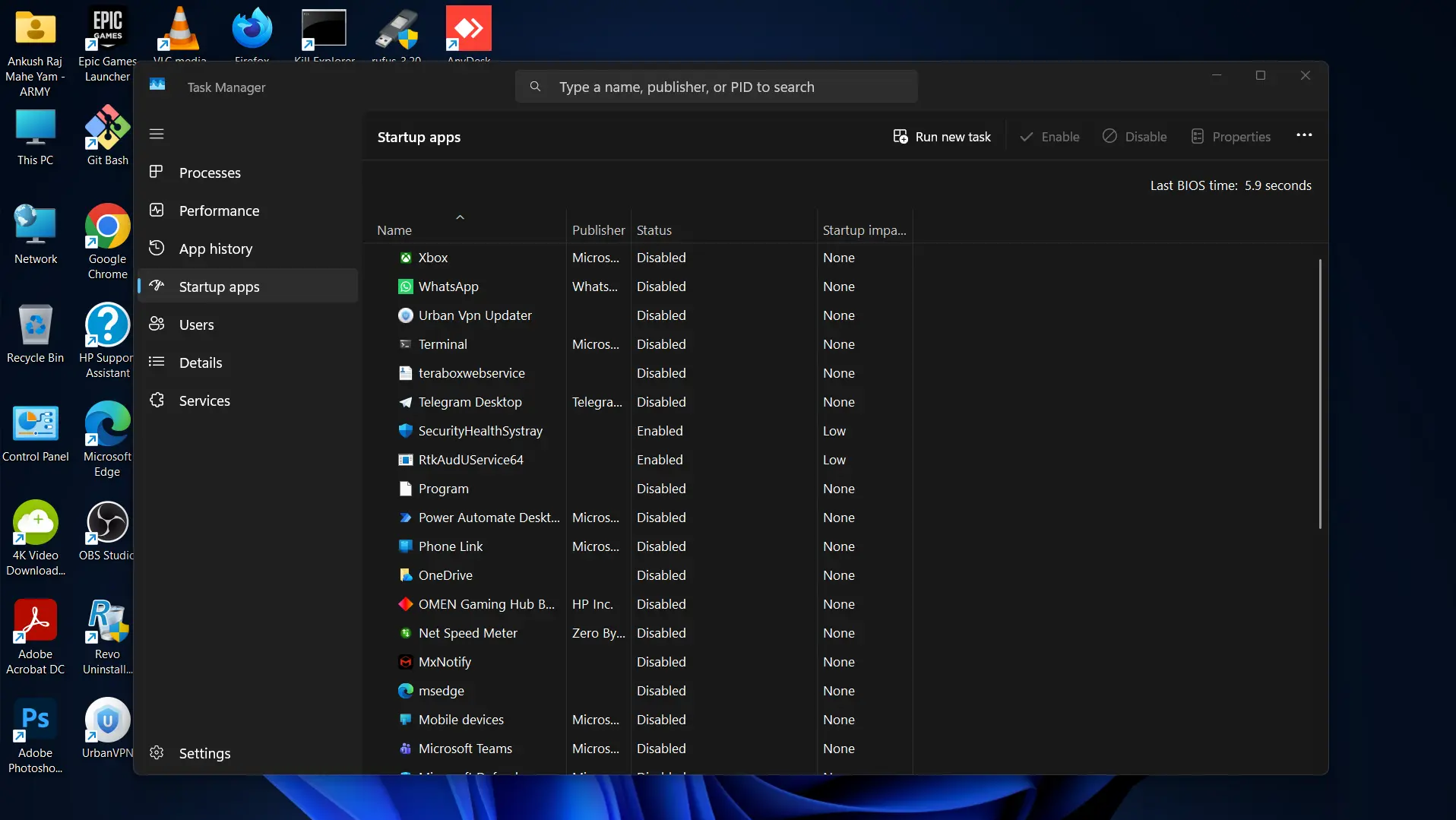
Every extra program launching at boot competes for CPU cycles and RAM your game could be using instead.
To disable startup items: Task Manager → Startup Apps tab → disable anything you don’t need running the moment you log in, such as chat clients, cloud storage sync tools, or launcher auto-starts.
To limit background apps: Settings → Privacy & Security → Background Apps → turn off anything you’re not actively using.
7. Enable XMP or EXPO for Your RAM
Most memory kits ship running below their advertised speed until you manually enable a performance profile in the BIOS. Intel systems use XMP (Extreme Memory Profile); AMD systems use EXPO.
To enable it: Restart your PC, enter the BIOS (usually by pressing Delete or F2 during boot), find the XMP or EXPO setting, and enable it. This single change can noticeably improve frame consistency in CPU-heavy titles, since it lets your RAM run at the speed you actually paid for.
8. Manage Storage for Faster Load Times
Storage speed affects loading screens and texture streaming, not average frame rate, but a full or fragmented drive can cause stutter.
- Install Windows and your most-played games on an SSD, ideally NVMe.
- Keep at least 15-20% of your primary drive free.
- Use Windows Storage Sense to automatically clear temporary files.
- Confirm TRIM is enabled on SSDs for consistent long-term performance.
- Move rarely played titles to a secondary hard drive or external SSD.
9. Optimize Your Network Connection
High frame rates mean little if your connection introduces lag in online games.
- Use a wired Ethernet connection instead of Wi-Fi whenever possible.
- Update your network adapter drivers.
- Disable Windows Update Delivery Optimization, which shares bandwidth with other devices in the background.
- Set Quality of Service (QoS) rules in your router if it supports gaming traffic prioritization.
- Close bandwidth-heavy apps like cloud backups or streaming services before playing.
10. Configure Your Monitor Correctly
Windows frequently defaults new monitors to 60Hz even when the display supports much higher refresh rates.
To fix it: Settings → System → Display → Advanced Display → select the highest available refresh rate. Then enable FreeSync or G-Sync through your monitor’s on-screen menu if supported, which prevents screen tearing without the input lag penalty of traditional V-Sync.
11. Remove Bloatware
Pre-installed trial software, manufacturer utilities you don’t use, and unused Windows apps all consume resources in the background.
To review installed apps: Settings → Apps → Installed Apps → sort by install date and remove anything you don’t recognize or need, particularly trial antivirus software if you’re relying on Windows Defender.
12. Use an Upscaler for a Free FPS Boost
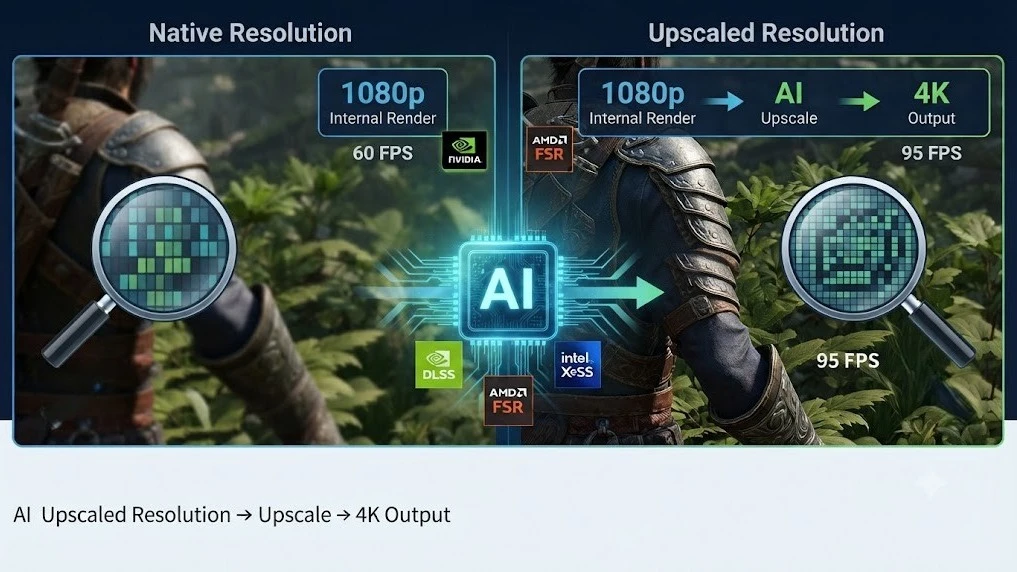
DLSS (NVIDIA), FSR (AMD, works on any GPU), and XeSS (Intel) render games at a lower internal resolution and use AI or algorithmic upscaling to output at your display’s native resolution. In supported titles, enabling one of these delivers a significant frame rate increase with minimal visible quality loss, making it one of the easiest wins available when you optimize your PC for gaming.
13. Fine-Tune In-Game Graphics Settings
Even after every Windows-level tweak, in-game settings still have the largest single impact on frame rate.
Biggest impact on performance, smallest visual cost when lowered:
- Shadow quality
- Ambient occlusion
- Motion blur (turn off entirely)
- Reflections and ray tracing
- Draw distance in open-world titles
Recommended baseline: Set resolution to your monitor’s native resolution, texture quality to High if you have 8GB+ VRAM, shadows to Medium or Low, and anti-aliasing to TAA or your GPU’s upscaler for the best balance of clarity and performance.
Advanced Optimization Techniques
Enable Resizable BAR / Smart Access Memory
If your motherboard and GPU both support it, Resizable BAR (called Smart Access Memory on AMD systems) lets your CPU access the entire GPU memory pool at once instead of in small blocks. Enable it in your BIOS settings menu; it provides a modest but measurable uplift in supported games.
Manage Heat and Airflow
Thermal throttling silently caps your CPU and GPU clock speeds long before temperatures reach dangerous levels. Clean dust from intake fans and heatsinks every few months with compressed air, confirm your case has at least one intake and one exhaust fan, and route cables so they don’t block airflow. If your system is several years old, reapplying thermal paste to the CPU can restore lost cooling performance.
Check Your Power Supply
An aging or undersized power supply unit (PSU) can cause random slowdowns, crashes, or components running below their rated performance. A mid-range graphics card paired with a modern CPU typically needs a reliable 600-750W unit. Use manufacturer-specified PCIe power cables rather than adapters, and reseat your GPU and RAM after any hardware move to rule out a loose connection.
Approach Overclocking with Caution
Overclocking your CPU or GPU beyond its factory clock speed can add extra performance, but it increases heat output and carries a small risk of instability or component wear if done without adequate cooling. Most gamers get better return on their time from the software optimizations above before touching overclocking tools, and any overclock should be followed by a stability test.
Decision Tree: Which Fix Should You Try First
Start here — is your PC brand new or freshly reinstalled?
- Yes → Update GPU and chipset drivers first, enable XMP/EXPO in BIOS, then move through Steps 2-11 in order.
- No, it’s an existing setup that feels slower than it used to → Go to Task Manager and check GPU vs CPU usage while gaming.
Is GPU usage near 100% with CPU usage lower?
- Yes → You’re graphics-bound. Focus on driver updates, GPU control panel settings, upscalers, and lowering shadow/reflection/ray tracing settings.
- No → Continue to the next branch.
Is CPU usage near 100% with GPU usage lower?
- Yes → You’re processor-bound. Prioritize background app cleanup, startup program removal, XMP/EXPO, and BIOS updates.
- No → Continue to the next branch.
Is RAM usage consistently above 85% while gaming?
- Yes → Close background browser tabs and streaming software, or consider a RAM upgrade if you regularly multitask while playing.
- No → Continue to the next branch.
Are load times slow but frame rates fine once loaded?
- Yes → Your storage drive is the bottleneck. Move your game library to an SSD.
- No → Move on to thermal checks, PSU verification, and network optimization, since the bottleneck is likely intermittent rather than constant.
Use this checklist as your final pass to confirm you’ve covered every step to optimize your PC for gaming before you sit down to play.
Troubleshooting Checklist
GPU driver updated with a clean installation
Chipset driver updated
Windows Game Mode enabled
Hardware-Accelerated GPU Scheduling enabled
Power plan set to High Performance or Ultimate Performance
XMP or EXPO enabled in BIOS
Startup programs trimmed to essentials only
Background apps disabled for unused programs
At least 15-20% free space on your primary drive
Monitor refresh rate set to maximum, FreeSync/G-Sync enabled
Bloatware and trial software removed
In-game settings matched to your hardware
Wired connection used for online games where possible
Dust cleaned from fans and heatsinks
Common Mistakes to Avoid
- Skipping the driver clean install option. Leftover files from an old driver version can cause conflicts that a standard update doesn’t fix.
- Enabling every visual effect and expecting high FPS. Ray tracing, high shadow quality, and 4K resolution together will bottleneck almost any GPU.
- Overclocking before optimizing software. Free performance gains from settings changes are safer and often larger than a manual overclock.
- Ignoring chipset and motherboard drivers. Gamers often update only the GPU driver and miss the chipset driver entirely, leaving stutter unresolved.
- Forgetting to check for a CPU or storage bottleneck. A new graphics card won’t help much if your CPU or hard drive is the actual limiting factor.
- Using registry cleaners aggressively. These tools carry a real risk of breaking system stability and rarely deliver meaningful gaming performance gains.
Myths vs Facts
| Myth | Fact |
|---|---|
| More RAM always means better FPS | Beyond your game’s recommended amount, extra RAM mainly helps multitasking and background load times, not raw frame rate |
| Closing your antivirus permanently improves performance | Modern antivirus software like Windows Defender has minimal performance impact during gameplay; disabling it long-term is a security risk with little upside |
| A higher-wattage PSU automatically boosts gaming performance | PSU wattage only matters if your current unit is undersized or failing; a higher-wattage unit alone won’t increase FPS |
| DLSS/FSR always reduces visual quality noticeably | At Quality or Balanced modes, most players cannot reliably distinguish upscaled frames from native resolution in motion |
| You must overclock to see real performance gains | Software-level optimization typically delivers larger, safer gains than overclocking for most gaming PCs |
Expert Tips
In my experience helping users optimize software configurations, the fixes people skip most often are the free ones: updating chipset drivers, enabling XMP/EXPO, and checking Task Manager before making any changes. Based on official manufacturer documentation from NVIDIA, AMD, and Microsoft, the order matters — driver updates and power settings should always come before in-game tweaks, since they affect every game you play rather than just one title. When testing configuration changes, adjust one setting at a time so you can tell which change actually made a difference.
FAQ
Will optimizing my PC for gaming damage anything? No. Every method covered here — driver updates, Windows settings, BIOS toggles like XMP/EXPO, and in-game settings — is safe and fully reversible. Overclocking carries some risk, which is why it’s listed as an advanced, optional step.
How much FPS can I expect to gain? It varies by system and game, but typical software-only improvements range from 10-25% on mid-range PCs and up to 30-40% on older or poorly configured systems. High-end PCs that are already well-configured will see smaller gains.
Do I need third-party software to optimize my gaming PC? No. Nearly every effective fix uses tools already built into Windows or your GPU manufacturer’s official software (GeForce Experience, AMD Adrenalin, Intel Arc Control). Avoid unofficial “PC booster” tools, which often provide little benefit and sometimes install unwanted software.
How often should I update my GPU drivers? Check monthly, or whenever a major game you play releases a “game-ready” driver update. Chipset and motherboard drivers can be updated less frequently, typically quarterly, unless you’re experiencing specific issues.
Should I disable Windows Defender while gaming? It’s not necessary. Windows Defender has a low performance footprint during gameplay in most cases. Disabling real-time protection temporarily during a benchmark test is fine, but leaving it off permanently isn’t recommended.
Is it worth optimizing an old PC, or should I just upgrade? Optimization is worth doing first regardless of your PC’s age, since it’s free and often recovers a meaningful chunk of lost performance. If you’re still bottlenecked after working through this guide and Task Manager shows one component consistently maxed out, that’s your signal for where an upgrade would actually help.
Key Takeaways
- Diagnose your bottleneck with Task Manager before changing settings, so your effort goes where it matters most.
- Driver updates for both GPU and chipset deliver the biggest and most reliable performance gains, and they’re free.
- Windows-level settings — Game Mode, HAGS, High Performance power plan, XMP/EXPO — compound with each other for a noticeably smoother experience.
- In-game settings still have the single largest impact on frame rate; adjust shadows, reflections, and ray tracing before anything else.
- Advanced techniques like Resizable BAR, thermal maintenance, and PSU checks matter most once the basics are already handled.
- Overclocking is optional and should come last, after every free optimization has been applied.
Conclusion
Learning how to optimize your PC for gaming doesn’t require new hardware or advanced technical skill — it requires working through the right settings in the right order. Start with driver updates and Windows-level changes, confirm your bottleneck with Task Manager, then fine-tune your in-game settings to match what your hardware can actually deliver. Most gamers who follow every step in this guide see a real, measurable improvement in frame rates and smoothness within the same afternoon, with zero dollars spent on new parts.