

To increase Wi-Fi speed in mobile, move closer to your router, switch your phone to the 5GHz band, forget and reconnect to your network, and restart your router. These four steps solve most slow Wi-Fi problems on Android and iPhone within five minutes. If speeds stay low, the deeper fixes below cover router placement, channel congestion, app-level settings, and equipment upgrades.
Introduction
A slow Wi-Fi connection on your phone usually has nothing to do with your internet plan. It is almost always a phone setting, a router placement issue, or a network getting crowded with too many connected devices. The good news is that you can fix most of these issues yourself, without calling your internet provider or buying new equipment.
This guide walks through every practical way to increase Wi-Fi speed in mobile, starting with the fastest fixes you can apply right now and moving into deeper troubleshooting for stubborn cases. Each fix is based on how Wi-Fi actually behaves on Android and iOS devices, not generic advice copied across the internet.
By the end of this guide, you will know exactly what to check, what to change, and what to do if your speed still will not improve.
What Causes Slow Wi-Fi on Mobile
Mobile Wi-Fi speed depends on three things working together: your phone’s radio, your router’s signal, and the number of devices sharing that signal at the same time. When any one of these is weak, your phone’s Wi-Fi speed drops, even if your internet plan is fast.
Your phone connects to your router using a radio frequency band, either 2.4GHz or 5GHz (and 6GHz on newer routers). The 2.4GHz band travels farther through walls but moves data more slowly. The 5GHz band is much faster but loses strength quickly over distance and through obstacles. Many phones default to whichever band seems strongest at the moment, which is not always the fastest option for your situation.
Distance, physical obstructions, and interference from other electronics also play a major role. A phone sitting 30 feet from a router with two walls in between will almost always see weaker speeds than the same phone standing in the same room as the router.
Why It Happens
Mobile devices are more sensitive to Wi-Fi slowdowns than desktop computers because phones move around the house, switch between bands automatically, and often run background apps that consume bandwidth without your knowledge. A phone also has a smaller antenna than a laptop or router, which limits how strong a signal it can send and receive.
In my experience working with home and small business networks, the most common reason mobile Wi-Fi feels slow is band mismatch: the phone is locked onto 2.4GHz when 5GHz is available and would perform far better. The second most common reason is router congestion, where too many devices pull bandwidth from a single access point during peak hours.
Common Causes of Slow Mobile Wi-Fi
Several issues typically combine to create a sluggish connection on your phone. Understanding these causes makes the fixes below easier to apply correctly.
Distance and physical obstructions. Concrete walls, metal appliances, mirrors, and even fish tanks absorb or reflect Wi-Fi signals. The farther your phone sits from the router, and the more objects between them, the weaker your connection becomes.
Band congestion. The 2.4GHz band is used by cordless phones, microwaves, baby monitors, and most older smart home devices. This crowding causes interference that slows down every device using that band, including your phone.
Too many connected devices. Routers can only handle a limited number of active wireless streams at once. Smart TVs downloading updates, security cameras streaming continuously, and gaming consoles in the background all compete with your phone for bandwidth.
Outdated router firmware. Router manufacturers release firmware updates that fix bugs and improve transmission efficiency. A router running outdated firmware may perform well below its rated speed.
Background apps and cached data. Apps running in the background, especially those syncing photos or videos, consume bandwidth your phone could otherwise use. Bloated browser cache can also slow down web browsing speeds specifically.
VPNs and data-saving features. A VPN encrypts and reroutes your traffic through a remote server, which adds latency and reduces speed. Data Saver settings on Android intentionally throttle background data to save mobile data, but this can also affect Wi-Fi performance.
Outdated phone Wi-Fi drivers or settings. Phones with outdated software, or with manually saved network settings from years ago, sometimes fail to negotiate the fastest possible connection with modern routers.
Quick Phone-Side Fixes
These fixes take less than ten minutes combined and solve the majority of slow mobile Wi-Fi cases. Try them in order before moving to router-side changes.
Switch to the 5GHz Band
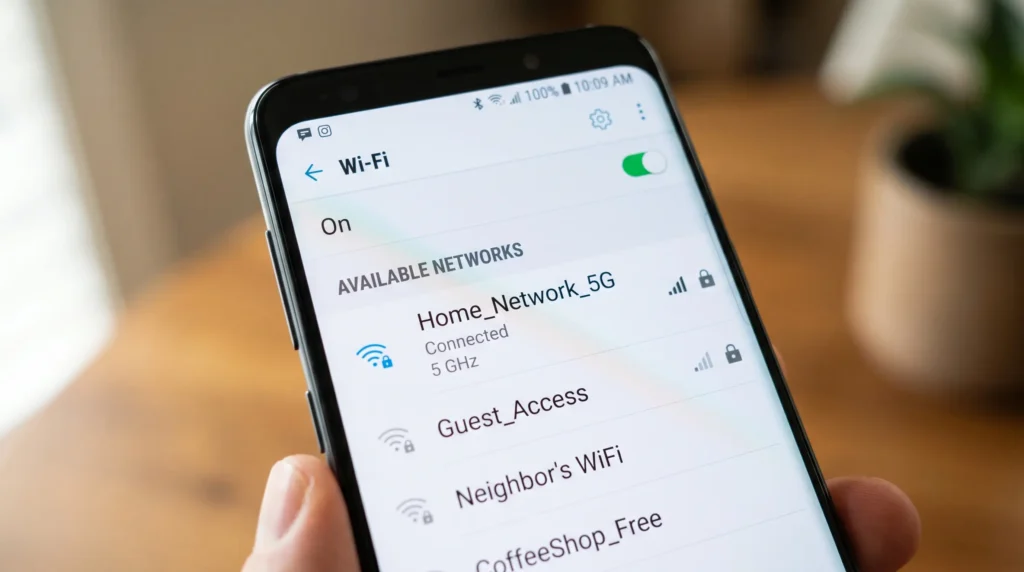
If your router broadcasts both 2.4GHz and 5GHz, switching your phone to 5GHz usually delivers the fastest immediate improvement, especially at short to medium range.
- Open Settings and tap Wi-Fi.
- Look for two versions of your network name. Many routers label the faster band with “5G” or “5GHz” added to the name.
- Tap the 5GHz version and enter your password if prompted.
- Run a speed test to confirm the improvement.
If your router uses a single combined network name with band steering enabled, you may need to log into the router’s admin panel to split the bands or manually prioritize 5GHz for your device.
Forget and Reconnect to Your Network
This clears any corrupted connection data your phone may have stored, including outdated IP address assignments or stale security handshakes.
- Go to Settings > Wi-Fi.
- Tap the (i) icon (iPhone) or the gear icon (Android) next to your network.
- Select Forget This Network.
- Reconnect by selecting the network again and typing the password.
Set Your Network to Unmetered (Android)
Android sometimes throttles background data on networks it considers “metered” to save data, even on Wi-Fi. Marking your home network as unmetered removes this restriction.
- Go to Settings > Network & Internet > Wi-Fi.
- Tap the gear icon next to your connected network.
- Select Network Usage or Data Usage.
- Choose Treat as Unmetered.
Clear App and Browser Cache
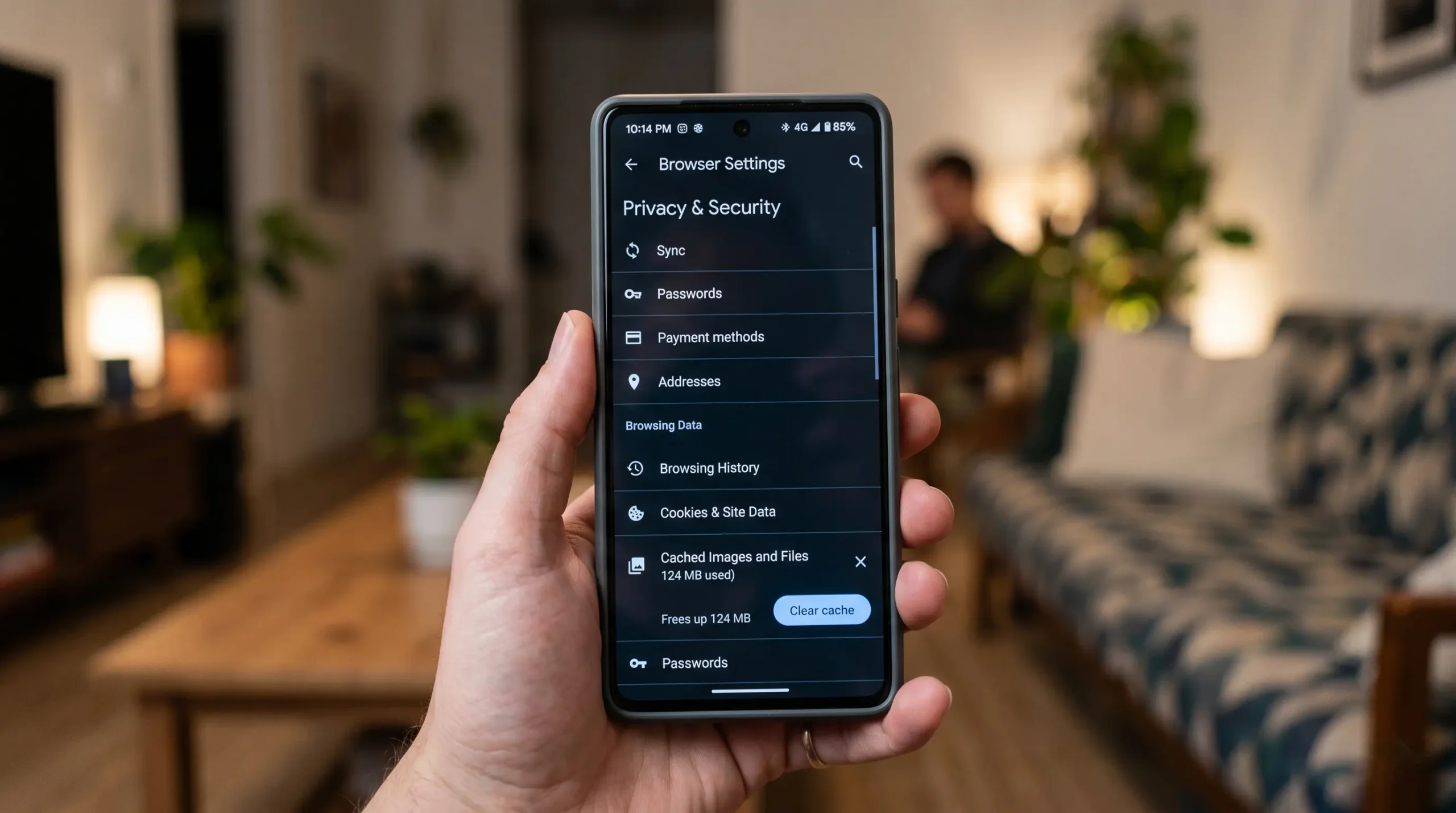
A bloated cache can slow down browsing and app loading speeds, which feels like a Wi-Fi problem even though the connection itself is fine.
- Open Settings > Apps.
- Select the app you want to clear, such as Chrome or Safari.
- Tap Storage, then Clear Cache.
- Repeat for any apps that feel sluggish, particularly browsers and social media apps.
Turn Off VPN and Data Saver
VPNs route your traffic through an external server, which adds distance and processing time to every request. Data Saver features intentionally limit background bandwidth.
- Disable any active VPN connection through your phone’s VPN settings or the VPN app itself.
- On Android, go to Settings > Network & Internet > Data Saver and turn it off, or add your most-used apps to the unrestricted list.
- Run a speed test again to compare results.
Restart Your Phone’s Wi-Fi
A simple toggle often resolves temporary glitches in your phone’s wireless radio.
- Swipe down to access Quick Settings, or go to Settings > Wi-Fi.
- Turn Wi-Fi off.
- Wait 15 to 30 seconds.
- Turn Wi-Fi back on and reconnect.
Router and Network-Side Fixes
If phone-side fixes do not bring enough improvement, the bottleneck is likely on the router or network side. These fixes take slightly more time but address the root cause for many households.
Restart Your Router and Modem
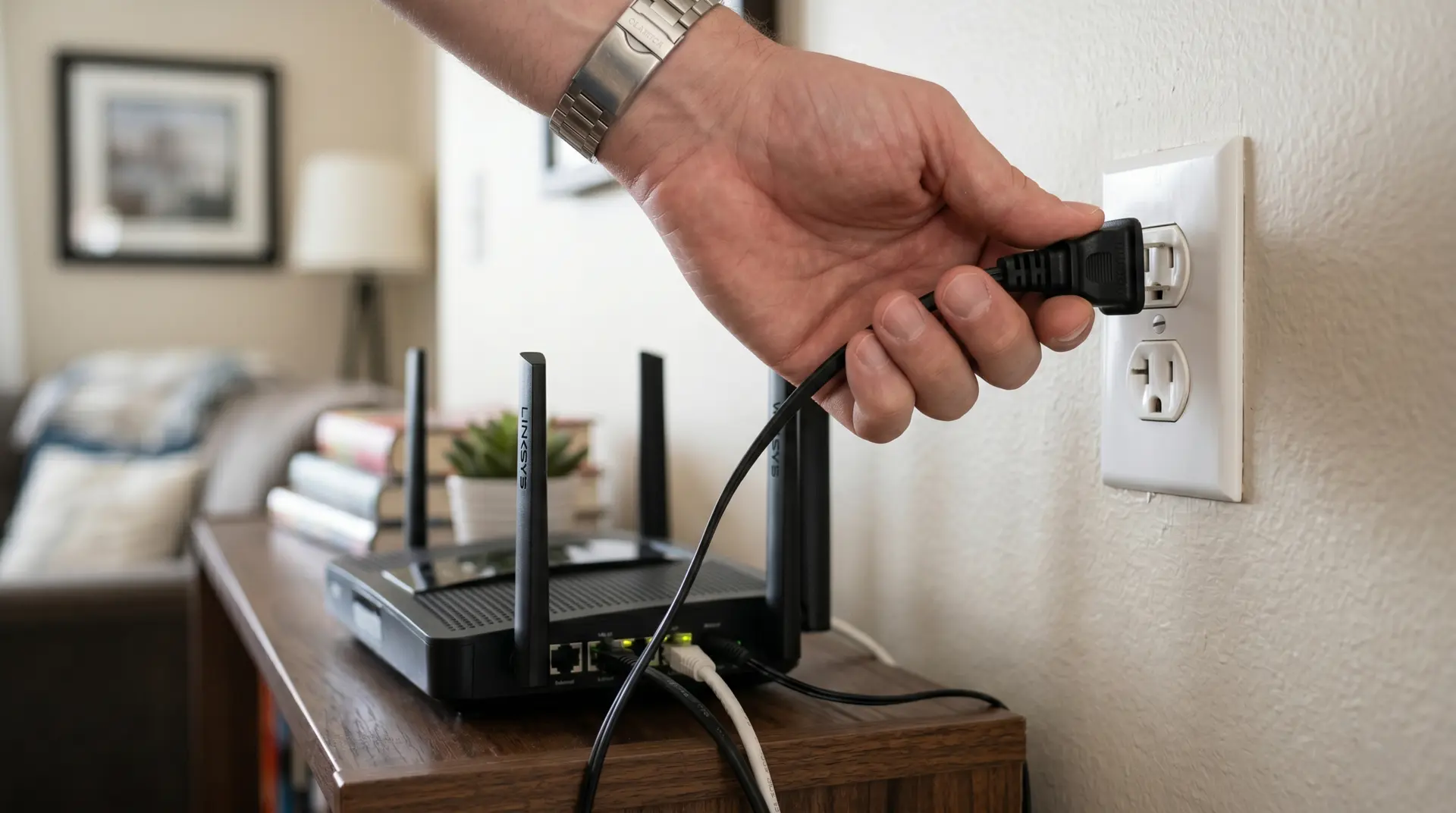
Power cycling clears your router’s memory and resolves many temporary performance issues, similar to restarting a computer that has been running for weeks.
- Unplug the router and modem from the power outlet (or unplug the gateway if you have a combined unit).
- Wait 30 to 60 seconds.
- Plug the modem back in first and wait for it to fully reconnect.
- Plug the router back in and wait two to three minutes for all lights to stabilize.
Reposition Your Router
Router placement has a major effect on phone Wi-Fi speed because phones have weaker antennas than laptops or desktops.
Place the router in a central, raised location, away from solid walls, metal furniture, microwaves, and large appliances. Avoid placing it inside a cabinet or behind a television, since enclosed spaces trap and weaken the signal. If your home has multiple floors, a router placed on a middle floor typically reaches more rooms evenly than one placed in a basement.
Reduce the Number of Connected Devices
Every wireless device connected to your network draws from a shared pool of bandwidth and available connection streams.
- Open your router’s companion app or web admin panel.
- Review the list of connected devices.
- Disconnect or pause devices that are not in active use, such as an idle smart TV, an extra phone, or a guest’s laptop left connected from a previous visit.
- If a device is downloading a large update or streaming in the background, pause it until you finish your task on mobile.
Update Router Firmware
Outdated firmware can leave performance improvements and security patches unapplied, directly affecting the speeds your phone experiences.
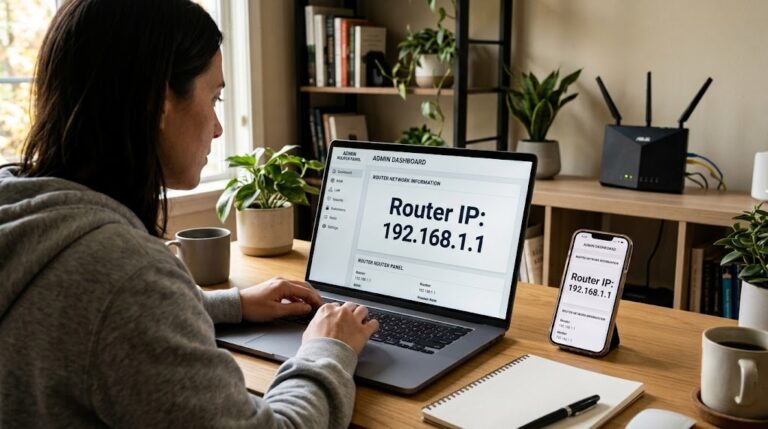
- Open your router’s mobile app or log into its web interface using the address printed on the device, often something like 192.168.1.1.
- Look for a Firmware Update or System Update section.
- Install any available update and allow the router to restart.
- Confirm automatic updates are enabled if your router supports the feature.
Change or Avoid Congested Wi-Fi Channels
On the 2.4GHz band, channels 1, 6, and 11 are the least likely to overlap with neighboring networks. On 5GHz, channels in the upper range (149 and above) avoid overlap with radar-restricted channels used near airports.
- Log into your router’s admin panel.
- Go to Wireless Settings or Wi-Fi Settings.
- Locate the Channel option, which is often set to “Auto” by default.
- If you suspect interference, manually select a less congested channel and test the change.
Most modern routers handle channel selection automatically and reasonably well, so this step matters most in apartment buildings or dense neighborhoods with many overlapping networks.
Set Device Priority
Many routers, including mesh systems from Google, Eero, and TP-Link, allow you to prioritize a specific device for a set period of time, giving it preferential access to bandwidth.
- Open your router or mesh app.
- Locate Device Priority or QoS (Quality of Service) settings.
- Select your phone as the priority device.
- Set a duration if prompted, such as one or two hours.
Advanced Fixes for Persistent Problems
If you have tried the steps above and your phone’s Wi-Fi speed is still disappointing, these deeper fixes address hardware limitations and structural issues with your network setup.
Check Your Internet Plan Speed First
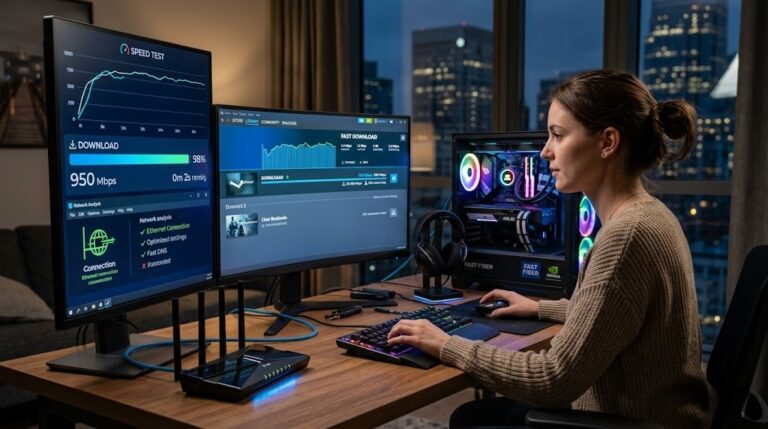
Before assuming Wi-Fi is the problem, confirm what speed you are actually paying for. Log into your provider’s app or account portal to check your plan’s advertised speed in Mbps. Run a speed test on a device connected directly to the router with an Ethernet cable if possible, then compare it to your phone’s wireless speed test. If the wired test is also slow, the issue is your internet plan or provider, not your Wi-Fi setup.
Extend Your Network Coverage
If your phone gets weak signal in certain rooms regardless of router placement, your home may simply be too large or oddly shaped for a single router to cover well.
A Wi-Fi extender rebroadcasts your existing signal into a dead zone, though it typically reduces maximum speed by close to half in the extended area. A mesh Wi-Fi system uses multiple coordinated units to blanket a larger area with full-strength signal and is generally a better long-term solution for homes larger than 1,500 square feet. A powerline adapter sends network data through your home’s electrical wiring instead of over the air, which works well in homes with thick walls that block wireless signals.
Replace Outdated Equipment
Routers older than five years often lack support for modern Wi-Fi standards like Wi-Fi 6, which significantly improves performance when multiple devices connect at once. If your router predates 2020, upgrading to a current model can produce a noticeable speed improvement on its own, even without changing anything else about your network.
Your phone’s own hardware also matters. Older phone models support older Wi-Fi standards and will not reach the same speeds as newer phones, even when connected to the same modern router.
Disable Band Steering for Manual Control
Many routers combine 2.4GHz and 5GHz into a single network name and automatically decide which band each device uses. This is convenient but can sometimes assign your phone to the slower band unnecessarily.
- Log into your router’s admin panel.
- Find Band Steering or Smart Connect settings.
- Disable the feature to create two separate network names, one for each band.
- Manually connect your phone to the 5GHz network for better speed at close range.
Troubleshooting Checklist
Work through this checklist in order. Most users see meaningful improvement before reaching the bottom.
| Step | Action | Time Needed |
|---|---|---|
| 1 | Move closer to the router and remove nearby obstructions | 1 minute |
| 2 | Switch your phone to the 5GHz network | 1 minute |
| 3 | Forget and reconnect to your Wi-Fi network | 2 minutes |
| 4 | Set the network to unmetered (Android) | 1 minute |
| 5 | Clear browser and app cache | 3 minutes |
| 6 | Turn off VPN and Data Saver | 1 minute |
| 7 | Restart your phone’s Wi-Fi | 1 minute |
| 8 | Restart your router and modem | 5 minutes |
| 9 | Reposition your router to a central, open location | 10 minutes |
| 10 | Disconnect unused devices from the network | 3 minutes |
| 11 | Update your router’s firmware | 5 minutes |
| 12 | Check for channel congestion and switch if needed | 10 minutes |
| 13 | Set your phone as a priority device | 2 minutes |
| 14 | Confirm your internet plan speed matches expectations | 5 minutes |
| 15 | Consider a mesh system or router upgrade | Varies |
Decision Tree: Which Fix Should You Try First
Use this simple decision path to skip straight to the fix most likely to help your situation.
Is your phone far from the router or separated by walls? Start with repositioning the router or your phone, then try a mesh system or extender if the distance cannot change.
Is the slowdown happening on one specific phone only, while other devices are fine? Focus on phone-side fixes: forget and reconnect, clear cache, disable VPN and Data Saver, and check for a band mismatch.
Is the slowdown happening on every device on your network? Focus on router-side fixes: restart the router, update firmware, check for channel congestion, and reduce the number of connected devices.
Did a wired speed test also come back slow? The issue is your internet plan or provider, not your Wi-Fi setup. Contact your provider or consider upgrading your plan.
Is your router more than five years old? Equipment age may be the root cause. Consider replacing it with a Wi-Fi 6 or Wi-Fi 6E router.
Common Mistakes to Avoid
Assuming the problem is always the router. Many slow Wi-Fi complaints are actually caused by a phone stuck on a saved 2.4GHz connection, background apps consuming bandwidth, or an active VPN, not the router itself.
Changing Wi-Fi channels without testing first. Manually picking a channel based on outdated advice can sometimes make congestion worse, particularly on the 5GHz band where channel bonding behaves differently than most guides describe. Always test before and after any channel change.
Placing the router in a cabinet or behind the television to keep it out of sight. Enclosed spaces and large electronics block signal significantly. A router that looks tidy but performs poorly defeats the purpose.
Ignoring firmware updates. Skipping router firmware updates leaves known performance and security issues unresolved, sometimes for years.
Forgetting to disconnect idle devices. A smart TV or old tablet sitting connected but unused still occupies a wireless stream, especially on routers with limited simultaneous device support.
Running speed tests inconsistently. Testing speed right after a download finishes, or while another device streams in the background, produces misleading results. Always test under similar, idle conditions for accurate comparisons.
Myths vs. Facts About Mobile Wi-Fi Speed
| Myth | Fact |
|---|---|
| More bars always means faster speed | Signal strength (bars) measures connection quality, not actual data speed. A strong signal on a congested channel can still be slow. |
| 5GHz is always better than 2.4GHz | 5GHz is faster at short range but loses strength quickly through walls. At longer distances, 2.4GHz can outperform a weak 5GHz signal. |
| Restarting your phone fixes everything | A phone restart helps with software glitches but does nothing for router congestion, distance issues, or outdated firmware. |
| Wi-Fi extenders double your speed | Extenders rebroadcast an existing signal and typically reduce maximum speed by close to half in the extended area, since they must receive and resend data on the same radio. |
| Changing your Wi-Fi password speeds things up | A password change only helps if unauthorized devices were secretly using your network. It has no effect on speed otherwise. |
| Newer phones always get faster Wi-Fi automatically | A new phone only reaches higher speeds if your router also supports the same or a newer Wi-Fi standard. Pairing a new phone with an old router still bottlenecks at the router’s capability. |
Expert Tips
Based on official manufacturer documentation and hands-on network testing, a few additional adjustments make a meaningful difference for mobile users specifically.
Keep your phone’s operating system updated. Both Android and iOS regularly improve Wi-Fi connection handling and radio efficiency in system updates, and an outdated OS can underperform even on excellent hardware.
When working from a fixed location, such as a desk or couch, label devices clearly in your router’s app so you can quickly identify and pause bandwidth-heavy devices during important calls or downloads.
If you rely on mobile hotspot or tethering frequently, remember that the same band and distance principles apply between your phone and the connected device, not just between your phone and the router.
For households with many smart home devices, consider keeping IoT devices like smart plugs and cameras on the 2.4GHz network while reserving 5GHz for phones, laptops, and streaming devices. This reduces congestion on the band your phone actually needs for speed.
People Also Ask
Why is my Wi-Fi slow only on my phone?
This usually indicates a device-specific issue rather than a problem with your router. Check whether your phone is connected to the slower 2.4GHz band, has a VPN enabled, or is using Data Saver mode. Forgetting and reconnecting to the Wi-Fi network can often fix slow speeds on a single device.
Does restarting my router increase Wi-Fi speed?
Yes, it often can. Restarting the router clears temporary memory, refreshes network processes, and resolves performance issues that may develop after long periods of continuous operation. Many connectivity and speed problems can be fixed with a simple reboot.
How can I improve internet speed in Android mobile specifically?
In addition to common Wi-Fi optimization techniques, Android users should check whether Data Saver is enabled, set their home Wi-Fi network as unmetered, and review background data restrictions for individual apps. You can find these settings under Settings > Apps > [App Name] > Mobile Data & Wi-Fi.
Is 5GHz always faster than 2.4GHz on mobile?
Not always. At short to medium distances with minimal obstacles, 5GHz generally delivers faster speeds and lower latency. However, over longer distances or through multiple walls, 2.4GHz often provides a more stable connection because its signal travels farther and penetrates obstacles more effectively.
FAQ
How do I increase Wi-Fi speed in mobile without buying new equipment?
Start with free fixes: move closer to the router, switch to the 5GHz band, forget and reconnect the network, clear app cache, and disable VPN or Data Saver features. Most users notice a significant improvement from these simple adjustments without spending any money.
Why does my phone show full Wi-Fi bars but still load slowly?
Signal bars indicate connection strength, not internet speed. A strong signal on a crowded channel, network congestion, or a router handling too many connected devices can still result in slow performance even when all Wi-Fi bars are full.
Should I use a VPN if I want faster mobile Wi-Fi?
If speed is your priority, consider disabling your VPN temporarily. VPNs route your traffic through an additional server, which increases latency and can reduce overall connection speed.
Can too many devices on my Wi-Fi really slow down my phone?
Yes. Every connected device shares your network’s available bandwidth. Streaming, downloads, online gaming, and even idle connected devices can reduce the speed available to your phone.
Will a Wi-Fi extender fix slow mobile speeds?
A Wi-Fi extender can improve coverage in weak-signal areas, but it often reduces maximum speeds in the extended zone. If you need both broad coverage and strong performance throughout your home, a mesh Wi-Fi system is usually a better solution.
How often should I restart my router to maintain good speed?
Restarting your router every few weeks can help maintain stable performance. Many modern routers also allow scheduled automatic restarts during low-usage hours to keep the network running efficiently.
Key Takeaways
Mobile Wi-Fi speed depends on your phone’s settings, your router’s configuration, and how many devices share your network at once. The fastest fixes, including switching bands, forgetting and reconnecting your network, and restarting your router, solve most slowdowns within minutes. Persistent problems usually trace back to router placement, outdated firmware, network congestion, or aging equipment that no longer matches your phone’s capabilities. Testing your wired speed against your Wi-Fi speed helps you quickly determine whether the issue is your network setup or your internet plan itself.
Conclusion
Slow Wi-Fi on your phone is frustrating, but it is rarely a problem you need a technician to solve. Working through the phone-side fixes first, then moving to router adjustments if needed, resolves the vast majority of mobile speed complaints. If you have tried every step in this guide and speeds remain low, the issue likely sits with your internet plan or aging hardware, both of which are worth addressing directly with your provider or through an equipment upgrade.
For related connectivity issues, see our guide on fixing Wi-Fi authentication problems, which covers a different but related class of mobile connection failures.