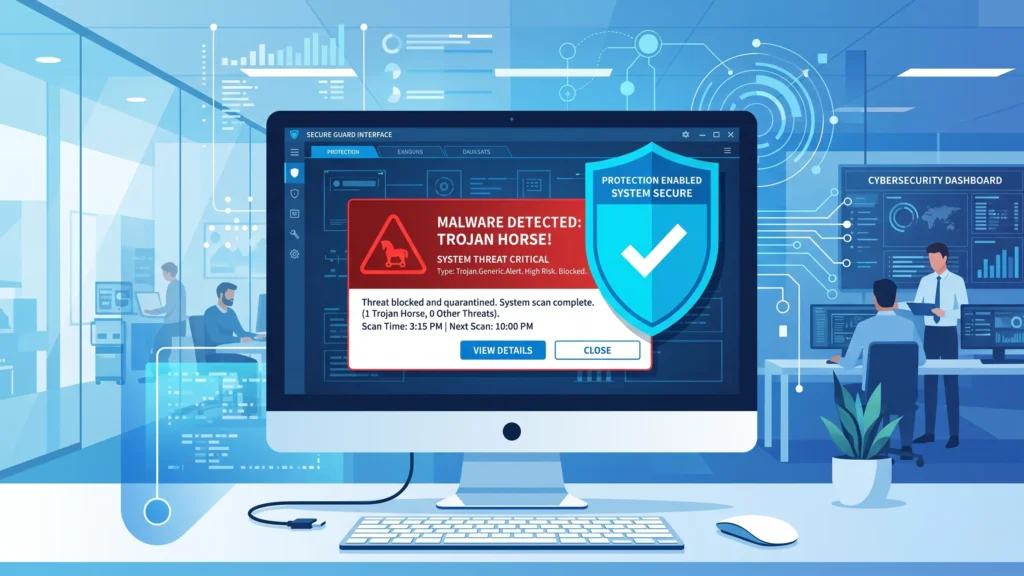


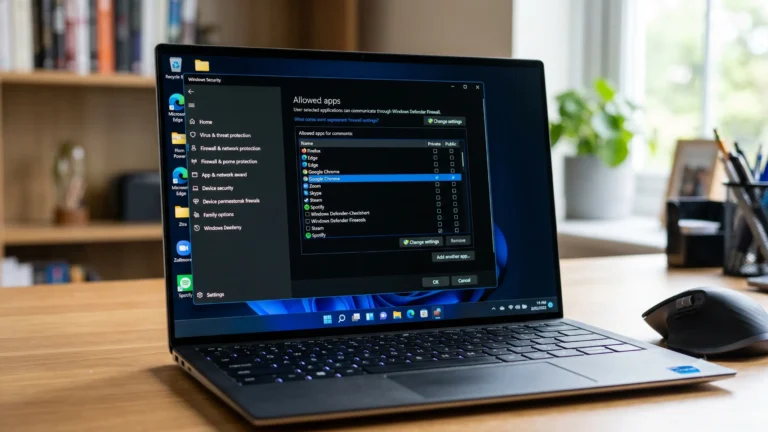

To remove a trojan virus: Disconnect from the internet immediately, restart your computer in Safe Mode, run a full antivirus scan using Microsoft Defender or Malwarebytes, quarantine all detected threats, delete suspicious startup programs, then change your passwords from a clean device. This process works on Windows 10, Windows 11, Mac, Android, and iPhone.
Trojans are also a leading cause of sensitive data theft — if your device was infected, pairing this removal process with a solid data leak prevention strategy helps you protect personal and business information from future exposure.
Introduction
Finding out your computer has a trojan virus is alarming. You may have noticed your device running slowly, strange programs opening by themselves, or received a security alert from your antivirus software.
The good news is that trojan virus removal is possible — even without advanced technical skills. With the right steps and tools, most trojans can be detected and removed from a Windows PC, Mac, Android phone, or iPhone.
This guide covers every step of the trojan virus removal process across all major platforms. It also explains what to do when standard removal fails, which free tools work best, and how to protect your device from future infections.
What Is a Trojan Virus?
A trojan virus (also called a trojan horse) is a type of malware that disguises itself as a legitimate program or file. Unlike traditional viruses, trojans do not replicate themselves. Instead, they trick users into installing them voluntarily by appearing safe — such as a free game, PDF reader, or software update.
Once installed, a trojan can:
- Steal passwords, banking credentials, and personal data
- Give remote hackers full control over your device
- Download additional malware onto your system
- Spy on your activity through your camera or microphone
- Use your device to attack other computers (botnet)
- Lock or encrypt your files (ransomware trojans)
Trojans are one of the most common types of malware. According to Microsoft’s Security Intelligence reports, they account for a significant portion of all malware detections on Windows systems each year.
Key difference: A trojan is not a virus in the traditional sense. It does not self-replicate. It relies entirely on user action to enter your system.
Warning Signs Your Device Is Infected
Recognizing trojan activity early improves your chances of a clean removal. Watch for these signs:
Performance changes:
- Device is significantly slower than usual
- CPU or RAM usage is unusually high with no obvious cause
- Programs crash frequently or take too long to open
Unexpected behavior:
- New programs or browser toolbars appear that you did not install
- Your homepage or default search engine changed without your permission
- Pop-up ads appear even when your browser is closed
- Your antivirus software has been disabled or removed
Network and account issues:
- Unusual data usage spikes
- Friends or contacts receive strange messages from your accounts
- Passwords stop working on accounts you did not change
Security alerts:
- Your antivirus detects a threat but cannot remove it
- Windows Security shows a warning you cannot dismiss
- You receive fake pop-ups claiming your computer is infected (these may themselves be trojans)
If you notice two or more of these signs, perform a trojan scan immediately.
Why Trojan Virus Removal Requires Specific Steps
Many users simply run an antivirus scan and assume the problem is solved. This approach often fails for a few reasons.
Trojans hide in multiple locations. A trojan may drop copies of itself into system restore points, startup folders, browser extensions, and scheduled tasks. Removing one file often leaves other components behind.
Trojans can disable security tools. Some advanced trojans are designed to terminate antivirus processes or block access to security websites.
Scanning while the trojan is running reduces effectiveness. A running trojan can interfere with scan results and quarantine actions. This is why booting into Safe Mode before scanning is important.
Passwords must be changed after removal. Even after you remove a trojan, any credentials captured before removal are still compromised. Changing passwords is a required final step.
Following a structured removal process — not just running one scan — ensures complete elimination.
How to Remove a Trojan Virus — Step-by-Step (Windows)
This process applies to Windows 10 and Windows 11.
Step 1: Disconnect From the Internet
Turn off your Wi-Fi or unplug your Ethernet cable immediately. This stops the trojan from sending stolen data to remote servers and prevents it from downloading additional malware.
Do not reconnect until the removal process is complete.
Step 2: Boot Into Safe Mode
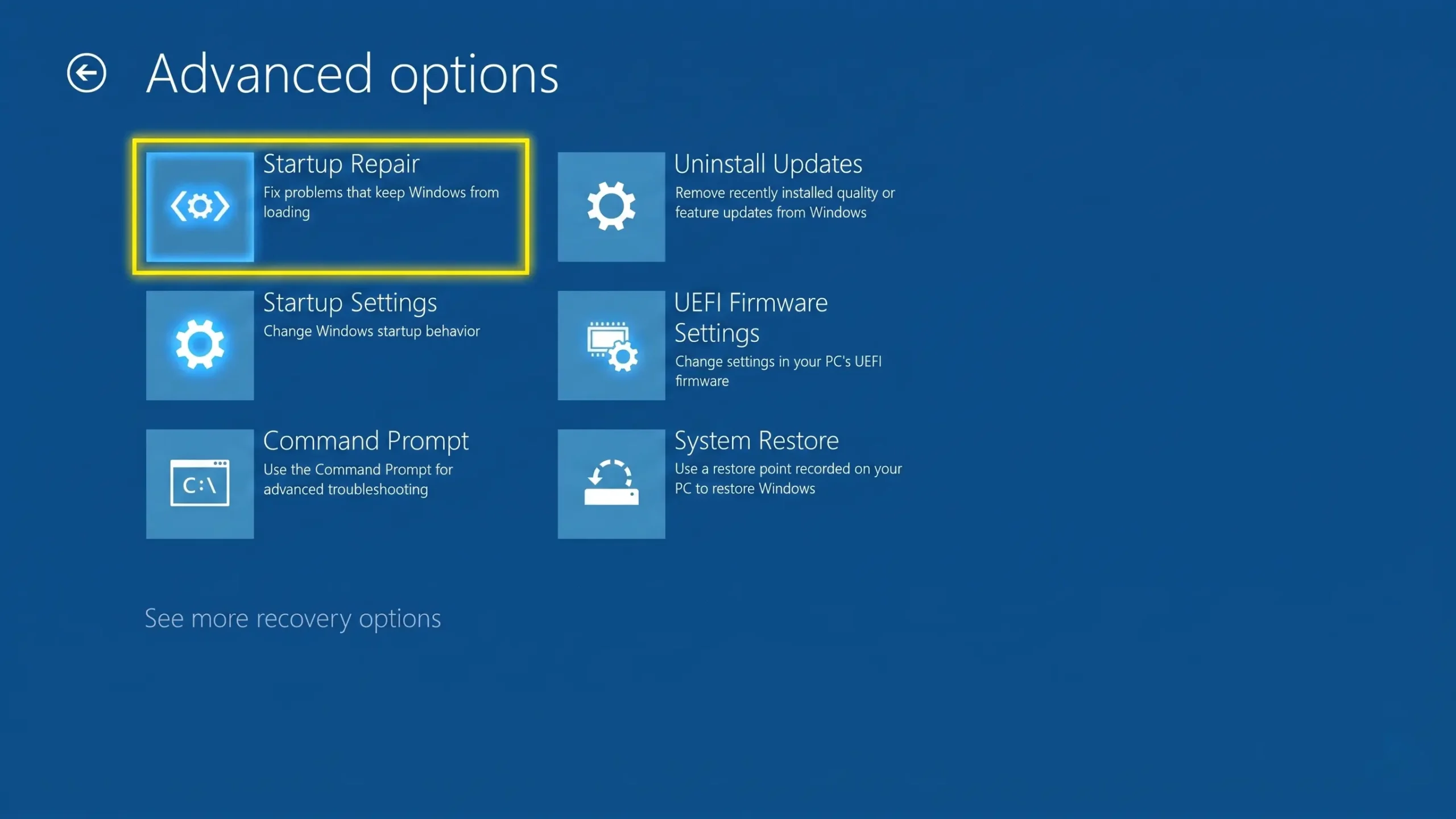
Safe Mode loads Windows with only essential system processes. This prevents most trojans from running during the scan.
On Windows 10/11:
- Hold the Shift key and click Start → Power → Restart
- After restart, go to Troubleshoot → Advanced Options → Startup Settings → Restart
- When the menu appears, press 4 or F4 to enter Safe Mode
- If you need internet access during the scan, press 5 or F5 for Safe Mode with Networking
Step 3: Delete Temporary Files
Clearing temporary files removes some malware components and speeds up the scan.
- Press Windows + R, type %temp%, and press Enter
- Select all files (Ctrl + A) and delete them
- Repeat with the temp and prefetch folders using the same method
- Empty the Recycle Bin
Step 4: Run a Full Scan With Microsoft Defender
Windows 10 and 11 include Microsoft Defender Antivirus at no cost.
- Open Windows Security from the Start menu
- Go to Virus & Threat Protection
- Click Scan Options
- Select Full Scan and click Scan Now
- Wait for the scan to complete — this may take 30–60 minutes
- Follow the prompts to quarantine or remove detected threats
For the most thorough scan, also run a Microsoft Defender Offline Scan, which runs before Windows loads and can catch rootkits that hide from regular scans.
Step 5: Run a Second-Opinion Scan With Malwarebytes
No single tool catches everything. Running Malwarebytes alongside Microsoft Defender significantly improves detection rates.
- Download the free version of Malwarebytes from malwarebytes.com
- Install and open it
- Click Scan to run a full threat scan
- Quarantine or remove all detected items
- Restart your computer when prompted
Step 6: Check Startup Programs and Task Manager
Some trojans install themselves as startup programs to survive reboots.
- Press Ctrl + Shift + Esc to open Task Manager
- Go to the Startup tab
- Look for unfamiliar programs with suspicious names or publishers
- Right-click any suspicious entry and select Disable
Also review the Processes tab for unknown programs consuming high CPU or memory. If you find a suspicious process, right-click it and choose Open File Location to identify and delete the source file.
Step 7: Remove Suspicious Programs
- Go to Settings → Apps → Installed Apps
- Sort by Install Date to find recently added programs
- Uninstall anything unfamiliar or anything you did not intentionally install
Step 8: Delete All System Restore Points
Trojans can hide in restore points and reinstall themselves when you perform a system restore.
- Search for Create a Restore Point in the Start menu
- Select your main drive (usually C:)
- Click Configure
- Click Delete to remove all restore points
- You can create a new, clean restore point after the removal is complete
Step 9: Change All Passwords From a Different Device
Because the trojan may have logged your keystrokes or captured stored passwords:
- Use a different device (phone, tablet, or another computer) to change passwords
- Change email, banking, social media, and any other accounts you use
- Enable two-factor authentication (2FA) on all critical accounts
Step 10: Reconnect and Monitor
After completing all steps, reconnect to the internet and monitor your device for 24–48 hours. Watch for any returning symptoms such as high CPU usage, new unknown programs, or account alerts.
How to Remove a Trojan Virus on Mac
Macs are less frequently targeted than Windows computers, but trojans do exist for macOS.
Step 1: Disconnect from Wi-Fi.
Step 2: Restart your Mac in Safe Mode. Hold the Shift key while starting up until you see the Apple logo and a progress bar.
Step 3: Open Activity Monitor (found in Applications → Utilities). Look for processes with unusual names or that consume excessive resources.
Step 4: Go to System Settings → General → Login Items and remove any programs that should not launch at startup.
Step 5: Open your browser and remove any extensions you do not recognize.
Step 6: Run a scan using Malwarebytes for Mac (free version available) or another reputable macOS security tool.
Step 7: Change your passwords from a separate device.
Apple’s built-in XProtect tool provides baseline protection, but it does not perform active on-demand scans. A third-party scanner is recommended when you suspect an infection.
How to Remove a Trojan Virus on Android
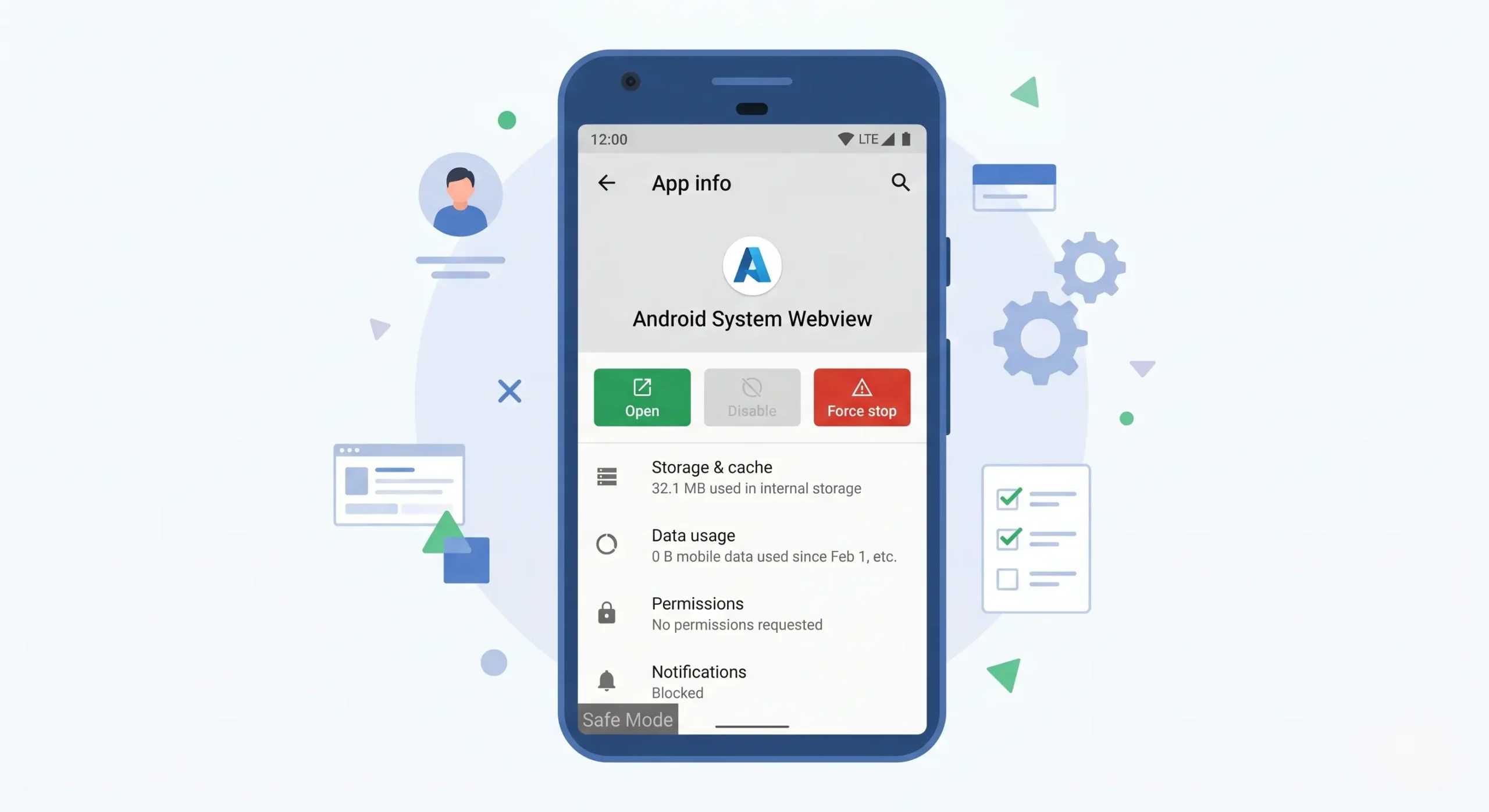
Android devices can be infected through malicious apps downloaded outside the Google Play Store, or through compromised apps that passed initial review.
Step 1: Put your phone in Safe Mode. Hold the Power button, then long-press Power Off until you see a Safe Mode prompt. Tap OK.
Step 2: In Safe Mode, go to Settings → Apps. Look for apps you did not install or apps with generic names and no icon.
Step 3: Uninstall any suspicious apps. If an app resists uninstall, it may have been granted Device Administrator privileges. Go to Settings → Biometrics and Security → Device Admin Apps and revoke admin access first.
Step 4: Download and run a reputable Android security app such as Malwarebytes for Android (free).
Step 5: Clear your browser’s cache and data from Settings → Apps → [Your Browser] → Clear Data.
Step 6: Change account passwords from a different device.
Step 7: If the infection persists, perform a Factory Reset from Settings. Back up important files first (to cloud storage, not a local backup which may be infected).
How to Remove a Trojan Virus on iPhone (iOS)
iPhones run a closed operating system that makes traditional trojan infections rare. However, malicious profiles, compromised apps, and phishing can still cause problems.
Step 1: Check for suspicious Configuration Profiles. Go to Settings → General → VPN & Device Management. Remove any profiles you did not install yourself.
Step 2: Delete any apps you do not recognize, especially those not from the App Store.
Step 3: Clear Safari history and website data from Settings → Safari → Clear History and Website Data.
Step 4: Restart your iPhone normally.
Step 5: If you believe a serious compromise has occurred, restore your iPhone to factory settings via iTunes or Finder on a computer, then set it up as a new device rather than restoring from a backup.
iPhones that have been jailbroken face much higher malware risk. Removing jailbreak modifications restores standard iOS security protections.
Best Free Trojan Removal Tools
| Tool | Platform | Free Version | Best For |
|---|---|---|---|
| Microsoft Defender | Windows | Yes (built-in) | Primary Windows protection |
| Malwarebytes Free | Windows, Mac, Android | Yes | Second-opinion scanning |
| Avast Free Antivirus | Windows, Mac, Android | Yes | Real-time protection + scanning |
| Microsoft Safety Scanner | Windows | Yes | On-demand, no installation needed |
| Bitdefender Free | Windows | Yes | Lightweight real-time protection |
| Malwarebytes for Android | Android | Yes | Mobile threat removal |
Important: Download all tools directly from official websites only. Searching for “free antivirus download” and clicking random results is a common way trojans spread.
What to Do If the Trojan Keeps Coming Back
If your antivirus detects the same trojan repeatedly after removal, the infection is likely:
- Hiding in a system restore point — Delete all restore points as described in Step 8 above.
- Reinstalling via a scheduled task — Open Task Scheduler (search in Start menu) and look for unfamiliar tasks with random names.
- Embedded in a downloaded file you keep using — The original infected file is still on your device. Identify and delete it.
- Living in a browser extension — Check all installed browser extensions and remove any you do not recognize.
- Using a rootkit — Run Microsoft Defender Offline Scan or a bootable antivirus rescue tool (Kaspersky Rescue Disk or Avira Rescue System) which scans before the operating system loads.
If none of these steps resolve recurring infections, a complete Windows reinstall from official Microsoft media is the most reliable solution.
Advanced Removal: When Standard Scans Fail
For persistent or sophisticated trojans, these advanced steps can help.
Use a Bootable Rescue Disk Tools like Kaspersky Rescue Disk allow you to scan your system from outside Windows entirely. Download the ISO, burn it to a USB drive, boot from it, and scan. This method catches rootkits and bootkits that hide from within Windows.
Check the Windows Registry Trojans often add entries to the Windows Registry to survive reboots.
- Press Windows + R, type regedit, press Enter
- Navigate to:
HKEY_CURRENT_USER\Software\Microsoft\Windows\CurrentVersion\Run - Look for entries pointing to unknown file locations
- Also check:
HKEY_LOCAL_MACHINE\Software\Microsoft\Windows\CurrentVersion\Run
⚠️ Warning: Editing the registry incorrectly can cause system problems. If unsure, use a reputable tool rather than manual editing.
Use Microsoft’s Autoruns Tool Autoruns (free from Microsoft Sysinternals) shows every program configured to run automatically on your PC — far more than Task Manager reveals. It helps identify hidden startup entries that common scanners miss.
Perform a Clean Windows Reinstall When all else fails, reinstalling Windows from official Microsoft media guarantees a clean system. Back up personal files (documents, photos) to an external drive first. Format the drive during installation to ensure nothing survives.
Trojan Virus Removal Checklist
Use this checklist to confirm you have completed every step.
- Disconnected from the internet before scanning
- Booted into Safe Mode before running scans
- Deleted temporary files (%temp%, temp, prefetch)
- Ran a full scan with Microsoft Defender (or built-in security tool)
- Ran a second scan with Malwarebytes or another trusted tool
- Checked Task Manager for suspicious processes
- Removed suspicious startup programs
- Uninstalled unknown or recently installed programs
- Deleted all system restore points
- Changed all passwords from a separate, clean device
- Enabled two-factor authentication on important accounts
- Monitored device for 24–48 hours after removal
- Verified antivirus definitions are up to date
Common Mistakes People Make
Running only one scan. No single antivirus tool has 100% detection rates. Always use at least two tools — your primary antivirus and a dedicated malware scanner like Malwarebytes.
Scanning while connected to the internet. Keeping your internet connection active during removal lets the trojan continue downloading components or reporting to remote servers.
Skipping the password change step. Even after successful removal, passwords captured before removal remain at risk. This step is not optional.
Using untrustworthy removal tools. Many fake “trojan removers” are themselves malware. Download tools only from official websites.
Ignoring system restore points. This is one of the most common reasons trojans return after removal.
Restoring from an infected backup. If your most recent backup was made while the trojan was active, restoring it reintroduces the infection.
Assuming the problem is solved after one restart. Monitor your system for several days and check security logs.
Myths vs. Facts About Trojan Viruses
| Myth | Fact |
|---|---|
| “Macs cannot get trojans” | Macs can and do get trojans. macOS is targeted less frequently but is not immune. |
| “A trojan warning pop-up from a website means I’m infected” | Most browser pop-ups claiming trojan infection are scam alerts, not real detections. Legitimate antivirus tools do not display alerts in web browsers. |
| “Formatting the drive is always necessary” | Most trojans can be removed without reformatting. Formatting is a last resort for persistent infections. |
| “Free antivirus tools are not effective” | Many free tools (Microsoft Defender, Malwarebytes Free) are highly effective against common trojans. |
| “If my antivirus found nothing, I am safe” | Some advanced trojans evade detection. Behavioral signs of infection should be taken seriously even if initial scans return clean. |
| “Trojans only come from shady websites” | Trojans have been distributed through legitimate software marketplaces, email attachments from known contacts, and malicious ads on mainstream websites. |
How to Prevent Trojan Viruses in the Future
Prevention is far easier than removal. These practices significantly reduce your risk.
Keep software updated. The majority of successful malware infections exploit known security vulnerabilities in outdated software. Enable automatic updates for Windows, macOS, browsers, and all installed applications.
Download software from official sources only. Always download programs from official developer websites or trusted app stores. Avoid third-party download sites, file-sharing platforms, and cracked software repositories.
Do not open email attachments from unknown senders. Email remains a primary delivery method for trojans. Be cautious even with attachments from known contacts if the message is unexpected.
Use a real-time antivirus solution. Keep antivirus software active and updated at all times. Windows Defender is adequate for most users when kept current.
Enable your firewall. Both Windows Firewall and macOS Firewall should remain active. They block unauthorized network connections from malware.
Use a standard user account for daily tasks. Administrator accounts make it easier for malware to make system-level changes. Use a limited account for everyday computing and only use admin credentials when installing trusted software.
Be careful with browser extensions. Browser extensions have significant access to your browsing activity. Install extensions only from official browser stores and only from well-known developers.
Enable two-factor authentication everywhere. Even if a trojan captures your password, 2FA prevents attackers from logging in without the second verification step.
Expert Tips from Cybersecurity Professionals
Run offline scans for persistent infections. During troubleshooting of persistent trojan cases, offline scans — using tools that run before Windows loads — are among the most effective detection methods. Standard on-demand scans can miss rootkits that hook into the operating system.
Change passwords from a different network, not just a different device. If your router has been compromised, even a clean device on the same network may be monitored. Use mobile data (cellular) when changing credentials after a suspected trojan infection.
Report compromised accounts immediately. If banking or financial accounts may have been accessed, contact your bank directly. Most financial institutions have dedicated fraud teams and can review recent activity, freeze accounts if needed, and issue alerts.
Treat antivirus alerts seriously, but verify browser pop-ups. Legitimate antivirus software never displays threat warnings inside a web browser window. Any browser pop-up claiming your device is infected and asking you to call a phone number is a social engineering scam — not a real threat alert.
People Also Ask
Can a Trojan Virus Be Removed Easily?
Yes, most trojan viruses can be removed by following structured steps: disconnect from the internet, boot into Safe Mode, run a full antivirus scan with Microsoft Defender, and follow up with Malwarebytes. The process takes 1–2 hours for most infections. Advanced or rootkit-based trojans may require additional steps such as offline scanning tools or a Windows reinstall.
Is a Trojan Virus Warning Real?
It depends on where the warning appears. Warnings from your installed antivirus software (such as Windows Security, Malwarebytes, or Norton) are real and should be acted on immediately. Pop-up warnings appearing inside a web browser — especially ones that ask you to call a phone number or download a tool — are almost always scam alerts, not genuine detections.
How Do I Remove a Trojan Virus From Windows 11?
The process on Windows 11 is identical to Windows 10. Disconnect from the internet, boot into Safe Mode (Shift + Restart → Troubleshoot → Startup Settings → Safe Mode), run Windows Security Full Scan, then run Malwarebytes. Follow all steps in the step-by-step section above.
How Do I Remove a Trojan Virus From My Phone?
On Android, boot into Safe Mode, go to Settings → Apps, and uninstall any apps you do not recognize. Run Malwarebytes for Android. For persistent infections, perform a factory reset. On iPhone, check for and remove suspicious configuration profiles under Settings → General → VPN & Device Management.
How to 100% Remove a Trojan Virus?
A combination of Safe Mode scanning, multiple tool scans (Microsoft Defender + Malwarebytes), startup program cleanup, system restore point deletion, and a registry check handles the vast majority of infections completely. For confirmed complete removal with no possibility of remnants, a clean Windows reinstall using official Microsoft media and drive formatting is the definitive solution.
How Do I Get Rid of a Fake Trojan Virus Warning?
Close the browser tab or window displaying the fake alert. If the pop-up blocks you from closing, use Task Manager (Ctrl + Shift + Esc) to end the browser process. Clear your browser’s cache and browsing data. Do not call any phone number displayed in the pop-up. Run a real antivirus scan to confirm your device is actually clean.
What Is the Best Free Trojan Removal Tool?
Microsoft Defender Antivirus (built into Windows 10 and 11) and the free version of Malwarebytes are the most widely recommended free trojan removal tools. Using both together provides better coverage than either tool alone.
FAQ
How Did I Get a Trojan Virus?
The most common infection routes are downloading software from unofficial sources, opening email attachments, clicking on malicious links, visiting compromised websites, or installing browser extensions from unverified publishers.
Can a Trojan Infect an External Hard Drive or USB?
Yes. Trojans can copy themselves to connected drives. Scan all external drives after removing a trojan infection before using them on other devices.
Will Resetting My PC Remove the Trojan?
A full reset that reinstalls Windows will remove the trojan, provided you choose the option to remove everything and reinstall Windows from cloud or local source. A reset that keeps your files may not remove all malware components.
Can a Trojan Spread to Other Computers on My Network?
Some trojans are designed to spread across local networks. After removing a trojan, scan all other devices on the same network as a precaution.
Do I Need Paid Antivirus Software to Remove a Trojan?
No. Free tools including Microsoft Defender and Malwarebytes Free are capable of removing most trojans. Paid versions offer additional features like real-time protection and scheduled scans but are not required for basic removal.
How Long Does Trojan Virus Removal Take?
A full removal process including all steps typically takes 1–3 hours. Full scans alone can take 30–90 minutes depending on the size of your drive and the speed of your computer.
Can a Trojan Survive a Factory Reset on Android?
In rare cases, sophisticated trojans can survive factory resets by hiding in the device firmware. This is uncommon on consumer devices. If your device shows continued infection signs after a factory reset, contact the manufacturer or carrier.
Key Takeaways
- Trojan viruses disguise themselves as legitimate programs and require user action to install
- Disconnect from the internet immediately upon suspecting infection
- Boot into Safe Mode before scanning to prevent the trojan from interfering with removal
- Use at least two scanning tools — Microsoft Defender and Malwarebytes
- Delete all system restore points to prevent re-infection
- Change all passwords from a clean device after removal
- Browser pop-ups claiming trojan infection are almost always scams
- Most trojans can be removed without reformatting, but a clean Windows reinstall is always an option
- Keeping software updated and downloading only from official sources prevents most infections
Conclusion
Trojan virus removal does not require expert-level technical knowledge. By following a structured approach — disconnecting from the internet, scanning in Safe Mode, using multiple trusted tools, and cleaning up startup entries and restore points — most infections can be fully resolved.
The most important step after removal is changing your passwords. A trojan that captured your credentials before you removed it still poses a risk if those passwords remain in use.
For ongoing protection, keep your operating system and applications updated, use real-time antivirus protection, and download software only from verified official sources.
If you work through every step in this guide and the infection returns, a clean operating system reinstall from official Microsoft media is your most reliable path to a fully clean device.