


A website safety check scans a URL against threat databases, blacklists, and SSL records to tell you whether a site is safe to visit or not. You can run one using free tools like Google’s Safe Browsing checker, VirusTotal, or URLVoid — just paste the URL and check the results before clicking any suspicious link.
Why I Always Check a Website Before Clicking
I’ve clicked on sketchy links before. Most people have. And once you’ve seen a browser throw up a “Deceptive site ahead” warning — or worse, noticed unauthorized activity on an account — you start treating every unfamiliar URL with a bit more suspicion.
The problem is most people don’t know what a website safety check actually involves or how to read the results properly. They either skip the check entirely or paste a URL into a tool and don’t know what to do with the output.
This guide walks through everything: why website safety checks matter, which tools are worth using, how to interpret results, what red flags to watch for, and how to protect yourself even when a site initially looks clean.
What Is a Website Safety Check?
A website safety check is the process of scanning a URL or domain against security databases, blacklists, and threat intelligence feeds to determine whether a website poses any risk to visitors.
These checks typically look at:
- Whether the domain is listed on malware or phishing blacklists
- Whether the SSL/TLS certificate is valid
- Whether the site has been flagged for distributing harmful software
- Whether the domain has a history of spam or deceptive behavior
- Whether the IP address is associated with known malicious activity
Think of it as a quick background check on a website before you hand over your login credentials, credit card details, or any personal information.
Why Website Safety Checks Matter More Than Ever
Phishing attacks, fake storefronts, and malware-loaded pages have become harder to spot with the naked eye. A fraudulent site can look pixel-perfect — same logo, same layout, similar domain name — and still be entirely malicious.
According to the Anti-Phishing Working Group (APWG), phishing attacks have consistently numbered in the hundreds of thousands per quarter in recent years. Many of those attacks start with a single link that looks completely normal.
Running a safety check before visiting an unfamiliar site takes about 10 seconds. That’s a reasonable investment compared to the alternative.
What Does a Website Safety Check Actually Look At?
When I run a URL through a safety checker, here’s what’s happening behind the scenes:
Blacklist Verification
The tool cross-references the domain or IP against databases maintained by organizations like Google Safe Browsing, Spamhaus, SURBL, and various antivirus vendors. If the domain appears on any of these lists, you’ll see a warning.
SSL/TLS Certificate Check
A valid SSL certificate means the connection between your browser and the server is encrypted. Expired, self-signed, or misconfigured certificates are a flag worth investigating. That said, having HTTPS does not automatically mean a site is safe — plenty of phishing sites use valid SSL certificates.
Malware and Virus Scan
Some tools scan the actual page content using antivirus engines and signature databases to detect malicious scripts, exploit code, or drive-by download attempts.
IP Reputation Check
The server hosting a website has an IP address. That IP can be checked against spam and malware databases independently of the domain name. A site may look new and clean while being hosted on an IP with a dirty history.
Domain Age and Registration Data
Newly registered domains are statistically more likely to be malicious. A domain created two weeks ago selling luxury goods at 90% off should raise questions. WHOIS data, when available, can reveal registration age and sometimes ownership details.
Phishing Pattern Detection
Advanced tools use behavioral analysis and machine learning to detect phishing patterns — things like login form structures that mimic known banks, payment pages on non-financial domains, or URL structures known to be associated with phishing kits.
How to Run a Website Safety Check: Step-by-Step
Step 1: Copy the Full URL
Don’t abbreviate it. Copy the complete URL including any path, query strings, or subdomain. A malicious page is often buried at something like login.trustybank.com.phish-site.xyz/signin, and the subdomain structure matters.
Step 2: Choose a Safety Check Tool
Here are the options I use depending on the situation:
| Tool | Best For | Free? |
|---|---|---|
| Google Safe Browsing | Quick blacklist check | Yes |
| VirusTotal | Multi-engine deep scan | Yes |
| URLVoid | Reputation check across 30+ databases | Yes |
| URLScan.io | Full page behavior screenshot | Yes |
| SSLTrust Website Security Check | 80+ database scan + SSL check | Yes |
| Sitechecker Website Safety | Google Safe Browsing integration | Yes |
| Bitdefender Link Checker | AI-powered malware + phishing check | Yes |
Step 3: Paste the URL and Run the Scan
Most tools work the same way: paste the URL, click check, wait a few seconds. Some tools like VirusTotal will actually visit and render the page (in a sandboxed environment), which catches threats that purely database-based checks miss.
Step 4: Read the Results
This is where most people get stuck. I’ll cover how to read results properly in the next section.
Step 5: Cross-Check With a Second Tool If Needed
No single tool catches everything. If you’re genuinely unsure about a site, run it through two or three tools. If one flags it and two don’t, that’s still worth treating with caution.
How to Read Website Safety Check Results
“Safe” or “No Threats Found”
This means the URL wasn’t found on any blacklists the tool checks against. It does NOT mean the site is 100% safe. It means it hasn’t been reported yet. New phishing pages are created daily and often take hours or days to appear in threat databases.
“Suspicious” or “Potentially Dangerous”
The tool found partial matches or behavioral patterns that suggest risk. Don’t visit the site without further investigation.
“Malicious” or “Dangerous”
The URL is actively listed in one or more threat databases. Do not visit the site.
Multiple Engines Flagging vs. One
If 1 out of 70 antivirus engines flags something, it could be a false positive. If 15 out of 70 flag it, that’s a much stronger signal of actual risk. Context matters.
SSL Certificate Issues
An expired certificate means the site owner isn’t actively maintaining security. A mismatched certificate (issued to a different domain) is a serious red flag for a spoofed site.
Common Types of Threats Website Safety Checks Detect
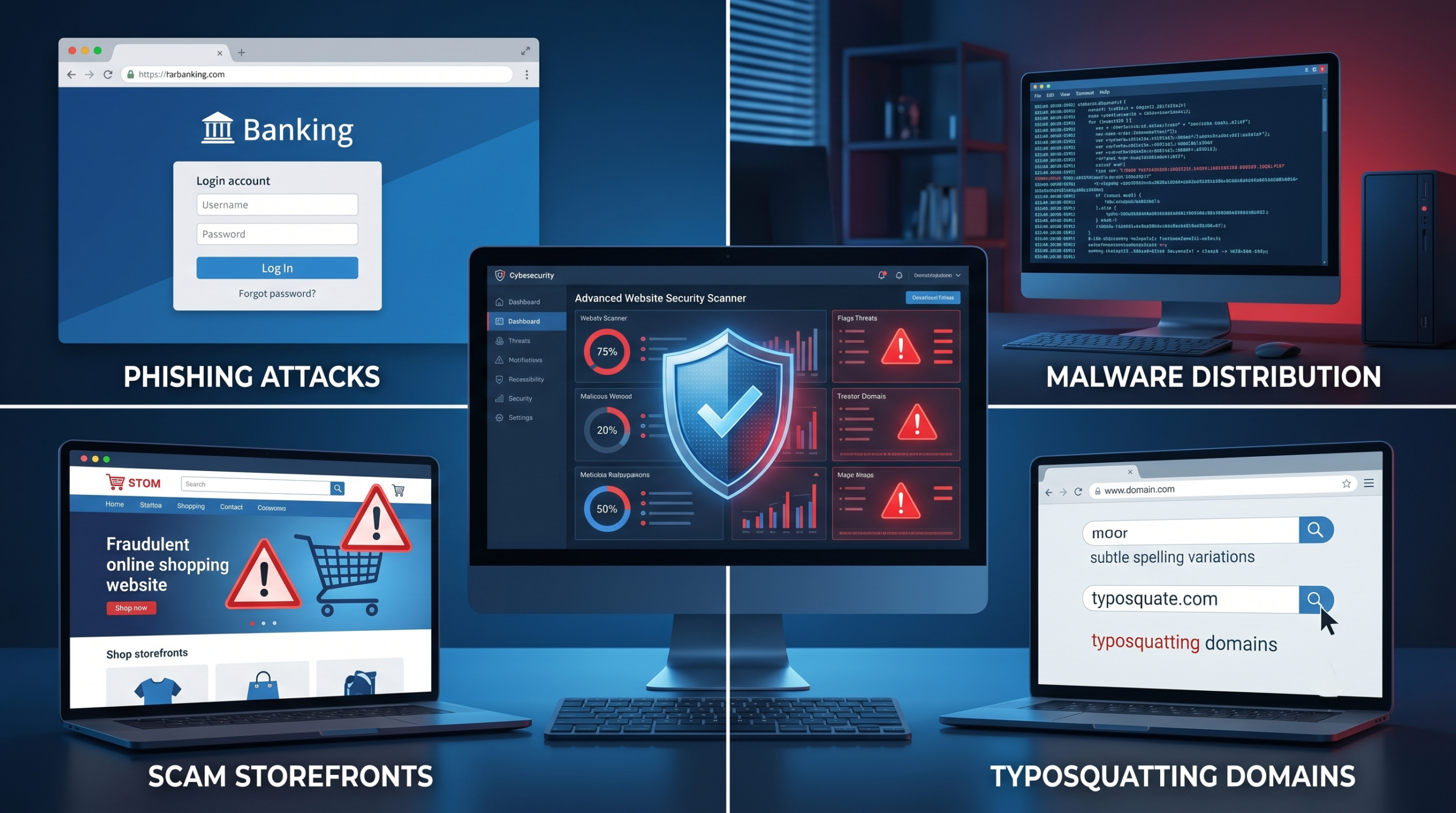
Phishing Sites
Fake versions of legitimate websites designed to steal login credentials, payment information, or personal data. Often disguised as banking portals, shipping notifications, or account verification pages.
Malware Distribution
Sites that attempt to silently install software on your device — through drive-by downloads, malicious scripts, or fake software updates.
Scam Storefronts
Fraudulent e-commerce sites that take payment but never deliver goods. Often use stolen product images and near-identical layouts to legitimate stores.
Typosquatting Domains
Domains registered with deliberate misspellings of popular brands — like amaz0n.com or paypa1.com — designed to catch people who mistype URLs.
Redirect Chains
A site may appear clean but redirect visitors through multiple URLs before landing on a malicious page. Tools like URLScan.io that follow redirect chains will catch these.
Signs a Website May Be Unsafe (Even Before Running a Check)
Before I even open a safety tool, I look for a few things:
- Domain name anomalies — extra words added (e.g.,
amazon-secure-login.com), replaced letters, or unusual TLDs (.xyz, .top, .tk on financial sites) - No HTTPS — any site asking for personal information over HTTP in 2025 should be avoided
- Certificate mismatch — the padlock icon shows a certificate issued to a different domain
- Pressure tactics — countdown timers, “limited time offers,” or urgent warnings demanding immediate action
- Poor grammar and spelling — not always reliable, but still a useful signal
- No contact information — legitimate businesses have addresses, phone numbers, and support contacts
- Unusual payment methods — sites asking for wire transfers, gift cards, or crypto for standard purchases
Website Safety Check vs. URL Scanner vs. Link Checker: What’s the Difference?
People use these terms somewhat interchangeably, but they’re slightly different things:
Website Safety Check — A broad scan of a domain covering blacklists, SSL status, reputation, and sometimes page content. Best for evaluating an entire site.
URL Scanner — Analyzes a specific URL, often by actually visiting it in a sandboxed browser. Better for catching redirects and page-level threats.
Link Checker — Typically faster and lighter. Checks a specific link against known threat databases. Best for quickly verifying a link you received by email or message before clicking.
For most everyday use cases, a link checker or website safety check is enough. For deeper investigation of suspicious URLs, a full URL scanner like URLScan.io gives more detail.
The Role of Google Safe Browsing in Website Safety
Google Safe Browsing is one of the most widely used threat databases in the world. It powers the warnings you see in Chrome, Firefox, and Safari when you try to visit a flagged site.
You can check any URL directly through Google’s Transparency Report Safe Browsing tool — just paste a URL and it will tell you whether Google has flagged it for malware or phishing.
Most website safety check tools incorporate Google Safe Browsing data as one of their sources, but the Transparency Report lets you check it directly without a third-party interface.
Worth noting: Google Safe Browsing updates its databases frequently, but there’s always a delay between when a malicious site goes live and when it gets flagged. That’s why using multiple sources matters.
How Website Safety Relates to Data Leak Prevention
Running safety checks before sharing information on a site is only one part of the picture. Even when a site is technically safe, poor security practices by the company running it can still put your data at risk.
Understanding what data leak prevention actually involves can help you think more broadly about how your information is protected — not just from phishing attacks, but from accidental or intentional exposure by the services you trust.
Website Safety Checks for Businesses: What’s Different
If you’re running a website rather than just visiting one, website safety checks serve a different purpose. You’ll want to:
Check your own domain regularly — malware can be injected into your site without your knowledge. Scheduled scans catch infections before Google blacklists your domain.
Monitor your SSL certificate — an expired certificate doesn’t just look bad; it actively warns visitors away and affects search rankings.
Watch for blacklist appearances — if a previous owner of your domain engaged in spam or malicious activity, that history may still be attached to the IP or domain.
Protect your site against defacement — unauthorized changes to your homepage or content are a sign of compromise. Tools that monitor for defacement can alert you immediately.
| Risk | Impact on Business | How Safety Checks Help |
|---|---|---|
| Google blacklist | Warning shown to all visitors in Chrome | Detects blacklist status before it becomes public |
| SSL expiry | Browser blocks site access | Alerts before expiry |
| Malware injection | Site spreads malware to visitors | Scans page content for malicious code |
| IP reputation issues | Email deliverability affected | Checks IP against spam databases |
What to Do If a Website Safety Check Flags a Site You Own
If your own site shows up as unsafe, here’s the order of things to do:
- Run multiple tools to confirm it’s not a false positive
- Scan your site files for injected malicious code
- Check your hosting account for unauthorized logins or file changes
- Remove any identified malware and patch the vulnerability
- Submit a reconsideration request to Google Search Console to get the warning removed
- Check with your hosting provider — they may have detected the infection too
Getting removed from Google’s blacklist after cleanup typically takes 24–72 hours after submitting a review request.
Free Website Safety Check Tools Worth Knowing
Google Safe Browsing Transparency Report
Direct access to Google’s own threat database. Best for a simple, authoritative check with no frills.
VirusTotal
Aggregates results from 70+ antivirus engines and URL scanners. The most comprehensive free option for deep analysis. Shows a breakdown of which engines flagged something and why.
URLScan.io
Takes a screenshot of the page, maps all resources loaded, and shows redirect chains. Invaluable for investigating suspicious URLs without visiting them yourself.
URLVoid
Checks domain reputation across multiple blacklist databases and shows historical data. Good for evaluating a domain’s overall reputation history.
SSLTrust Website Security Check
Scans across 80+ databases including Google, Comodo, and Sucuri. Also checks SSL certificate validity. Useful when you want a one-stop check that covers both security reputation and encryption status.
Bitdefender Link Checker
AI-powered tool that checks for malware, phishing, and counterfeit sites. Uses behavioral analysis in addition to database lookups, which helps catch newer threats.
Sitechecker Website Safety
Integrates Google Safe Browsing data with additional domain info like IP address and geographic location. Useful if you want basic safety info plus some technical details about the site.
Expert Tips for Safer Browsing
Bookmark important sites instead of clicking links. Banking, email, and payment portals should be accessed through saved bookmarks, not links in emails or messages.
Hover before you click. Most browsers show the destination URL in the status bar when you hover over a link. If the URL doesn’t match where you expect to go, don’t click.
Be suspicious of shortened URLs. Services like bit.ly hide the real destination. Expand them using a tool like checkshorturl.com before clicking.
Watch for lookalike domains. paypal.com and pay-pal.com look similar but are completely different sites. Legitimate services almost never use hyphens in their main domain.
Check the domain, not just the page design. A site can look exactly like your bank and still be on a completely unrelated domain. The design is easy to copy. The domain is not.
Use a browser with built-in protection. Chrome, Firefox, and Edge all incorporate some form of safe browsing protection that flags known malicious sites. Keep your browser updated so these protections stay current.
Troubleshooting: When Safety Checks Give Conflicting Results
One tool says safe, another says dangerous Prioritize the more cautious result. Different tools check different databases, and newer threats appear in some databases before others. Don’t assume the “safe” verdict overrules the “dangerous” one.
A site I trust shows as flagged Large, legitimate sites occasionally get flagged due to compromised subdomains or injected advertising. If a major trusted site shows a warning, report it and avoid it until the warning is removed. Even legitimate sites can serve malicious content temporarily.
The tool timed out or couldn’t scan Some sites block automated scanners. This isn’t inherently suspicious, but it does mean you can’t rely on the scan result. Try a different tool or a tool that uses a headless browser to render the page.
The site was clean yesterday but flagged today Sites can be compromised after a clean scan. Ongoing safety monitoring for sites you use regularly is more reliable than one-time checks.
FAQ
What is a website safety check?
A website safety check is a scan that evaluates a URL or domain against threat databases, blacklists, SSL records, and behavioral analysis tools to determine whether it poses security risks to visitors.
How do I check if a website is safe?
Paste the URL into a free tool like Google’s Safe Browsing Transparency Report, VirusTotal, or URLScan.io. The tool will cross-reference the URL against security databases and return a safety verdict within seconds.
Can a website pass a safety check and still be dangerous?
Yes. Safety checks only detect known threats. A brand-new phishing site or a recently compromised legitimate site may not appear in threat databases yet. Behavioral red flags — unusual domain names, pressure tactics, no contact information — remain important even when checks return clean results.
Does HTTPS mean a website is safe?
No. HTTPS means the connection is encrypted, but it says nothing about the intentions of the site operator. Phishing sites routinely use valid SSL certificates to appear legitimate.
What should I do if I accidentally visited a malicious website?
Close the tab immediately. Run a malware scan on your device. Change passwords for any accounts you may have interacted with. Check your accounts for unauthorized activity. If you entered payment information, contact your bank.
How often should I check website safety?
For sites you visit regularly and trust, no routine check is needed. For unfamiliar sites — especially those you reached via email links, social media, or ads — run a check before interacting with the site at all.
What is Google Safe Browsing and how does it work?
Google Safe Browsing is a threat intelligence service maintained by Google that flags websites distributing malware or conducting phishing attacks. It powers browser warnings in Chrome, Firefox, and Safari, and can be queried directly through Google’s Transparency Report.
Are free website safety check tools reliable?
Free tools like VirusTotal and URLScan.io are widely used by security professionals and are generally reliable. They have limitations — primarily around very new threats — but for most everyday checks they provide useful and accurate information.
What’s the difference between a URL scanner and a link checker?
A link checker quickly queries a URL against known threat databases. A URL scanner actually visits the URL in a sandboxed environment, captures a screenshot, and maps all resources loaded by the page. URL scanners are more thorough but slower.
Can I check if my own website is safe?
Yes. Running your own domain through safety check tools is a good practice, especially after updates, plugin installs, or if you notice unusual behavior on your site. It can detect injected malware or blacklist appearances you may not be aware of.
Key Takeaways
- A website safety check scans a URL against blacklists, SSL records, malware databases, and behavioral patterns to assess risk.
- No tool is 100% accurate — new threats are created faster than databases are updated. Use multiple tools for high-stakes checks.
- HTTPS is not a safety guarantee. Phishing sites use valid SSL certificates all the time.
- Tools like VirusTotal, URLScan.io, and Google Safe Browsing are free, reliable, and take seconds to use.
- For your own website, regular safety checks can catch malware injections and blacklist appearances before they damage your traffic or reputation.
- Always look at behavioral signals — domain age, unusual domain structure, pressure tactics — alongside tool results.
Conclusion
A website safety check takes about 10 seconds and can stop a phishing attack, a malware infection, or a payment scam before it starts. I treat it the same way I treat checking the sender before opening an email attachment — a small habit that pays off when it matters.
The tools are free, the process is straightforward, and the alternative is clicking blind. Given how convincingly fraudulent sites can look today, running a quick check before engaging with an unfamiliar URL is one of the simplest security habits you can build.