


Quick Answer
If Chrome can’t connect to the internet because of a firewall block, the fix is almost always the same: open your firewall or antivirus app, find the list of allowed programs, and add Chrome (chrome.exe on Windows, or the Chrome app on Mac) with both inbound and outbound access turned on. On Windows, this means going to Control Panel > Windows Defender Firewall > Allow an app through firewall, checking the box next to Google Chrome, and ticking both Private and Public networks. On a Mac, it’s System Settings > Network > Firewall > Options, then setting Chrome to “Allow incoming connections.”
I’ve run into this exact issue more times than I’d like to admit — usually right after a fresh Windows install or a new antivirus setup. Below, I’ll walk you through everything I do to fix it, on every operating system, plus the mistakes that waste time.
Introduction
A few months back, I set up a new laptop for my cousin. Everything installed fine, but Chrome kept showing “No internet” even though every other app — email, Spotify, Zoom — connected without a problem. The culprit? Windows Defender Firewall hadn’t added a rule for the new Chrome install yet, so it was quietly blocking it.
If you’re seeing a similar issue — Chrome won’t load pages, shows ERR_NETWORK_ACCESS_DENIED or ERR_CONNECTION_REFUSED, or your antivirus keeps popping up warnings about Chrome — this guide covers it from start to finish.
I’ll cover:
- Why this happens in the first place
- Step-by-step fixes for Windows Defender Firewall, macOS, Android, and third-party security software
- How to fix it through Chrome’s own network settings
- Common mistakes that make the problem worse
- Troubleshooting for when the basic fix doesn’t work
- Answers to the questions people ask most about Chrome and firewalls
Why This Happens
A firewall’s job is to control which programs can send and receive data over your network. When a firewall is set to a strict mode, or when it hasn’t yet “seen” a newly installed or updated program, it can block that program by default until you (or it) create a rule allowing it.
Chrome firewall settings issues usually come from one of these causes:
- A fresh Chrome install or update — new executables sometimes need a new firewall rule, since Windows treats an updated
chrome.exeas a different file. - Antivirus or third-party firewall software — tools like Norton, McAfee, Bitdefender, Avast, or ZoneAlarm often run their own firewall on top of Windows’, and Chrome may be blocked in one but not the other.
- Corporate or school networks — IT administrators sometimes restrict browser access at the network level using Group Policy or a managed firewall, which is outside your control.
- Public/Private network mismatch — Windows treats home Wi-Fi and public Wi-Fi differently. A rule that allows Chrome on a Private network won’t apply on Public, and vice versa.
- VPN or proxy conflicts — some VPN clients add their own firewall rules that can interfere with Chrome’s connections.
Quick Definition: What Does “Allow Chrome Through the Firewall” Mean?
It means telling your operating system’s security software that Chrome is a trusted program and should be allowed to send (outbound) and receive (inbound) data over your network connection, without being blocked or flagged as suspicious.
Main Solution: Allow Chrome Through Windows Defender Firewall
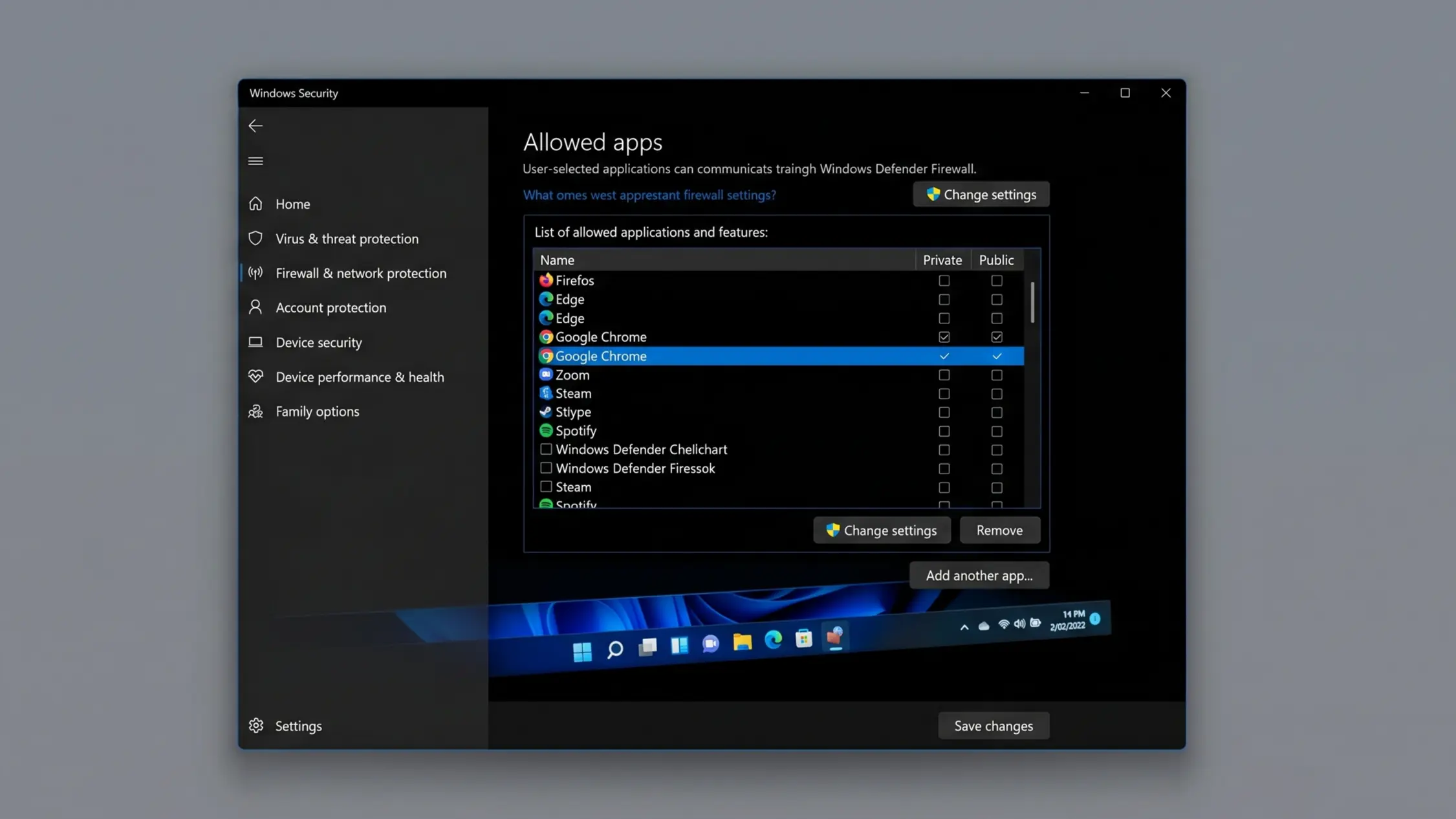
This is the most common scenario, so I’ll start here. Windows Defender Firewall is built into every modern version of Windows and is usually the first place to check.
Step-by-Step Instructions (Windows Defender Firewall)
- Click the Start menu and type Control Panel, then open it.
- Go to System and Security.
- Click Windows Defender Firewall.
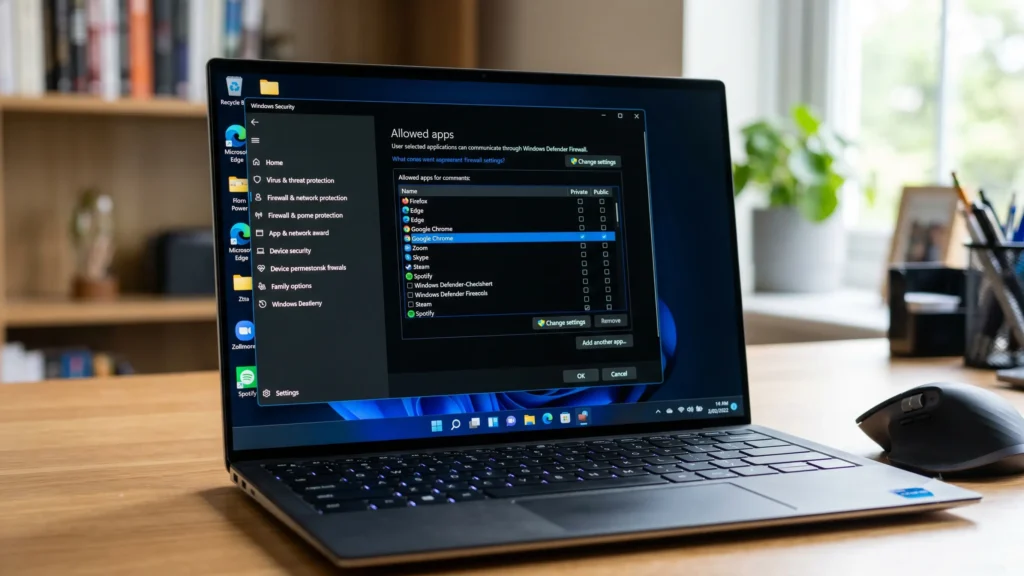
- In the left sidebar, click Allow an app or feature through Windows Defender Firewall.
- Click Change settings (you’ll need administrator access for this).
- Scroll the list and look for Google Chrome. If you see it, make sure both the Private and Public checkboxes are ticked.
- If Chrome isn’t on the list, click Allow another app, then Browse, and navigate to:
C:\Program Files\Google\Chrome\Application\chrome.exe(On 32-bit systems, it’s usually underProgram Files (x86)instead.) - Select
chrome.exe, click Add, then check both Private and Public boxes. - Click OK to save.
After this, restart Chrome and test your connection. In my experience, this fixes the issue about 80% of the time when the firewall itself is the cause.
If That Doesn’t Work: Advanced Firewall Rules
Sometimes a simple “allow” toggle isn’t enough, especially if outdated rules are blocking Chrome at a deeper level.
- Open Control Panel > System and Security > Windows Defender Firewall.
- Click Advanced settings in the left pane (this opens “Windows Defender Firewall with Advanced Security”).
- Click Inbound Rules, then New Rule.
- Choose Program, click Next, and browse to
chrome.exeas above. - Select Allow the connection, click Next.
- Leave Domain, Private, and Public all checked unless you have a specific reason not to.
- Name the rule something clear, like “Allow Chrome Inbound.”
- Repeat the same steps under Outbound Rules.
I always create both inbound and outbound rules. Outbound is usually allowed by default, but creating both removes any ambiguity if a previous block rule exists.
Alternative Fixes
Allow Chrome on macOS Firewall
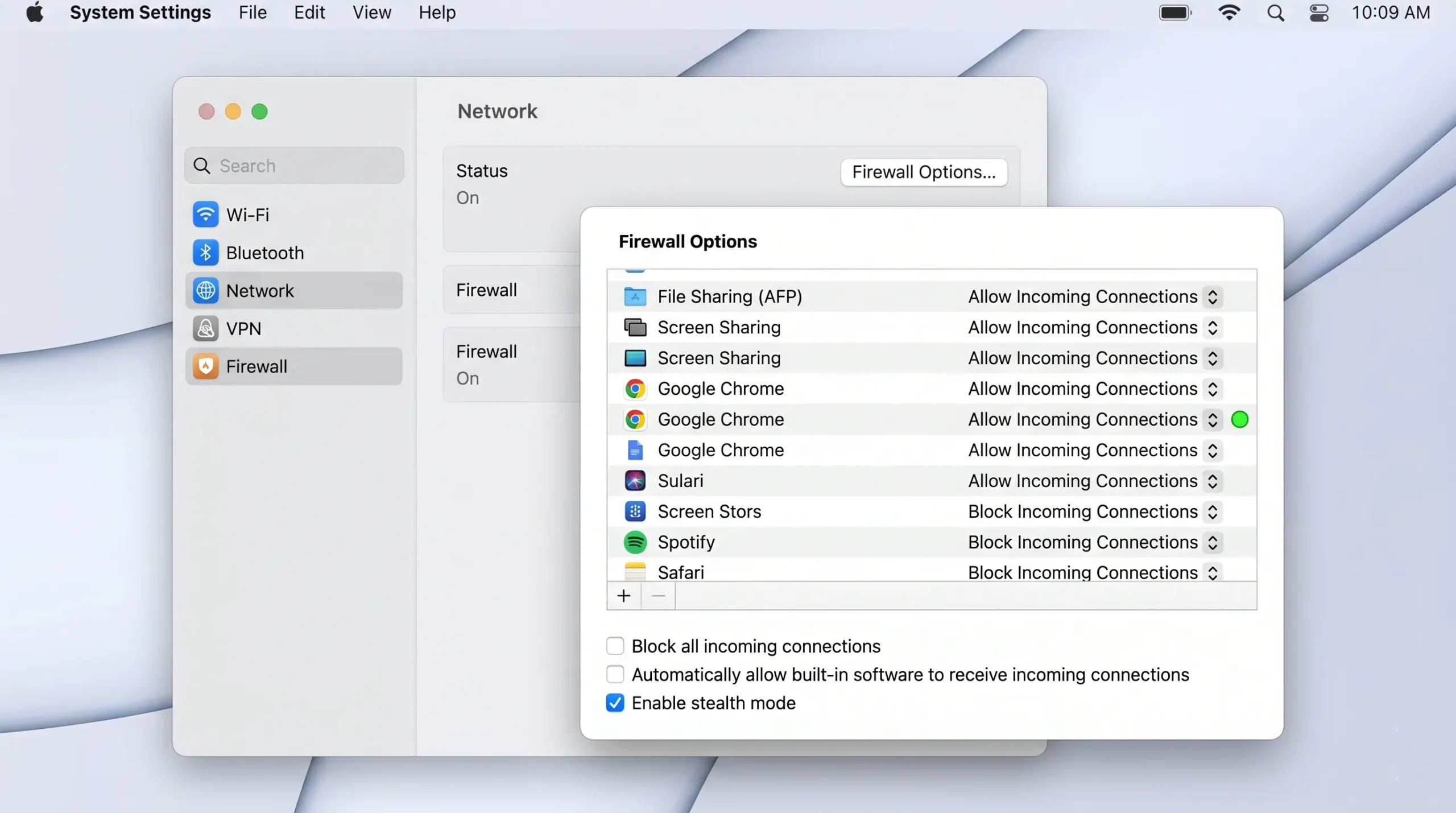
- Click the Apple menu and open System Settings (or System Preferences on older macOS).
- Go to Network, then click Firewall (on older versions: Security & Privacy > Firewall).
- Click Options (you may need to click the lock icon and enter your password first).
- If Chrome is listed and set to “Block incoming connections,” change it to Allow incoming connections.
- If Chrome isn’t listed, click the + button, select Chrome from your Applications folder, and add it.
- Click OK, then close System Settings.
Allow Chrome on Android Devices
Most Android phones don’t have a traditional firewall, but if you’re using a firewall app, mobile antivirus, or a work-managed device, here’s what to check:
- Open your firewall or security app (common ones include NetGuard, AVG, or your device’s built-in “Data Saver” feature).
- Find the app permissions or data-access list.
- Locate Chrome and make sure both Wi-Fi and mobile data access are enabled.
- If you’re on a work or school device, the restriction may come from a Mobile Device Management (MDM) profile — in that case, contact your IT administrator, since this setting is usually locked.
For Google’s official guidance on Android connection issues, check Google’s support page on allowing Chrome through firewall or antivirus settings.
Allow Chrome Through Third-Party Antivirus or Firewall Software
If you use Norton, McAfee, Avast, AVG, Bitdefender, Kaspersky, or a similar tool, the steps are similar across most of them, even if menu names differ slightly:
- Open the antivirus/security application (not just the system tray icon — open the full dashboard).
- Look for a section called Firewall, Network Protection, or App/Program Control.
- Find a list of Allowed Apps, Program Rules, or Application Permissions.
- Search for Chrome. If it’s set to “Block” or “Restricted,” change it to Allow or Trusted.
- If Chrome isn’t listed, use the Add Application option and browse to
chrome.exe. - Save changes and restart both the antivirus app and Chrome.
A table comparing where to find this setting across popular tools:
| Security Software | Menu Path |
|---|---|
| Windows Defender | Control Panel > Windows Defender Firewall > Allow an app |
| Norton 360 | Settings > Firewall > Program Control |
| McAfee Total Protection | Navigation > Firewall > Internet Connections for Programs |
| Avast/AVG | Menu > Settings > Protection > Firewall |
| Bitdefender | Protection > Firewall > Application Rules |
| ZoneAlarm | Firewall > Program Control |
Reset Chrome’s Network Settings
Sometimes the issue isn’t the firewall at all — it’s Chrome’s own proxy or DNS configuration. To rule this out:
- Open Chrome and go to
chrome://settings/. - Search for “proxy” in the settings search bar.
- Click Open your computer’s proxy settings.
- On Windows, make sure “Automatically detect settings” is on, and any manual proxy is off (unless you intentionally use one).
- On Mac, check Network > Wi-Fi/Ethernet > Details > Proxies and disable any proxies you didn’t set up yourself.
Step-by-Step: Diagnosing Which Layer Is Blocking Chrome
If you’re not sure whether it’s Windows Firewall, your antivirus, or something else, this order of checks has worked well for me:
- Temporarily disable Windows Defender Firewall (Control Panel > Windows Defender Firewall > Turn on/off). If Chrome works now, the firewall was the issue — re-enable it and add a proper Chrome rule instead of leaving it off.
- Temporarily disable your antivirus’s firewall component (not the whole antivirus). If Chrome works now, that’s your culprit — go add Chrome to its allowed list.
- Try a different network (mobile hotspot, for example). If Chrome works on a different network, the block is coming from your router or network-level firewall, not your device.
- Check Chrome’s connection in Incognito mode with extensions disabled. If it works in Incognito, an extension may be interfering — though this points away from a firewall issue specifically.
Important: never leave your firewall or antivirus turned off permanently. These checks are for diagnosis only — turn protection back on once you’ve identified the cause.
Common Mistakes
- Only setting Private network access, forgetting Public — many people allow Chrome on their home (Private) network but forget that public Wi-Fi networks use a separate rule set.
- Adding the wrong chrome.exe path — if Chrome was installed for a different user account, or you have multiple versions, the firewall rule might point to the wrong file.
- Disabling the firewall entirely instead of creating a specific rule — this removes protection for your whole system, not just Chrome.
- Not restarting Chrome after changing settings — firewall rule changes sometimes don’t apply to an already-running process.
- Forgetting that antivirus has its own firewall — fixing Windows Defender doesn’t help if your antivirus software is the one doing the blocking.
- Ignoring browser updates — an old or outdated Chrome version can also trigger antivirus heuristics that flag it as suspicious, even if the firewall rule looks correct.
Troubleshooting
Chrome Says “No Internet” but Other Apps Work
This is the classic firewall-block symptom. Follow the Windows Defender Firewall steps above first, then check your antivirus.
ERR_NETWORK_ACCESS_DENIED Error
This Chrome-specific error almost always points to a firewall or antivirus block. Add Chrome to your firewall’s allowed apps list as described above, and restart your computer.
Chrome Works on Wi-Fi But Not on Ethernet (or Vice Versa)
This usually means your firewall rule was only applied to one network type (Private vs. Public, or Domain vs. Private). Go back into the firewall settings and make sure all relevant network categories are checked for Chrome.
Chrome Keeps Getting Blocked After Every Update
Some firewalls bind rules to a specific file version. After a major Chrome update, re-check your firewall’s allowed apps list — if Chrome shows as a duplicate entry or is missing, re-add it.
Still Not Working After All of the Above
- Run Chrome’s built-in network diagnostics by visiting
chrome://net-export/. - Check if your router has its own firewall or parental control settings blocking specific apps or sites.
- On a managed work or school device, contact your IT department — Group Policy-based restrictions can’t be changed from the user side.
- For a broader check of whether a specific site (not just Chrome generally) is safe and reachable, you can run it through a website safety checker to rule out site-side issues.
Expert Tips
- Create specific rules, not blanket exceptions. Allowing Chrome through the firewall with both inbound and outbound rules is enough — you don’t need to disable the firewall or whitelist your entire network.
- Keep Chrome and your security software updated. Most “Chrome blocked by firewall” issues I’ve seen happen right after one or the other gets updated and the rule falls out of sync.
- Check firewall logs if problems persist. Most firewall and antivirus apps keep a log of blocked connections — searching for “chrome.exe” in these logs tells you exactly when and why it was blocked.
- On shared or work computers, document the change. If you’re on a managed network, note what you changed (or ask IT to do it) so the setting isn’t reverted automatically during the next policy refresh.
- Test with a second browser. If Edge or Firefox works fine but Chrome doesn’t, that’s strong evidence the issue is specific to Chrome’s firewall rule rather than your whole network connection.
FAQ
Why is Chrome being blocked by my firewall?
Chrome gets blocked when your firewall or antivirus either hasn’t created a rule for it yet (common after a fresh install or update) or has an existing rule set to “Block” instead of “Allow.” This can also happen on networks managed by a workplace or school, where browser access is restricted by policy.
How do I check my firewall settings for Chrome on Windows?
Go to Control Panel > System and Security > Windows Defender Firewall > Allow an app through Windows Defender Firewall. Look for Google Chrome in the list and confirm both Private and Public checkboxes are ticked. If Chrome isn’t listed, add it manually using the “Allow another app” option.
How do I allow Chrome through my firewall on Mac?
Open System Settings > Network > Firewall > Options, find Google Chrome in the list, and set it to “Allow incoming connections.” If Chrome isn’t listed, add it using the + button and selecting Chrome from your Applications folder.
Is it safe to allow Chrome through my firewall?
Yes, as long as you downloaded Chrome from the official Google website and keep it updated. Allowing a trusted, legitimate browser through your firewall doesn’t expose your system to extra risk — it just lets Chrome send and receive normal web traffic the way it’s designed to.
What is ERR_NETWORK_ACCESS_DENIED and how do I fix it?
This error means Chrome’s network requests are being blocked, almost always by a firewall or antivirus rule. Fix it by adding Chrome to your firewall’s allowed applications list with both inbound and outbound permissions enabled, then restart Chrome.
Why does Chrome work on one network but not another?
Firewall rules can be tied to specific network categories (Private, Public, or Domain on Windows). If Chrome is only allowed on one category, it will be blocked on networks that fall into a different category. Make sure all relevant categories are checked for Chrome’s firewall rule.
Can my antivirus block Chrome even if Windows Firewall allows it?
Yes. Many antivirus programs (Norton, McAfee, Avast, Bitdefender, and others) run their own separate firewall on top of Windows Defender. Chrome needs to be allowed in both places if you’re using third-party security software.
How do I know if my antivirus is blocking Chrome specifically?
Check your antivirus dashboard for a “Blocked Apps,” “Quarantine,” or “Firewall Log” section. If Chrome appears there, or if you get antivirus pop-up notifications when opening Chrome, that’s your confirmation. You can also try briefly disabling just the antivirus’s firewall component to test.
Key Takeaways
- Most Chrome network errors come down to a missing or incorrect firewall rule, not a problem with Chrome itself.
- On Windows, the fix is in Control Panel > Windows Defender Firewall > Allow an app, with both Private and Public boxes checked for Chrome.
- On Mac, it’s System Settings > Network > Firewall > Options, setting Chrome to allow incoming connections.
- Third-party antivirus tools often run their own firewall — check there too if the system firewall fix doesn’t work.
- Never disable your firewall entirely as a fix; create a specific rule for Chrome instead.
- If you’re on a work or school network, IT-managed policies may be the actual cause, and only an administrator can change them.
Conclusion
Most Chrome firewall settings issues take less than five minutes to fix once you know where to look — it’s just a matter of finding the right menu in Windows Defender, macOS Firewall, or your antivirus software, and making sure Chrome is on the “allowed” list with both inbound and outbound access.
If you’ve gone through every step here and Chrome still won’t connect, the issue is likely outside your firewall entirely — worth checking your router settings, your ISP, or asking your network administrator if you’re on a managed connection.
For the official Google reference on this topic, see Allow Chrome to access the network in your firewall or antivirus settings.