



If you’ve ever found yourself asking “why is the battery on my iPhone draining so fast?” — you’re definitely not alone. I’ve been there too: a full charge in the morning, and by lunchtime the battery bar is already sitting under 30%. It’s frustrating, and it happens to iPhones of every model and age. If you use an Android device alongside your iPhone and notice the same issue there, check out our detailed guide on why your Android battery drains so fast — the causes can overlap but the fixes are quite different.
In this guide, I’m going to walk you through every real reason your iPhone battery keeps draining — and more importantly, exactly how to fix each one.
Quick Answer: Why Is My iPhone Battery Draining So Fast?
The most common reasons for fast iPhone battery drain are:
- Screen brightness set too high
- Background App Refresh running for every app
- Location Services always active
- A degraded battery that’s past its useful lifespan
- A recent iOS update still finishing background tasks
- Poor signal forcing your iPhone to work harder
- Push email and excessive notifications waking the screen constantly
Let’s go through each one in detail.
1. Your Screen Brightness Is Too High
The display is the single biggest power consumer on your iPhone. When brightness is turned all the way up, it can cut your battery life dramatically — sometimes by hours. This is the first thing I always check when my iPhone battery is draining fast.
How to fix it:
- Go to Settings → Display & Brightness and lower the brightness manually
- Enable Auto-Brightness: Go to Settings → Accessibility → Display & Text Size and turn on Auto-Brightness
- Switch to Dark Mode (Settings → Display & Brightness → Appearance → Dark) — on OLED displays (iPhone X and later), dark pixels use almost no power
Also check: Go to Settings → Battery and look for an insight that says “High Brightness” — Apple will flag it directly if your screen is draining your battery.
2. Background App Refresh Is Running Constantly
One of the most overlooked causes of iPhone battery drain is Background App Refresh. This feature lets apps silently update their content even when you’re not using them. Every app doing this in the background is quietly draining your battery all day long.
How to fix it:
- Go to Settings → General → Background App Refresh
- Either turn it off completely, or go through the list and disable it for apps that don’t truly need it (social media, games, shopping apps almost never need this)
I turned this off for about 15 apps and saw a noticeable improvement by the end of the same day.
3. Location Services Are Always On
GPS is one of the most power-hungry features on any smartphone. If multiple apps have “Always” location access, they’re constantly pinging satellites and cell towers — even when you’re sitting still.
How to fix it:
- Go to Settings → Privacy & Security → Location Services
- Go through each app and change the setting to While Using App or Never for apps that don’t genuinely need your location
- Pay attention to apps marked with a solid purple arrow — they’ve recently used your location in the background
Maps, navigation, and weather apps legitimately need location. Delivery apps, shopping apps, and games usually don’t need it always.
4. Push Email Is Draining Your Battery All Day
If your email is set to Push, your iPhone is maintaining a constant, live connection to your mail server — essentially asking “any new mail?” every few seconds. This is a surprisingly significant drain on your battery.
How to fix it:
- Go to Settings → Mail → Accounts → Fetch New Data
- Turn off Push
- Set Fetch to every 30 minutes or hourly — or manually check email yourself
Unless you need instant email delivery for work, this one change alone can visibly extend your battery life.
5. Your Battery Health Has Degraded
Here’s the honest truth: iPhone batteries are consumable parts. Apple designs them to retain up to 80% of their original capacity after 500 complete charge cycles. Once your battery drops below 80% health, you’ll experience noticeably faster drain and your phone may even throttle its own performance to protect the degraded battery.
How to check your battery health:
- iPhone 15 and later: Settings → Battery → Battery Health
- iPhone 14 and earlier: Settings → Battery → Battery Health & Charging
If your battery health reads below 80% — or if you see “Service” next to Battery Health — it’s time to get the battery replaced. Apple offers this service, and many third-party repair shops do too.
Important: Battery degradation is a silent culprit. I’ve seen iPhones with 71% battery health where the owner had no idea — they just thought their phone was getting “old and slow.”
6. A Recent iOS Update Is Still Running in the Background
This one catches a lot of people off guard. After installing a major iOS update, the system continues background tasks like re-indexing Spotlight, re-optimising photos, and finishing setup processes. These tasks can run for 24–72 hours and cause temporary battery drain.
What to do:
- Open Settings → Battery and check for an “Ongoing iOS Update” insight
- Wait 2–3 days before panicking about battery life after an update
- If drain continues beyond a week, something else is the cause
7. Poor Signal and 5G Draining Your Battery
When your iPhone is in an area with weak Wi-Fi or mobile signal, it works significantly harder trying to maintain a connection — which burns through battery fast. This is especially true in basements, rural areas, or buildings with thick walls.
How to fix it:
- Use Wi-Fi wherever possible — Wi-Fi uses far less power than cellular data
- If you’re in a known dead zone, turn on Airplane Mode (Settings → Airplane Mode) to stop the constant signal searching
- If you’re on an iPhone 12 or later, go to Settings → Mobile Service → Mobile Data Options → Voice & Data and enable 5G Auto — this intelligently switches to LTE when 5G doesn’t offer a meaningful advantage, saving battery
8. Too Many Notifications Waking Your Screen
Every notification that lights up your screen uses battery — and if you have dozens of apps pinging you all day, those small wake-up events add up. Some apps are particularly aggressive about this.
How to fix it:
- Go to Settings → Notifications
- Go through app by app and turn off notifications for anything non-essential
- Disable Show on Lock Screen for apps you don’t need to see instantly
9. Auto-Lock Isn’t Set (or Is Set Too Long)
If your iPhone screen stays on for 5 minutes every time you set it down, that’s a huge waste of power. Auto-Lock is one of the easiest battery wins.
How to fix it:
- Go to Settings → Display & Brightness → Auto-Lock
- Set it to 30 seconds or 1 minute
Apple’s own battery suggestions in iOS will flag this if Auto-Lock is disabled entirely.
10. Apple Intelligence Features Using Extra Power
If you have an iPhone 15 Pro or newer with Apple Intelligence features enabled, these AI-driven features can have a measurable impact on battery. On-device processing for writing tools, photo analysis, and Siri’s enhanced features all require CPU and neural engine activity.
What to do:
- Go to Settings → Apple Intelligence & Siri
- Temporarily disable Apple Intelligence to test whether it’s a significant factor for you
- If battery improves, selectively re-enable only the features you actually use
11. Rogue Apps Running in the Background
Occasionally, a single misbehaving app can silently destroy your battery. iOS tracks this.
How to find the culprit:
- Go to Settings → Battery
- Check the Daily Usage chart and tap View All Battery Usage
- Look for apps consuming disproportionate battery — especially those showing high Background Activity
If you see a social media, fitness, or navigation app using 30–40% of your battery in the background, either restrict its background access or delete and reinstall it.
How to Use iOS Tools to Diagnose Battery Drain
Apple has built surprisingly good battery diagnostics directly into iOS. Here’s how to use them properly:
Step 1 — Check for Suggestions: Settings → Battery → scroll up — iOS may already be telling you what’s wrong (e.g., “Enable Auto-Brightness”, “Enable Auto-Lock”)
Step 2 — Review the Daily Usage Chart: This shows your battery usage today vs. the past 7 days. If today is way above normal, something changed — a new app, a recent update, or a change in how you’re using the phone.
Step 3 — Identify Top Battery-Draining Apps: The same screen shows the top 3 apps by battery use today. Tap each one to see if the drain is happening while you’re using it or in the background.
Enable Low Power Mode for Immediate Relief
Low Power Mode is your fastest fix when your battery is draining fast and you need it to last. It reduces background activity, lowers display performance, limits mail fetch, and can extend battery life significantly.
How to enable it:
- Settings → Battery → Low Power Mode → turn on
- Or swipe down from the top right to open Control Centre and tap the battery icon
Low Power Mode turns off automatically once you charge above 80%.
Use Adaptive Power (iOS 26+)
If you’re running iOS 26 or later on a compatible iPhone (iPhone 15 Pro, iPhone 16 models, iPhone 17 models, or iPhone Air), Apple’s new Adaptive Power feature intelligently predicts when you’ll need extra battery during heavy-use days and automatically makes performance adjustments — including triggering Low Power Mode at 20% before you even think about it.
Enable it under Settings → Battery → Adaptive Power.
Optimise Your Charging Habits for Long-Term Battery Health
How you charge your iPhone matters as much as how you use it. Poor charging habits speed up battery degradation, which means faster drain sooner.
Best practices:
- Charge between 20% and 80% when possible — avoid letting it hit 0% or staying at 100% for extended periods
- Use Optimised Battery Charging (Settings → Battery → Battery Health → Optimised Battery Charging) — this learns your schedule and slows charging above 80% overnight
- Avoid charging in very hot conditions or leaving your phone in a hot car
- Use genuine Apple or MFi-certified chargers and cables
When Should You Replace Your iPhone Battery?
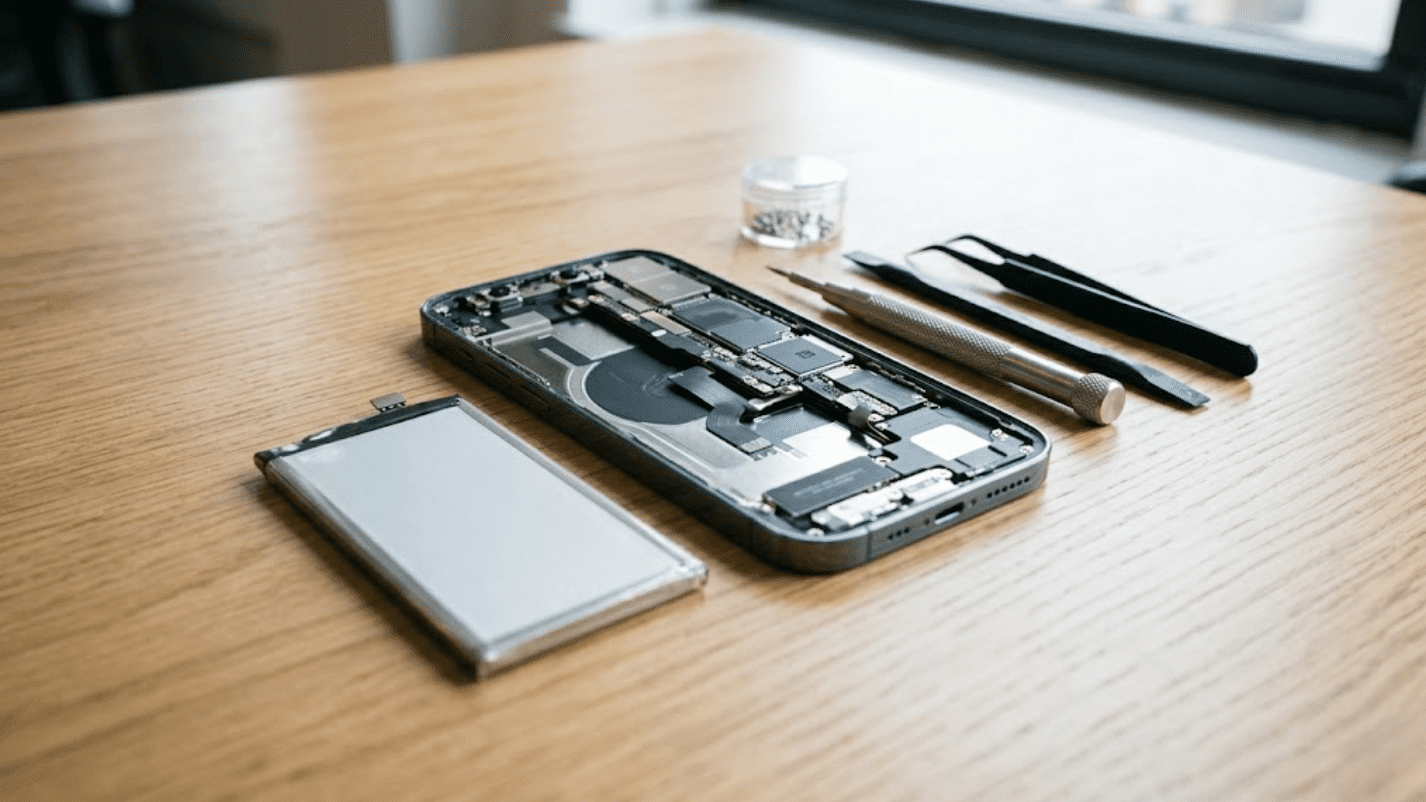
Consider battery replacement if:
- Battery health is below 80%
- Your iPhone shuts down unexpectedly at 20–30%
- Your phone feels warm even during light use
- Battery drain is excessive even after trying all the above fixes
- You see “Service” next to Battery Health in Settings
Apple offers battery replacement services, and reputable third-party repair shops are often faster and cheaper. Always ask for a genuine or high-quality replacement cell.
Summary: The Fastest Fixes for iPhone Battery Drain
| Fix | Time to Apply | Impact |
|---|---|---|
| Lower screen brightness / Dark Mode | 1 minute | High |
| Disable Background App Refresh | 2 minutes | High |
| Restrict Location Services | 3 minutes | High |
| Switch from Push to Fetch email | 1 minute | Medium |
| Enable Low Power Mode | 10 seconds | High (immediate) |
| Turn off non-essential notifications | 5 minutes | Medium |
| Set Auto-Lock to 30 seconds | 30 seconds | Medium |
| Check Battery Health | 1 minute | Diagnostic |
| Replace degraded battery | Varies | Very High (if below 80%) |
Frequently Asked Questions
Why does my iPhone battery drain overnight even when I’m not using it?
Background App Refresh, Push email, and location services are the most common culprits. Enabling Airplane Mode overnight is the fastest test — if your battery holds fine in Airplane Mode, one of those background services is the cause.
Does iOS update cause battery drain?
Yes, temporarily. Background indexing after an update can cause drain for 24–72 hours. If it continues beyond a week, investigate further using Settings → Battery.
Is 70% battery health bad?
Yes. Apple’s recommended threshold for replacement is 80%. At 70%, you’re likely losing hours of battery life compared to when the phone was new, and your iPhone may be throttling performance to compensate.
Can factory reset fix battery drain?
Sometimes, yes — if the drain is caused by a software issue or a corrupted process. But if your battery health is genuinely degraded, a reset won’t help. Always check battery health first.
Does 5G drain iPhone battery faster?
Yes, noticeably so. Using 5G Auto mode (instead of 5G On) helps by switching to LTE when 5G speeds aren’t needed.