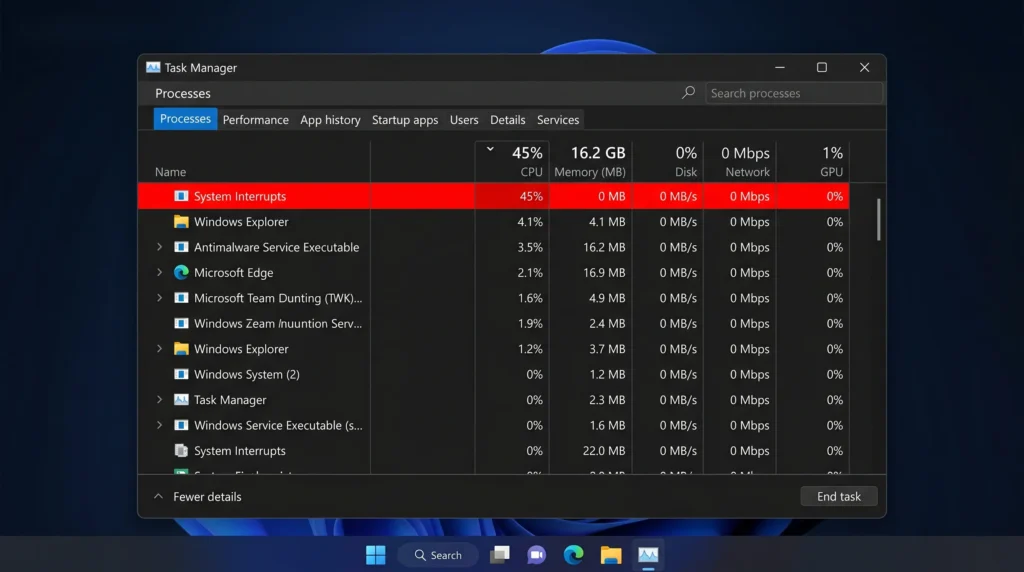



System Interrupts high CPU usage in Windows is caused by a malfunctioning hardware device or a corrupted driver sending excessive requests to your processor. It is not a virus. To fix it, start by unplugging all USB devices, then update your audio and network drivers, disable USB Root Hubs, turn off Fast Startup, and run SFC and CHKDSK scans. Most cases resolve within 30 minutes by working through these steps.
Introduction
You open Task Manager and something catches your eye. A process called System Interrupts is consuming 10%, 30%, or even 100% of your CPU — and your computer is crawling. Your fan is spinning at full speed, apps are freezing, and audio is crackling.
The good news: this is a solvable hardware or driver problem, not a virus, and you do not need to reinstall Windows to fix it.
In my experience troubleshooting hundreds of Windows systems, System Interrupts high CPU almost always traces back to a single misbehaving driver or a faulty external device. Once you identify the culprit, the fix takes minutes.
This guide explains exactly what System Interrupts is, why it happens, and how to fix it on Windows 10 and Windows 11 — step by step.
What Is System Interrupts in Windows?
System Interrupts is a placeholder process that appears in Windows Task Manager. It represents the total CPU time used to handle hardware interrupt requests (IRQs).
It is not a real program. You cannot close it, end it, or find an .exe file for it. Windows uses it purely as a display element to show you how much CPU time your hardware is consuming through interrupts.
When a hardware device — your keyboard, network card, sound card, USB hub, or hard drive — needs the processor’s attention, it sends an interrupt signal. The CPU pauses what it is doing, handles the request, and returns to its previous task. This happens thousands of times per second under normal conditions and uses almost no CPU.
When System Interrupts shows high CPU usage, it means a device is sending far too many interrupt signals. The processor spends most of its time handling these requests instead of running your programs.
Why Is System Interrupts Using High CPU?
System Interrupts shows high CPU usage when a hardware device or its driver is malfunctioning. Specifically:
- A driver has a bug that causes it to trigger repeated interrupts
- A physical hardware component is failing and generating error signals constantly
- Power management settings force USB or PCIe devices to cycle in and out of sleep states too quickly
- Corrupted Windows system files interfere with how interrupts are processed
- A connected external device (USB drive, webcam, hub, controller) is faulty
The interrupt handling itself is normal Windows behavior. The problem is the frequency — when it becomes excessive, your CPU cannot keep up.
How Much CPU Should System Interrupts Use?
Under normal conditions, System Interrupts should use less than 2–3% of CPU at idle. During heavy activity (lots of peripherals, disk I/O, or network transfers), brief spikes up to 5% are acceptable.
If System Interrupts is consistently using 10% or more of your CPU at idle, something is wrong. Usage of 20%–30% or higher will cause noticeable slowdowns, audio crackling, and stuttering. At 80–100%, your computer will be nearly unusable.
Common Causes of System Interrupts High CPU
| Cause | How Common | Typical Symptom |
|---|---|---|
| Outdated or corrupted audio driver | Very common | Audio crackling + high CPU |
| Faulty or outdated network adapter driver | Very common | Spikes during network activity |
| Damaged USB device or hub | Common | Spikes when USB device is connected |
| Fast Startup / power management conflict | Common | High CPU after wake from sleep |
| Failing hard drive | Moderate | Constant high interrupts + disk errors |
| Corrupted Windows system files | Moderate | Persistent high CPU across sessions |
| Faulty RAM | Less common | Random spikes, system instability |
| PCIe device driver conflict | Less common | Tied to specific hardware |
| BIOS / firmware issue | Rare | Requires BIOS update to resolve |
Step-by-Step Fixes for System Interrupts High CPU
Work through these fixes in order. Most users resolve the problem by Fix 3 or Fix 4.
Fix 1: Restart Your Computer
Before anything else, restart your PC. Driver faults that accumulate in memory during an uptime session will often clear on a fresh boot.
Do not use Sleep or Hibernate — perform a full shutdown and cold restart. This clears the driver state completely.
If the problem disappears after the restart and comes back later, that tells you it is a driver that degrades over time during use, which helps narrow the diagnosis.
Fix 2: Unplug All External Devices
Faulty USB devices are the most common cause of System Interrupts high CPU. A damaged USB hub, an old webcam, a controller, or a flash drive with corrupted firmware can flood your system with interrupt requests.
Steps:
- Unplug every USB device connected to your computer — drives, hubs, headsets, webcams, controllers, adapters.
- Open Task Manager (Ctrl + Shift + Esc) and watch the System Interrupts CPU usage.
- If CPU usage drops to normal (below 3%), a connected device is the culprit.
- Plug devices back in one at a time, waiting 30 seconds after each one.
- When CPU spikes again, you have found the faulty device.
Replace the identified device or try it on a different USB port. If a USB hub is the problem, replacing it usually resolves the issue immediately.
Fix 3: Update or Reinstall Drivers
Audio and network adapter drivers are the top software causes of System Interrupts high CPU. An outdated, corrupted, or incompatible driver can cause a device to generate thousands of unnecessary interrupt signals per second.
How to update drivers via Device Manager:
- Right-click the Start button and select Device Manager.
- Expand Sound, video and game controllers.
- Right-click your audio device and select Update driver.
- Choose Search automatically for drivers.
- Repeat for every entry under Network adapters.
If updating does not help — uninstall and reinstall:
- In Device Manager, right-click the device and select Uninstall device.
- Check the box to delete the driver software if offered.
- Restart your computer. Windows will reinstall a clean copy of the driver automatically.
For best results, visit your PC manufacturer’s website (Dell, HP, Lenovo, ASUS, etc.) and download the latest audio and network drivers directly. Manufacturer drivers are often better optimized than the generic ones Windows installs automatically.
Display adapter drivers can also cause this. Update your GPU driver through the NVIDIA, AMD, or Intel driver download pages if the above steps do not resolve the issue.
Fix 4: Disable USB Root Hubs
USB Root Hubs are software controllers that manage USB ports. When they are set to enter a power-saving state, they can cycle in and out rapidly and generate large numbers of interrupts.
Steps:
- Open Device Manager (right-click Start > Device Manager).
- Expand Universal Serial Bus controllers.
- Right-click the first USB Root Hub and select Properties.
- Go to the Power Management tab.
- Uncheck Allow the computer to turn off this device to save power.
- Click OK.
- Repeat for every USB Root Hub listed.
After completing this for all root hubs, restart your computer and check CPU usage.
Fix 5: Turn Off Fast Startup
Fast Startup is a Windows feature designed to speed up boot times. Instead of a full shutdown, it saves a partial system state to disk. This can cause driver states to persist incorrectly, leading to interrupt floods after the system wakes.
Steps:
- Open Control Panel (search for it in the Start menu).
- Go to Power Options.
- Click Choose what the power buttons do in the left panel.
- Click Change settings that are currently unavailable.
- Uncheck Turn on fast startup (recommended).
- Click Save changes.
- Perform a full shutdown and restart.
Disabling Fast Startup forces a complete driver reload on every boot, which often eliminates persistent interrupt issues.
Fix 6: Change Your Power Plan
An aggressive power-saving plan can cause hardware to enter and exit low-power states too frequently, generating constant interrupts.
Steps:
- Open Control Panel > Power Options.
- Select Balanced or High Performance.
- If you were already on Balanced, switch to High Performance temporarily to test.
- Restart and check System Interrupts CPU usage.
You can also customize the plan by clicking Change plan settings > Change advanced power settings and adjusting USB selective suspend, PCI Express power management, and processor power management settings.
Fix 7: Run SFC Scan
Corrupted Windows system files can cause the interrupt handling subsystem to malfunction. The System File Checker (SFC) tool finds and repairs corrupted files automatically.
Steps:
- Search for Command Prompt in the Start menu.
- Right-click it and select Run as administrator.
- Type the following and press Enter:
sfc /scannow- Wait for the scan to complete. It typically takes 10–15 minutes.
- Restart your computer when finished.
If SFC finds and repairs files, restart and test System Interrupts usage. If SFC reports it was unable to fix some files, run DISM first:
DISM /Online /Cleanup-Image /RestoreHealthThen run SFC again after DISM completes.
Fix 8: Run CHKDSK
A failing or corrupted hard drive generates constant read/write errors. Each error triggers an interrupt. If you have a failing drive, System Interrupts will stay high even after fixing all software issues.
Steps:
- Open Command Prompt as administrator.
- Type the following and press Enter:
chkdsk /r- When asked to schedule the check for the next restart, type Y and press Enter.
- Restart your computer. The check will run before Windows loads.
- The process can take 30–90 minutes on large drives. Let it complete.
If CHKDSK reports errors, back up your data immediately. A drive showing errors is at risk of failure.
Fix 9: Test Hardware Components
If none of the software fixes work, the problem may be a physically failing hardware component. The two most common hardware culprits at this stage are RAM and the hard drive.
Test RAM with Windows Memory Diagnostic:
- Press Win + R, type
mdsched.exe, and press Enter. - Select Restart now and check for problems.
- The test runs automatically. Results appear after Windows restarts.
For a more thorough test, download Memtest86 from memtest86.com and run it from a USB drive for at least two full passes.
Test your hard drive:
Use the built-in CrystalDiskInfo (free download) to check your drive’s S.M.A.R.T. data. Any “Caution” or “Bad” status indicates physical drive degradation.
Check for overheating:
Install HWMonitor or Core Temp and watch temperatures under load. A CPU or GPU running above 90°C (194°F) can cause system instability and excessive interrupts. Clean dust from vents and fans if temperatures are high.
Troubleshooting Checklist
Use this checklist to track your progress:
- Restarted computer (full shutdown, not sleep)
- Unplugged all USB devices and tested CPU
- Identified faulty USB device by plugging back in one at a time
- Updated audio driver via Device Manager or manufacturer site
- Updated network adapter driver
- Updated GPU driver
- Disabled power saving on all USB Root Hubs
- Turned off Fast Startup
- Switched to Balanced or High Performance power plan
- Ran SFC scan (sfc /scannow)
- Ran DISM if SFC reported unfixed files
- Ran CHKDSK /r
- Tested RAM with Windows Memory Diagnostic
- Checked drive health with CrystalDiskInfo
- Checked temperatures with HWMonitor
Decision Tree: Which Fix to Try First?
Does CPU drop to normal when you unplug all USB devices?
├── YES → Test USB devices one by one → Replace faulty device or hub
└── NO → Did the problem start after a Windows update or driver install?
    ├── YES → Roll back or reinstall the relevant driver
    └── NO → Is the issue tied to audio crackling or network activity?
        ├── YES → Update audio or network adapter driver (Fix 3)
        └── NO → Did the issue start after waking from sleep?
            ├── YES → Disable Fast Startup (Fix 5)
            └── NO → Run SFC, CHKDSK, and test hardware (Fixes 7–9)
Common Mistakes to Avoid
Trying to end the System Interrupts process. It is not a real process. You cannot end it in Task Manager, and attempting to will accomplish nothing.
Assuming it is a virus. System Interrupts is a legitimate Windows kernel function. Malware does not typically appear as System Interrupts in Task Manager. Run your antivirus scan separately if you have other concerns, but do not mistake high CPU here for an infection.
Updating all drivers at once. If you update 10 drivers simultaneously and the problem disappears, you will not know which fix worked. Update one category at a time so you can identify the culprit.
Skipping the USB device test. Many users go straight to complex fixes when a single faulty $10 USB hub was the problem all along. Always test USB isolation first.
Ignoring CHKDSK results. If CHKDSK reports errors, do not restart and move on. Back up your data. A drive with bad sectors is failing.
Myths vs. Facts
| Myth | Fact |
|---|---|
| System Interrupts is a virus | It is a legitimate Windows kernel placeholder, not a program |
| You can fix it by ending the process | System Interrupts cannot be ended — it represents kernel activity |
| Reinstalling Windows always fixes it | If failing hardware is the cause, reinstalling Windows will not help |
| High CPU from System Interrupts is normal | Usage above 5–10% at idle is abnormal and needs attention |
| Only old computers get this problem | It occurs on new hardware too, especially after driver updates |
| Disabling antivirus will fix it | Security software rarely causes System Interrupts to spike |
Expert Tips
Use LatencyMon to pinpoint the exact driver. LatencyMon (free from Resplendence Software) monitors DPC (Deferred Procedure Call) latency in real time and shows exactly which driver is generating the most interrupt activity. This is the most precise diagnostic tool available for this problem. Download it, run it for 5 minutes while the CPU is high, and check the Drivers tab for the highest DPC count.
Check Event Viewer for clues. Open Event Viewer (search in Start menu), go to Windows Logs > System, and look for errors or warnings that appear around the time CPU usage spikes. Hardware errors from specific devices often appear here.
BIOS updates can resolve hardware interrupt issues. If your motherboard BIOS is outdated and the problem appears tied to specific hardware behavior (especially on newer Intel or AMD platforms), check your motherboard manufacturer’s website for a BIOS update. Handle BIOS updates carefully — follow manufacturer instructions precisely.
Reseat internal hardware if you built your own PC. Loose RAM sticks, a PCIe card not fully seated, or a partially connected SATA cable can cause interrupt issues. Power down completely (unplug from wall), ground yourself, and reseat RAM and expansion cards.
People Also Ask
Is System Interrupts a virus?
No. System Interrupts is not a virus or malware. It is a Windows operating system process that represents the CPU time used to handle hardware interrupt requests. You will find it in Task Manager on every Windows installation. Legitimate antivirus software does not flag it as a threat. If you are concerned about malware, run a scan with Windows Defender or Malwarebytes separately, but System Interrupts itself is safe.
How much CPU should System Interrupts use?
Under normal conditions, System Interrupts should use less than 2–3% of CPU at idle. Occasional brief spikes up to 5% during heavy hardware activity are normal. If System Interrupts is consistently above 5–10% at idle — especially reaching 20%, 30%, or higher — it indicates a hardware or driver problem that needs to be resolved.
Why is 90% of my CPU being used by System Interrupts?
CPU usage of 90% or more from System Interrupts indicates a serious hardware or driver malfunction. A device is sending an extremely high volume of interrupt requests to your processor. The most common causes at this level are a faulty USB device (especially a hub or external drive), a severely corrupted audio or network driver, or a failing internal hardware component like a hard drive or RAM stick. Start by unplugging all USB devices and testing whether CPU drops. If it does not, update your audio and network drivers and run hardware diagnostics.
What are signs of hardware failure causing System Interrupts?
Signs that failing hardware is behind the problem include: System Interrupts stays high even after driver updates and software fixes; CHKDSK reports bad sectors on your drive; Windows Memory Diagnostic or Memtest86 reports RAM errors; you hear unusual clicking or grinding from your hard drive; or the system crashes with Blue Screen errors alongside the high CPU. At this point, back up your data and test individual components.
FAQ
Can System Interrupts high CPU damage my computer?
The high CPU usage itself will not cause permanent damage in the short term. However, if it is caused by a failing drive or overheating hardware, continuing to use the system without addressing the root cause can lead to data loss or component failure. Resolve the issue promptly.
Does System Interrupts high CPU affect gaming?
Yes. High System Interrupts CPU usage directly reduces the processing power available for games. You will experience stuttering, frame rate drops, input lag, and audio crackling during gameplay. Fixing the interrupt issue will restore normal performance.
Can a Windows update cause System Interrupts to spike?
Yes. A faulty driver included in a Windows Update can introduce interrupt issues. If the problem started immediately after a Windows Update, check Device Manager for recently updated drivers and roll them back. Go to Device Manager, right-click the suspect device, select Properties, go to the Driver tab, and click Roll Back Driver.
Does System Interrupts high CPU affect laptops differently?
On laptops, the issue often leads to faster battery drain and excessive heat in addition to slowdowns, because the CPU is running at higher utilization. The fixes are identical to desktop systems. Pay particular attention to USB devices, audio drivers, and power management settings.
Will disabling System Interrupts fix the problem?
No. System Interrupts cannot be disabled because it is a kernel function, not a process. Attempts to disable it through third-party tools will not succeed and may cause system instability. The correct approach is to fix the underlying hardware or driver issue causing excessive interrupt activity.
How do I use LatencyMon to find the problem driver?
Download and install LatencyMon from resplendence.com. Run it while your System Interrupts CPU usage is elevated. Click the green play button to start monitoring. After 2–5 minutes, click the Drivers tab and sort by DPC count or Highest execution. The driver at the top of the list is the most likely cause. Look up the driver name to identify which hardware it belongs to, then update or reinstall that driver.
Can System Interrupts high CPU be caused by a BIOS setting?
Yes. Certain BIOS settings, particularly those related to PCIe power management, USB legacy support, and ACPI power states, can cause excessive interrupt generation. If software fixes do not resolve the issue, enter your BIOS/UEFI settings and look for options like PCIe ASPM, USB Legacy Support, and XHCI Handoff. Consult your motherboard manual for guidance on these settings. A BIOS firmware update from your manufacturer may also resolve compatibility issues.
Key Takeaways
- System Interrupts is a legitimate Windows process representing hardware interrupt handling — it is not a virus.
- Normal CPU usage from System Interrupts should be under 2–3% at idle.
- The most common causes are faulty USB devices, outdated audio drivers, and outdated network adapter drivers.
- Always start troubleshooting by unplugging USB devices — this resolves the problem in many cases.
- Use LatencyMon to identify the exact driver causing the highest interrupt load.
- If software fixes do not work, test hardware: check RAM with Memtest86, test drive health with CrystalDiskInfo, and check temperatures with HWMonitor.
- A failing hard drive showing CHKDSK errors requires immediate data backup.
Conclusion
System Interrupts high CPU is one of the most confusing Windows performance problems because the process looks unfamiliar and you cannot simply close it. But it is also one of the most consistently solvable.
Start with the simplest tests: restart your PC and unplug your USB devices. In many cases, a single faulty USB hub or flash drive is the entire cause. If that does not resolve it, update your audio and network drivers, disable USB Root Hub power saving, and turn off Fast Startup.
For persistent cases, SFC, CHKDSK, and hardware diagnostics will help you determine whether the problem is software corruption or physical hardware failure. Tools like LatencyMon make it possible to pinpoint the exact driver responsible within minutes.
If you have worked through all the fixes in this guide and System Interrupts continues to consume high CPU, the most likely explanation is failing hardware — particularly a hard drive or RAM module. At that point, prioritize backing up your data and consider replacing the suspect component.