

The good news? Most blue screen errors are diagnosable and fixable. This guide walks you through every cause and solution — in the right order.
What Is a Blue Screen on a Computer?

A blue screen on computer — commonly called a BSOD (Blue Screen of Death) — is Windows’ way of stopping everything when it detects a problem serious enough to risk damaging your data or hardware.
Officially, Microsoft calls it a STOP error. When triggered, Windows halts all processes, displays the blue screen with an error code, and forces a restart.
Think of it like a circuit breaker in your home. When the electrical load becomes dangerous, the breaker trips and cuts power — not to cause problems, but to prevent a much worse outcome.
Windows does the same thing. Rather than letting a failing driver or corrupted process damage your files or hardware, it shuts down immediately as a protective measure.
The blue screen itself is not the problem — it is the warning signal pointing to one.
Why Does a Blue Screen Appear on Computer?
Several underlying issues can trigger a BSOD. Here are the five most common causes — each with a real-world context that helps identify which one applies to your situation.
1. Driver Issues (Most Common Cause)
Drivers are software files that allow Windows to communicate with your hardware — GPU, network adapter, storage controller, and more. When a driver is outdated, corrupted, or incompatible with the current Windows version, it can cause a system-level conflict that immediately triggers a blue screen.
According to Microsoft, driver-related failures account for approximately 70% of all Windows STOP errors — making this the single most important area to check first.
Real-world scenario: A user updates their graphics card driver on a Tuesday patch cycle. The next day, their system crashes to a blue screen every time a GPU-intensive application launches. Rolling back the driver resolves the issue immediately.
2. Hardware Problems (RAM, SSD, Overheating)
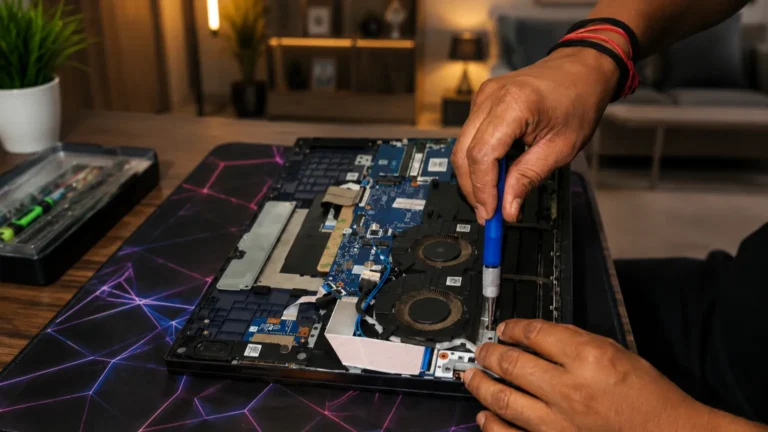
Faulty or failing hardware is the second most common BSOD trigger. A RAM stick with damaged cells, an SSD developing bad sectors, a failing power supply, or a system running consistently above safe temperature thresholds can all force Windows into an emergency shutdown.
Overheating is particularly common in laptops where dust buildup restricts airflow over time — causing thermal throttling that eventually destabilizes the system entirely.
Real-world scenario: A user notices their laptop runs hot during video calls. Over several weeks, occasional blue screens begin appearing during heavy workloads. Cleaning the cooling vents and replacing the thermal paste resolves the overheating — and the crashes stop entirely.
3. Corrupted System Files
Windows relies on thousands of critical system files to operate. When these files become damaged — through an interrupted update, an unexpected shutdown during a write operation, or gradual disk degradation — the OS loses access to processes it needs to function, triggering a BSOD.
The corruption does not always happen suddenly. In many cases it builds gradually, producing intermittent errors before the full crash appears.
Real-world scenario: A user’s PC loses power mid-way through a Windows update installation. On the next boot, the system crashes with a CRITICAL_PROCESS_DIED error. Running the Windows System File Checker (SFC) tool identifies and repairs the damaged update files.
4. Software Conflicts
Newly installed applications — particularly system utilities, antivirus software, or performance optimization tools — can conflict with existing Windows processes or other installed programs. When two software components attempt to access the same system resource simultaneously, Windows detects the conflict as a critical error and shuts down.
This cause is frequently overlooked because the connection between a newly installed app and a blue screen is not always obvious.
Real-world scenario: A user installs a third-party system cleaner tool recommended on a forum. Within hours their PC begins blue screening intermittently. Uninstalling the application through Safe Mode stops the crashes completely — the tool had been interfering with core Windows memory management processes.
5. Malware or Virus Attack
Certain types of malware — particularly rootkits, aggressive trojans, and ransomware — target and corrupt critical Windows system files as part of their operation. Once core OS files are compromised, Windows can no longer run stably, producing repeated blue screen crashes that worsen over time.
This cause is often misidentified as a hardware problem because the symptoms — random crashes, unresponsive processes, degrading performance — mirror physical component failure.
Real-world scenario: A user starts experiencing daily blue screens with no apparent pattern — different STOP codes each time, no recent hardware or software changes. A full malware scan reveals a rootkit that had been quietly corrupting system files for weeks. Removing the infection and repairing Windows through a recovery environment restores full stability.
How to Fix Blue Screen on Computer (Quick Fix)
Before moving into detailed troubleshooting, try these steps first. The majority of blue screen errors are resolved within this list.
How to fix blue screen on computer quickly:
- Restart your computer — press and hold the power button for 10 seconds to force shutdown, then power back on to clear any temporary system fault
- Note the STOP code — write down the error code displayed on the blue screen (e.g., CRITICAL_PROCESS_DIED, MEMORY_MANAGEMENT) before the screen disappears
- Boot into Safe Mode — restart and press F8 or hold Shift + Restart to enter Safe Mode, which loads Windows with minimal drivers only
- Update or rollback drivers — open Device Manager, check for recently updated drivers and roll back any changed in the last 24–48 hours
- Remove recently installed software — go to Settings → Apps and uninstall any program added shortly before the crashes began
- Run Windows Diagnostics — type mdsched.exe in the search bar to launch Windows Memory Diagnostic and check RAM for faults
Result: If your system boots normally in Safe Mode, the cause is almost certainly a driver or software conflict — not a hardware failure. That single test narrows your fix path immediately.
Step-by-Step Fix Guide: Blue Screen on Computer (BSOD)
Work through these fixes in order — starting from the least invasive and moving toward advanced solutions only when needed.
Fix 1 — Restart and Check for Temporary Errors
Why it works: Not every blue screen signals a serious problem. A one-time crash caused by a temporary memory conflict, a brief power fluctuation, or a background process fault often resolves itself on the next boot.
Steps:
- Hold the power button for 10 seconds to force a full shutdown
- Wait 30 seconds before powering back on
- Monitor whether the blue screen returns
- If it appears only once and does not return — note the STOP code but take no further action yet
- If it returns on the next session — proceed to Fix 2
Fix 2 — Boot Into Safe Mode
Why it works: Safe Mode loads Windows with only the minimum drivers and processes required to run. If your system runs without crashing in Safe Mode, the cause is a third-party driver or software — not a hardware failure. This single test saves significant troubleshooting time.
Steps:
- Restart your PC and press F8 repeatedly before Windows loads
- Alternatively, go to Settings → Update & Security → Recovery → Advanced Startup → Restart Now
- Select Troubleshoot → Advanced Options → Startup Settings → Restart
- Press 4 to boot into Safe Mode
- Use your PC normally for several minutes and observe whether crashes continue
Fix 3 — Update or Rollback Drivers
Why it works: Driver conflicts cause approximately 70% of all blue screen errors. Updating outdated drivers resolves compatibility issues — while rolling back a recently changed driver undoes a conflict introduced by a bad update.
Steps:
- Right-click the Start button and open Device Manager
- Expand Display Adapters, Network Adapters, and Storage Controllers
- Right-click any device with a warning icon and select Update Driver
- For recently updated drivers — right-click, select Properties → Driver tab → Roll Back Driver
- Restart after each change and check whether crashes continue
Fix 4 — Run System File Checker (SFC)
Why it works: Corrupted Windows system files prevent critical OS processes from running correctly. The SFC tool scans every protected system file and automatically replaces any damaged ones — without affecting your personal data.
Steps:
- Type cmd in the Windows search bar
- Right-click Command Prompt and select Run as Administrator
- Type sfc /scannow and press Enter
- Wait for the scan to complete — this takes 10–20 minutes
- If corruption is found and repaired — restart and monitor for further crashes
- Follow up with DISM /Online /Cleanup-Image /RestoreHealth if SFC reports it cannot repair all files
Fix 5 — Check RAM and Disk Health
Why it works: Faulty RAM or a degrading SSD can produce inconsistent blue screens with varying STOP codes — making them difficult to diagnose without dedicated hardware tests. Identifying a failing component early prevents data loss.
Steps:
- Press Windows + R, type mdsched.exe and press Enter to launch Windows Memory Diagnostic
- Select Restart now and check for problems
- After restart, results appear in the notification area — note any errors found
- For disk health, open Command Prompt as Administrator and run chkdsk /f /r C:
- Schedule the scan on next restart and review results for bad sectors or file system errors
If the tool detects errors, you may need to check the modules individually. You can follow a specialized Intel Support Guide on Hardware Diagnostics to properly isolate and replace a faulty RAM stick.
Fix 6 — Reinstall Windows (Last Option)
Why it works: When system file corruption is too extensive for SFC or DISM to repair, a clean Windows installation restores full OS integrity. This resolves software-level causes that all previous fixes cannot reach.
Steps:
- Back up all personal files to an external drive before proceeding
- Download the Windows Media Creation Tool from Microsoft’s official site
- Create a bootable USB drive and boot from it via F12 at startup
- Select Install Now → Custom Installation
- Choose your existing Windows partition and proceed with the installation
Important: A clean reinstall erases all data on the system partition. If blue screens persist after reinstalling Windows — the cause is hardware, not software. Test RAM sticks individually and consider professional diagnosis before replacing components.
Blue Screen on My Computer After Windows Update
A Windows update triggering a blue screen is one of the most frustrating experiences a user can face — the system was working perfectly, the update ran overnight, and now it will not boot correctly. This is also one of the most searched BSOD scenarios, and one that competitors cover poorly.
Here is exactly why it happens and how to fix it.
Why Windows Updates Cause Blue Screens
Windows updates do not just patch security vulnerabilities — they also modify drivers, system files, and core OS components. When any of these changes conflict with existing hardware drivers or installed software, the result is a STOP error.
The three most common update-related triggers are:
- Driver replacement gone wrong — the update installs a newer driver version that conflicts with your specific hardware configuration
- Incomplete installation — a power interruption or storage error mid-update leaves critical system files in a partially written state
- Cumulative update conflict — a new update interacts badly with a previously installed patch, creating a system-level conflict that only surfaces after restart
Fix 1 — Uninstall the Problematic Update
Steps:
- Go to Settings → Windows Update → Update History
- Click Uninstall Updates at the top of the page
- Sort by installation date and locate the most recent update
- Right-click and select Uninstall
- Restart and confirm whether the blue screen returns
Fix 2 — Roll Back Drivers Updated by Windows
Windows Update frequently replaces manufacturer-installed drivers with generic Microsoft versions — which are not always optimized for your specific hardware.
Steps:
- Open Device Manager via right-clicking the Start button
- Expand Display Adapters and Network Adapters
- Right-click each device → Properties → Driver tab
- Check the driver date — if it matches the update date, click Roll Back Driver
- Restart after each rollback and test for stability
Fix 3 — Use Windows Startup Repair
If the blue screen appears before Windows fully loads after an update, Startup Repair can rebuild damaged boot files without affecting personal data.
Steps:
- Force shutdown three times consecutively by holding the power button
- On the third restart Windows automatically enters the Recovery Environment
- Select Troubleshoot → Advanced Options → Startup Repair
- Allow the process to complete and restart normally
Fix 4 — Restore to Pre-Update State Using System Restore
If the above fixes do not resolve the issue, System Restore rolls your entire Windows configuration back to its state before the update ran — without touching personal files.
Steps:
- Boot into Windows Recovery Environment as described above
- Select Troubleshoot → Advanced Options → System Restore
- Choose a restore point dated before the update installation
- Confirm and allow the restoration to complete
- Restart and verify the system boots without a blue screen
Fix 5 — Pause Future Updates Temporarily
After resolving the crash, pause Windows Update for 1–2 weeks to allow Microsoft time to release a corrected patch.
Steps:
- Go to Settings → Windows Update → Advanced Options
- Select Pause Updates for up to 5 weeks
- Check community forums for reports of the same update causing crashes before resuming
Key insight: A blue screen immediately after a Windows update almost never means your hardware is failing. In the vast majority of cases it is a driver conflict or incomplete file installation — both of which are fully reversible without data loss.
Understanding BSOD STOP Codes on Your Computer
When a blue screen appears, Windows displays a STOP code — a specific error identifier that tells you exactly which part of the system triggered the crash. Reading this code correctly cuts your troubleshooting time significantly.
Think of a STOP code like a fault code on a car dashboard. The warning light tells you something is wrong — the code tells you which system needs attention.
Here are the most common STOP codes, what they mean in plain English, and where to look for the fix.
CRITICAL_PROCESS_DIED
What it means: A core Windows process that must run continuously — such as a system service or kernel component — stopped unexpectedly. Windows cannot operate without it and shuts down immediately.
Common causes:
- Corrupted Windows system files
- A failed Windows update mid-installation
- Malware targeting core OS processes
Where to look first: Run sfc /scannow in Command Prompt as Administrator. If system files are corrupted, this repairs them automatically. Follow up with a malware scan if SFC finds nothing.
MEMORY_MANAGEMENT
What it means: Windows detected a serious error in its memory management processes — meaning something went wrong with how the system reads, writes, or allocates RAM.
Common causes:
- Faulty or failing RAM stick
- Incompatible RAM configuration
- Corrupted Windows memory management drivers
Where to look first: Run Windows Memory Diagnostic (mdsched.exe) to test RAM for physical faults. If one stick fails — remove it and test each stick individually to isolate the faulty module.
IRQL_NOT_LESS_OR_EQUAL
What it means: A driver or system process attempted to access a memory address it was not authorized to access. This is almost always a driver problem — the driver requested system resources at the wrong priority level.
Common causes:
- Outdated or corrupted device driver
- Recently installed driver conflicting with existing hardware
- Faulty network adapter or storage controller driver
Where to look first: Open Device Manager and check for recently updated or flagged drivers. Roll back any driver updated within 48 hours of the crash first — GPU and network adapter drivers are the most frequent offenders.
PAGE_FAULT_IN_NONPAGED_AREA
What it means: Windows tried to retrieve data from a memory page that should have been immediately available — but it was not there. This points to either a RAM hardware fault or a driver attempting to access invalid memory.
Common causes:
- Failing RAM
- Corrupted or incompatible driver
- Antivirus software interfering with memory operations
Where to look first: Run both Windows Memory Diagnostic and chkdsk /f /r to check RAM and disk integrity simultaneously. Third-party antivirus tools are also a known trigger — temporarily disabling them can confirm whether they are the source.
SYSTEM_SERVICE_EXCEPTION
What it means: A system service — typically a driver running in kernel mode — caused an exception error that Windows could not handle. Kernel mode processes run at the deepest level of the OS, so a fault here forces an immediate shutdown.
Common causes:
- Outdated GPU or chipset drivers
- Corrupted system files
- Incompatible third-party software running system-level processes
Where to look first: Update GPU, chipset, and storage drivers first. Then run sfc /scannow to address any underlying file corruption. If the error persists, review recently installed applications that run background services.
VIDEO_TDR_FAILURE
What it means: The graphics driver stopped responding and failed to recover within the required time limit. TDR stands for Timeout Detection and Recovery — when this process fails completely, a blue screen follows.
Common causes:
- Outdated or corrupted GPU driver
- Overheating graphics card
- Failing GPU hardware
Where to look first: Update or cleanly reinstall the GPU driver using the manufacturer’s official tool — DDU (Display Driver Uninstaller) for a clean removal before reinstalling. Check GPU temperatures under load using HWMonitor to rule out overheating.
How to Read a STOP Code During a Crash
| What to Look For | Where to Find It |
| STOP code name | Large text on blue screen |
| Hex error code | Below the STOP code name |
| Failing file name | Sometimes listed below hex code |
| QR code | Scan with phone for Microsoft support page |
| Minidump file | C:\Windows\Minidump — analyze with WhoCrashed |
Key insight: No two STOP codes point to the same fix. Capturing the exact code before the screen disappears — or finding it in Event Viewer under Windows Logs → System — is the fastest path to the correct solution.
Real-World Scenarios: Blue Screen on Computer

Sometimes the fastest way to identify a blue screen cause is to recognize your own situation in someone else’s experience. Here are three scenarios that users encounter most frequently — along with what actually caused the crash and the most direct path to fixing it.
Scenario 1: Blue Screen While Gaming
A user builds a new gaming PC and everything runs perfectly for the first two weeks. Then, after a GPU driver update pushed through GeForce Experience, the system starts crashing to a blue screen specifically during graphically intensive game sessions. The STOP code reads VIDEO_TDR_FAILURE every time.
Outside of gaming — browsing, streaming, light work — the system runs without any issues whatsoever.
What likely happened: The GPU driver update introduced a version that conflicts with the specific hardware configuration of this system. The driver fails under heavy GPU load because the new version cannot manage the card’s memory allocation correctly at high utilization. The system only crashes during gaming because that is when the GPU operates at full capacity — light tasks never push it far enough to trigger the conflict.
What to do:
- Download DDU (Display Driver Uninstaller) and boot into Safe Mode
- Run DDU to completely remove all existing GPU driver files
- Visit the GPU manufacturer’s official site — not GeForce Experience — and install the previous stable driver version
- Monitor for crashes across several gaming sessions before updating drivers again
- If crashes continue after a clean driver reinstall — check GPU temperatures under load using HWMonitor to rule out overheating as a secondary factor
Scenario 2: Blue Screen Every Time at Startup
A user wakes up to find their laptop crashed overnight. On every subsequent boot attempt, the system reaches the Windows loading screen — then immediately crashes to a blue screen before the desktop loads. The STOP code alternates between INACCESSIBLE_BOOT_DEVICE and CRITICAL_PROCESS_DIED across different restart attempts.
The user recalls their laptop ran a Windows update automatically the previous evening before they went to sleep.
What likely happened: The Windows update either modified a storage driver incompatible with the system’s SSD configuration, or the update installation was interrupted mid-process — leaving critical boot files in a damaged state. The alternating STOP codes are a strong indicator of file-level corruption rather than hardware failure, because a true hardware fault typically produces the same code consistently.
What to do:
- Force shutdown three times consecutively to trigger the Windows Recovery Environment
- Select Troubleshoot → Advanced Options → Startup Repair and allow it to run fully
- If Startup Repair cannot resolve the issue, return to Advanced Options and select System Restore — choose a restore point from before the update ran
- If no restore points are available, use a Windows USB to run bootrec /fixmbr and bootrec /fixboot from Command Prompt
- As a final check — enter BIOS via F2 and confirm SATA mode is set to AHCI, not RAID, which update processes occasionally reset incorrectly
Scenario 3: Blue Screen After Installing New Software
A user installs a system optimization tool downloaded from a third-party website. Within hours of installation, the PC starts producing blue screens with the STOP code IRQL_NOT_LESS_OR_EQUAL. The crashes happen randomly — during browsing, document editing, and even while the PC sits idle.
The user does not immediately connect the crashes to the new software because the tool appeared legitimate and came recommended in an online forum thread.
What likely happened: The optimization tool installed a kernel-level driver as part of its background monitoring process. This driver is attempting to access system memory at an unauthorized priority level — which is precisely what IRQL_NOT_LESS_OR_EQUAL indicates. Tools that run deep system scans or modify memory behavior are among the most frequent non-malware triggers of this specific STOP code.
What to do:
- Boot into Safe Mode — if crashes stop in Safe Mode, a third-party driver or background service is confirmed as the cause
- Boot back into normal Windows and go to Settings → Apps
- Uninstall the optimization tool completely
- Restart and monitor stability over the next 24 hours
- If crashes continue after uninstalling — run sfc /scannow to check whether the tool’s driver left behind corrupted system files
- In future, avoid downloading system tools from forum recommendations — use only software from verified publishers with established reputations
Pattern to note: In Scenarios 1 and 3, the system boots normally and the fix lies entirely in driver or software management. In Scenario 2, the system cannot reach the desktop — making the Windows Recovery Environment the essential starting point before any other step is attempted.
Is a Blue Screen on Your Computer Dangerous?
A single blue screen — especially after a software change or update — is not automatically a sign of serious damage. Windows triggered the shutdown as a precaution, and in many cases the system recovers completely on the next boot.
However, frequency changes everything.
Take blue screen errors seriously if you notice:
- Crashes happening daily or multiple times per week — indicating an unresolved underlying issue
- Different STOP codes each time — suggesting system-wide instability rather than one isolated fault
- Blue screens accompanied by data loss — files corrupting or disappearing after each crash
- Crashes that prevent Windows from loading — pointing to hardware failure or severe file corruption
- Overheating symptoms alongside crashes — fan noise, hot surfaces, unexpected shutdowns before the blue screen appears
The rule of thumb: One blue screen warrants attention. Repeated blue screens demand action. Ignoring frequent crashes risks permanent hardware damage, data loss, and — in worst-case hardware failure scenarios — complete system failure.
How to Prevent Blue Screen Errors on Your Computer
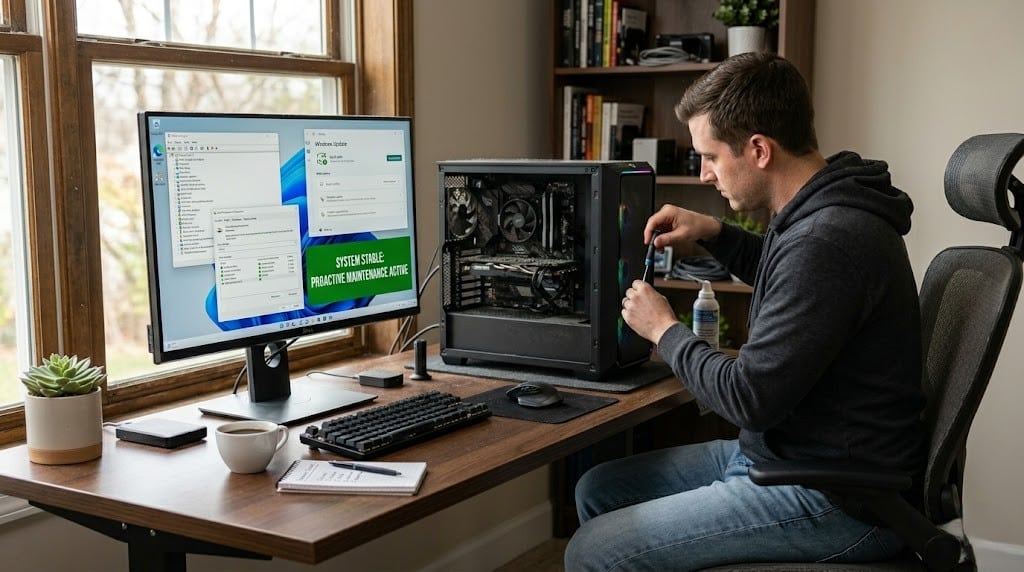
Most blue screen errors are preventable. These four habits eliminate the majority of BSOD triggers before they cause a crash.
Keep Drivers Updated — But Carefully
Update drivers regularly through Device Manager or your hardware manufacturer’s official site. Avoid automatic driver updates from third-party tools — they frequently install incorrect versions. After any driver update, monitor system stability for 24–48 hours before updating another.
Control System Temperature
Clean cooling vents every 3–6 months using compressed air. Use HWMonitor to track CPU and GPU temperatures — sustained readings above 90°C under load indicate a cooling problem that will eventually produce crashes.
Install Software From Trusted Sources Only
Every third-party tool that installs a background service or kernel-level driver is a potential BSOD trigger. Limit installations to verified publishers and established software with known reputations.
Run Regular System Health Checks
Schedule monthly maintenance using these built-in Windows tools:
- sfc /scannow — repairs corrupted system files
- chkdsk /f — checks disk for errors and bad sectors
- Windows Memory Diagnostic — confirms RAM integrity
Prevention principle: The three most common BSOD triggers — outdated drivers, overheating, and corrupted files — are all detectable and addressable before they cause a crash. Routine checks take less than 30 minutes monthly and eliminate the vast majority of blue screen risk entirely.
Frequently Asked Questions: Blue Screen on Computer (BSOD)
Q1. Why does my computer suddenly show a blue screen?
A blue screen on your computer appears when Windows detects a critical error it cannot safely recover from — such as a driver conflict, hardware fault, or corrupted system file. The system shuts down immediately to prevent further damage to your data or hardware. Note the STOP code displayed on the screen before it restarts — that code identifies the exact cause.
Q2. Can a blue screen fix itself?
A single blue screen can resolve itself after a restart if the cause was a temporary memory conflict or a brief system fault. However, if the blue screen returns on subsequent sessions, the underlying issue requires active troubleshooting — it will not resolve on its own. Recurring crashes always indicate something that needs attention.
Q3. Does a blue screen mean my computer is damaged?
A blue screen does not automatically mean your computer is physically damaged. In most cases the cause is a software issue — an outdated driver, a corrupted system file, or a conflicting application — all of which are fully fixable without hardware replacement. Physical damage becomes a concern only when the blue screen persists after all software fixes have been exhausted.
Q4. How do I fix a blue screen on my computer permanently?
To fix a blue screen permanently, identify the STOP code, update or roll back the driver it points to, run sfc /scannow to repair corrupted system files, and test RAM using Windows Memory Diagnostic. Working through fixes in that order resolves the majority of recurring blue screen errors without reinstalling Windows. If crashes continue after all software fixes, test hardware components individually to identify any failing part.
Q5. Is a blue screen caused by a virus?
A virus or malware infection can cause blue screen errors by corrupting critical Windows system files or interfering with core OS processes. This cause is often misidentified as a hardware problem because the symptoms — random crashes, varying STOP codes, degrading performance — closely resemble physical component failure. Running a full malware scan is an essential step in any blue screen troubleshooting process, particularly when the STOP code changes with each crash.
Conclusion
A blue screen on your computer is alarming in the moment — but in the vast majority of cases, it is entirely fixable without replacing any hardware.
Whether the cause is an outdated driver, a corrupted system file, a conflicting Windows update, or a hardware component showing early signs of failure — every scenario covered in this guide has a clear, structured solution path.
Start here: Note your STOP code, restart into Safe Mode, and run a driver check. Those three steps resolve most blue screen errors before any advanced fix is needed.
Your system is recoverable — act on the STOP code and work through the fixes in order.