

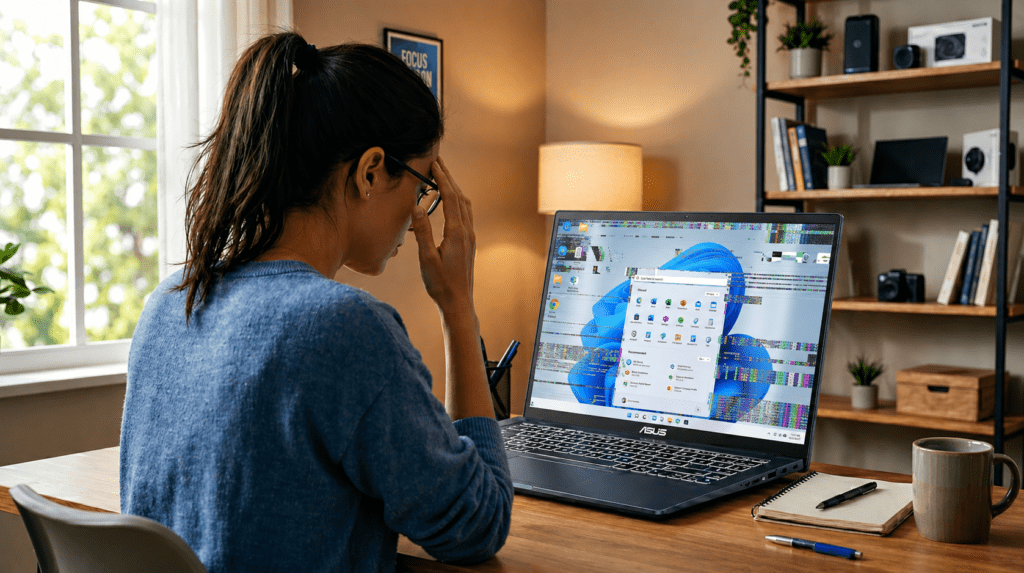
If your Asus laptop screen keeps blinking or flickering, your display is rapidly flashing or dimming in a way that makes normal use difficult — and it almost always has a fixable cause.
An Asus laptop blinking screen occurs when the display loses stable output, typically due to outdated or corrupted graphics drivers, an incorrect refresh rate setting, a software conflict, or a hardware issue with the display cable or LCD panel.
The good news? The majority of blinking screen cases are resolved through software fixes alone — no hardware replacement needed.
This guide covers every cause, every fix, and how to identify whether your issue is software or hardware — in the correct order.
What Does Asus Laptop Blinking Screen Mean?
A blinking screen means your display is turning on and off rapidly — often appearing as sudden black flashes or complete screen shutoffs that repeat in quick succession.
A flickering screen is slightly different. It appears as a continuous rapid shaking, dimming, or unstable image — like the screen is constantly trying to refresh but cannot stabilize.
Both point to the same underlying problem: your display is not receiving a stable, consistent signal from the graphics system.
Think of it like a light bulb with a loose connection. The bulb works — but the unstable connection causes it to flash rather than burn steadily.
Temporary blinking — lasting only seconds after startup — is usually a minor driver or refresh rate issue. Continuous blinking that persists throughout normal use points to a deeper driver, software, or hardware fault that requires active troubleshooting.
Why Is My Asus Laptop Screen Blinking?
Several distinct issues can trigger a blinking or flickering screen on an Asus laptop. Here are the six most common causes — each with a real-world context to help identify which applies to your situation.
1. Outdated or Corrupted Graphics Drivers (Most Common)
Your graphics driver controls how your GPU communicates with the display. When this driver becomes outdated, corrupted, or incompatible with the current Windows version, the display signal becomes unstable — producing a blinking or flickering screen.
This is the single most common cause of Asus laptop screen blinking, and the first area every troubleshooting process should address.
Real-world scenario: A user installs a Windows update overnight. The next morning their Asus laptop screen begins flickering constantly — but only after the update completed. The Windows update replaced the manufacturer-installed GPU driver with a generic Microsoft version that does not fully support the display hardware.
2. Incorrect Refresh Rate Settings
Every Asus laptop display has a supported refresh rate range — typically 60Hz for standard panels and up to 144Hz or 165Hz for gaming models. Setting the refresh rate outside the panel’s supported range causes the display to struggle to maintain a stable image, resulting in visible flickering.
This cause is particularly common on high-refresh-rate gaming Asus models where users manually adjust display settings without checking panel specifications first.
Real-world scenario: A user purchases an Asus ROG laptop with a 144Hz display and manually sets the refresh rate to 165Hz assuming better performance. The screen begins flickering immediately. Dropping the refresh rate back to 144Hz resolves the issue entirely — the panel was being pushed beyond its rated specification.
3. Loose or Damaged Display Cable
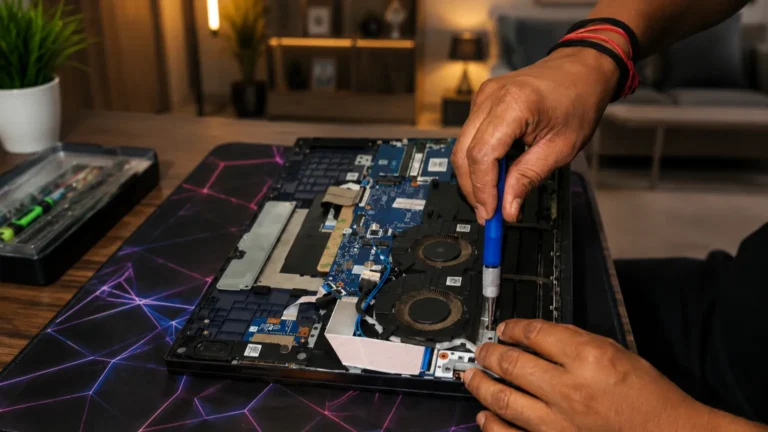
Inside every laptop, a thin display cable connects the motherboard to the LCD panel. If this cable becomes loose — from repeated lid opening, physical impact, or general wear — the display signal becomes intermittent, causing flickering that worsens when the lid is moved.
This cause is unique because the flickering pattern directly follows physical movement of the screen rather than appearing randomly.
Real-world scenario: A user notices their Asus laptop screen flickers specifically when they adjust the lid angle. At certain positions the screen is stable — at others it flickers heavily. This behavior pattern almost always indicates a loose or partially damaged display cable rather than a software issue.
4. Hardware Issues (LCD Panel or GPU)
A failing LCD panel or a GPU with degraded output can produce persistent blinking that no software fix resolves. LCD panel failure typically produces flickering concentrated in one area of the screen, visible lines, or backlight irregularities. GPU hardware failure produces flickering across all connected displays simultaneously.
These are less common than software causes but become the primary suspect when every software fix has been attempted without success.
Real-world scenario: A user tries every driver update, refresh rate adjustment, and software fix available — but the blinking persists on both the laptop screen and an external monitor simultaneously. The fact that the external monitor also flickers confirms the issue lies with the GPU itself, not the laptop display panel.
5. Software Conflicts or Incompatible Applications
Certain third-party applications — particularly system utilities, antivirus tools, and screen recording software — install background processes that interact with display drivers at a system level. When these processes conflict with the GPU driver or Windows display settings, the result is intermittent screen flickering that appears only while those applications are running.
The flickering pattern in software conflict cases is typically irregular and app-dependent rather than constant.
Real-world scenario: A user installs a popular antivirus suite on their Asus laptop. Within hours the screen begins flickering intermittently during normal use. Booting into Safe Mode — which prevents third-party applications from loading — stops the flickering entirely, confirming the antivirus software’s background process as the source of the conflict.
6. Overheating or Power Supply Issues
When an Asus laptop runs consistently above safe operating temperatures, thermal throttling kicks in — reducing GPU performance to protect the hardware. This sudden reduction in GPU output can destabilize the display signal and produce flickering or dimming during heavy workloads.
Power-related flickering also occurs when the laptop receives inconsistent voltage through a faulty charging cable or a degrading battery — causing the display to fluctuate with power delivery.
Real-world scenario: A user notices their Asus gaming laptop screen only flickers during extended gaming sessions — never during light tasks. Checking GPU temperature with HWMonitor reveals sustained readings above 95°C under gaming load. Cleaning the cooling vents and reapplying thermal paste reduces temperatures — and the display flickering stops entirely.
How to Fix Asus Laptop Blinking Screen (Quick Fix)
Before moving into detailed troubleshooting, run through these steps first. The majority of Asus laptop screen blinking issues are resolved within this list.
How to fix Asus laptop blinking screen quickly:
- Restart your laptop completely — press and hold the power button for 10 seconds to force a full shutdown, wait 30 seconds, then power back on to clear any temporary display fault
- Update your graphics driver — right-click the Start button → Device Manager → expand Display Adapters → right-click your GPU → select Update Driver
- Set the correct refresh rate — right-click desktop → Display Settings → Advanced Display Settings → set refresh rate to 60Hz or your panel’s native supported rate
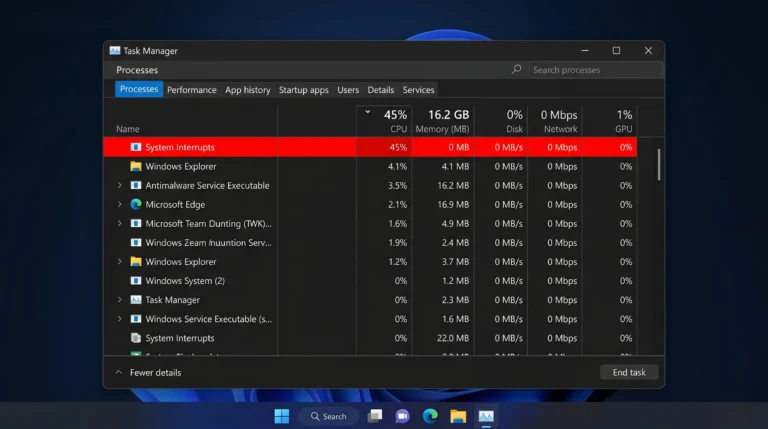
- Open Task Manager — press Ctrl + Shift + Esc and observe whether Task Manager itself flickers — if it does, the cause is a driver issue; if it does not, the cause is a software conflict
- Boot into Safe Mode — go to Settings → Recovery → Advanced Startup → Restart Now → Troubleshoot → Startup Settings → press F4 to confirm whether blinking stops without third-party apps loaded
- Remove recently installed applications — go to Settings → Apps, sort by installation date, and uninstall any application added shortly before the blinking began
Result: The Task Manager flicker test in Step 4 is the single most valuable diagnostic in this list — it immediately splits your troubleshooting path into driver-related or software-related, saving significant time on every fix that follows.
Step-by-Step Fix Guide: Asus Laptop Blinking Screen
Work through these fixes in order — starting from the least invasive and moving toward hardware-level checks only when needed.
Fix 1 — Restart Your Laptop
Why it works: A temporary memory conflict, a background process fault, or a display driver loading incorrectly at startup can all cause a one-time blinking episode. A full restart clears all active processes and reloads the display driver from scratch.
Steps:
- Save all open work before proceeding
- Press and hold the power button for 10 seconds to force a complete shutdown
- Wait 30 seconds before powering back on
- Monitor whether the blinking returns during normal use
- If blinking appears only once and does not return — note when it occurred but take no further action yet
- If blinking returns consistently — proceed to Fix 2
Fix 2 — Update or Reinstall Graphics Drivers
Why it works: Outdated or corrupted graphics drivers are the most common cause of Asus laptop screen blinking. Updating installs the correct version for your hardware — reinstalling performs a clean removal first, eliminating any corrupted driver files that an update alone cannot fix.
Steps:
- Right-click the Start button and open Device Manager
- Expand Display Adapters and right-click your GPU
- Select Update Driver → Search automatically for updated driver software
- If updating does not resolve the blinking — right-click the GPU again and select Uninstall Device
- Check Delete the driver software for this device before confirming
- Restart your laptop — Windows will reinstall a fresh driver automatically
- For best results, visit the Asus support page or your GPU manufacturer’s site and download the driver directly rather than relying on Windows automatic detection
Fix 3 — Adjust Refresh Rate Settings
Why it works: A refresh rate set beyond your panel’s supported range forces the display to operate outside its stable limits. Setting the correct rate immediately restores display stability without any driver changes.
Steps:
- Right-click an empty area of the desktop and select Display Settings
- Scroll down and click Advanced Display Settings
- Click Display Adapter Properties for Display 1
- Select the Monitor tab
- Open the Screen Refresh Rate dropdown and select 60 Hertz
- Click Apply then OK
- Restart and confirm whether blinking stops
Fix 4 — Disable Hardware Acceleration
Why it works: Hardware acceleration uses the GPU to speed up rendering in browsers and applications. When the GPU driver is unstable, hardware acceleration amplifies the conflict — producing flickering specifically inside certain apps while the desktop remains stable.
Steps:
- Open Google Chrome → Settings → Advanced → System
- Toggle off Use hardware acceleration when available
- Restart Chrome and test for flickering
- For Microsoft Edge — go to Settings → System and Performance and disable the same option
- If blinking stops inside the browser but continues elsewhere — the GPU driver needs updating rather than disabling acceleration permanently
Fix 5 — Check Display Cable Connection
Why it works: A loose internal display cable produces flickering that worsens with lid movement — because the physical connection shifts as the hinge flexes. Identifying this pattern confirms a hardware cause before attempting any opening of the device.
Steps:
- Open and close the laptop lid slowly while observing the screen
- Tilt the screen to different angles and note whether flickering intensifies or stops at specific positions
- If flickering clearly follows lid movement — the display cable is the likely cause
- Do not attempt to reseat the cable yourself unless you are confident with laptop disassembly
- Take the laptop to a qualified technician for cable inspection and reseating
Fix 6 — Test With an External Monitor
Why it works: Connecting an external monitor isolates whether the fault lies with the laptop display panel or the GPU. This single test eliminates half the possible causes immediately.
Steps:
- Connect an external monitor to your Asus laptop via HDMI or USB-C
- Press Windows + P and select Duplicate to mirror the display
- Observe both screens simultaneously during normal use
| Result | What It Means |
| External monitor stable, laptop screen blinks | Display cable or LCD panel fault |
| Both screens blink simultaneously | GPU driver or GPU hardware issue |
| Neither screen blinks on external | Confirmed LCD panel or cable fault |
- If the external monitor is stable — the fix lies in hardware repair of the display assembly
- If both screens flicker — focus on GPU driver reinstallation before considering hardware replacement.
Asus Laptop Screen Blinking After Windows Update
An Asus laptop screen that starts blinking immediately after a Windows update is one of the most frequently reported display issues — and one that every competitor covers poorly. The system was working perfectly before the update, which makes the cause clear even before any diagnosis begins.
Here is exactly why it happens and how to resolve it.
Why Windows Updates Cause Screen Blinking on Asus Laptops
Windows updates regularly modify display-related components — replacing GPU drivers, updating display adapter configurations, and changing system-level rendering settings. When any of these changes conflict with your Asus laptop’s specific hardware configuration, the display signal becomes unstable.
The three most common update-related triggers are:
- Generic driver replacement — Windows Update replaces the Asus or GPU manufacturer’s optimized driver with a generic Microsoft display driver that does not fully support your panel
- Refresh rate reset — certain updates reset display settings to default values, pushing the refresh rate outside your panel’s stable range
- Display adapter conflict — the update introduces a new system component that conflicts with the existing GPU driver still present on the system
Fix 1 — Roll Back the Windows Display Driver
Why it works: Rolling back restores the previous driver version that was working correctly before the update — without uninstalling Windows or affecting personal data.
Steps:
- Right-click Start → open Device Manager
- Expand Display Adapters and right-click your GPU
- Select Properties → Driver tab
- Check the driver date — if it matches the update date, click Roll Back Driver
- Confirm when prompted and restart
- Test display stability after restart
Fix 2 — Uninstall the Problematic Windows Update
Why it works: Removing the specific update that caused the conflict restores your system to its pre-update state, including all display driver configurations that were stable before.
Steps:
- Go to Settings → Windows Update → Update History
- Click Uninstall Updates at the top
- Sort by installation date and locate the most recent update
- Right-click and select Uninstall
- Restart and confirm whether blinking stops
Fix 3 — Reinstall the Correct Driver From Asus Support
Why it works: Windows Update installs generic drivers — not the optimized drivers Asus builds specifically for your laptop model and display panel. Installing the manufacturer’s driver directly restores full hardware compatibility.
Steps:
- Visit asus.com/support and search your exact laptop model
- Navigate to the Drivers & Utilities section
- Download the GPU driver and Display driver listed for your model
- Uninstall the current driver through Device Manager first
- Install the downloaded Asus driver and restart
- Confirm display stability across normal use conditions
Fix 4 — Reset Refresh Rate After Update
Why it works: Windows updates occasionally reset display settings to system defaults — which may not match your panel’s optimal refresh rate, particularly on high-refresh-rate gaming Asus models.
Steps:
- Right-click desktop → Display Settings → Advanced Display Settings
- Check the current refresh rate setting
- If it has changed from your previous setting — restore it to your panel’s native rate
- Click Apply and restart to confirm stability
Fix 5 — Pause Future Windows Updates Temporarily
After resolving the blinking, pause updates for 1–2 weeks to allow Microsoft time to release a corrected driver package.
Steps:
- Go to Settings → Windows Update → Advanced Options
- Select Pause Updates for up to 5 weeks
- Monitor Asus community forums and Windows release notes before resuming updates
Key insight: When an Asus laptop screen starts blinking immediately after a Windows update, the cause is almost always a driver conflict — not hardware failure. Rolling back the display driver or installing the correct Asus manufacturer driver resolves this scenario in the vast majority of cases without any hardware intervention.
How to Check If Asus Laptop Screen Blinking Is a Hardware or Software Issue
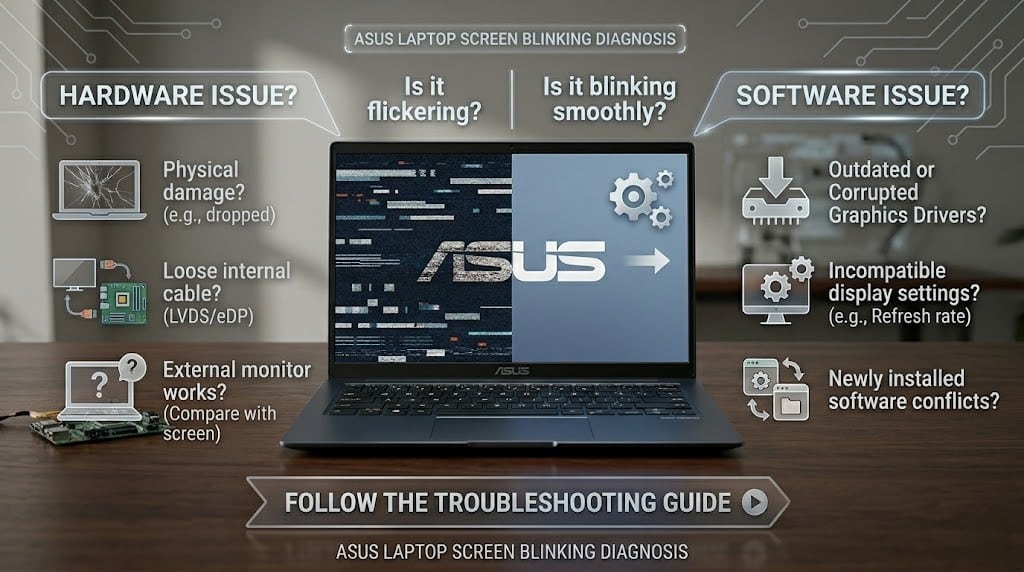
This is the section every competitor skips — and the one that saves users the most time. Before attempting any fix, knowing whether your blinking screen is caused by hardware or software eliminates half the troubleshooting work immediately.
Here are three diagnostic tests that give a definitive answer.
Test 1 — External Monitor Test (Most Reliable)
Why it works: An external monitor bypasses the laptop display panel and display cable entirely. If the external monitor behaves differently from the laptop screen, the test tells you exactly where the fault is located.
How to run it:
- Connect an external monitor via HDMI or USB-C
- Press Windows + P and select Duplicate
- Use the laptop normally for several minutes and observe both screens
What the results mean:
| Test Result | Diagnosis |
| Laptop screen blinks — external monitor stable | LCD panel or display cable fault → hardware repair needed |
| Both screens blink simultaneously | GPU driver issue → software fix first |
| Both screens blink after driver updates fail | GPU hardware fault → professional diagnosis needed |
| Neither screen blinks on external | Confirmed LCD panel or cable issue |
Bottom line: If the external monitor is stable while your laptop screen blinks — the problem is physical. If both screens blink — start with GPU driver reinstallation before considering hardware replacement.
Test 2 — BIOS Screen Check
Why it works: The BIOS screen loads before Windows and all its drivers. If the display blinks inside BIOS, the fault is hardware — because no Windows drivers, software, or applications are running at that stage. If the display is stable inside BIOS but blinks after Windows loads, the fault is software.
How to run it:
- Restart your Asus laptop and press F2 repeatedly at the Asus logo to enter BIOS
- Once inside BIOS, observe the display carefully for 1–2 minutes
- Move through BIOS menus slowly and note whether any flickering or blinking appears
What the results mean:
| BIOS Screen Result | Diagnosis |
| Display blinks inside BIOS | Hardware fault — LCD panel, display cable, or GPU |
| Display is stable inside BIOS | Software fault — Windows driver, app conflict, or settings |
| Display blinks only on specific BIOS pages | Possible GPU hardware issue under load |
Key insight: A stable BIOS screen is strong confirmation that your hardware is intact — meaning every fix you need exists within Windows, not inside the physical machine.
Test 3 — Screenshot Test
Why it works: A screenshot captures exactly what the GPU is rendering and sending to the display — but does not capture what the physical display panel shows. If your screen blinks but screenshots appear clean and stable, the fault is physical — the panel or cable is distorting an otherwise correct signal. If screenshots show the same flickering visible on screen, the fault originates from the GPU or driver.
How to run it:
- While the screen is actively blinking, press Windows + PrtScn to capture a screenshot
- Navigate to Pictures → Screenshots folder and open the captured image
- Examine the screenshot carefully on another device if needed
What the results mean:
| Screenshot Result | Diagnosis |
| Screenshot appears clean and normal | Physical display fault — panel or cable issue |
| Screenshot shows flickering or artifacts | GPU or driver-level fault — software fix applies |
| Screenshot shows color distortion or lines | GPU hardware fault or corrupted driver |
Combined Diagnostic Summary
Run all three tests before attempting any fix and use this reference:
| All Three Tests Combined | Final Diagnosis |
| External stable + BIOS stable + clean screenshot | LCD panel or display cable — hardware repair |
| External blinks + BIOS stable + flickered screenshot | GPU driver — software fix |
| External blinks + BIOS blinks + flickered screenshot | GPU hardware fault — professional repair |
| External stable + BIOS blinks + clean screenshot | Display cable fault — reseating or replacement |
Real-World Scenarios: Asus Laptop Blinking Screen
Recognizing your own situation in a real example is often the fastest path to the correct fix. Here are three scenarios that Asus laptop users encounter most frequently — along with exactly what caused the blinking and the most direct resolution.
Scenario 1: Screen Flickering During Gaming
A user purchases an Asus ROG Strix laptop specifically for gaming. For the first month everything runs perfectly. Then, after a routine GeForce Experience update pushes a new GPU driver version, the screen begins flickering during graphically demanding game sessions. Outside of gaming — browsing, streaming, general work — the display remains completely stable.
The flickering appears as rapid horizontal flashing across the screen, specifically during scenes with heavy particle effects or lighting changes. The user assumes the GPU is failing and considers a repair claim.
What actually happened: The new GPU driver version introduced a conflict between the laptop’s NVIDIA GPU and the Asus Armoury Crate software running simultaneously in the background. Both were competing to control GPU performance profiles during gaming load — producing an unstable display output specifically under high GPU utilization. The hardware was entirely healthy.
What to do:
- Boot into Safe Mode and launch a GPU-intensive task — if flickering stops, a software conflict is confirmed
- Perform a clean GPU driver reinstall using DDU (Display Driver Uninstaller) in Safe Mode
- After reinstalling, disable automatic driver updates through GeForce Experience
- Update Asus Armoury Crate to the latest version separately — outdated versions are a known conflict source with recent NVIDIA drivers
- If flickering persists after a clean reinstall — check GPU temperatures using HWMonitor during gaming to rule out thermal throttling as a secondary factor
Scenario 2: Screen Flickers When Moving the Laptop Lid
A user has owned their Asus VivoBook for two years without any display issues. One morning they notice the screen flickers briefly every time they adjust the lid angle. At certain positions — roughly between 90 and 110 degrees — the screen is completely stable. Outside that range, flickering appears immediately and stops the moment they return the lid to the stable angle.
The user runs every software fix available — driver updates, refresh rate adjustments, Safe Mode tests — and nothing changes the behavior. The flickering pattern remains perfectly consistent with lid movement regardless of what software is installed.
What actually happened: Two years of repeated lid opening and closing gradually stressed the display cable running through the hinge assembly. The cable developed a partial break at the point where it bends through the hinge — meaning the connection becomes intermittent when the cable flexes beyond a certain angle. This is an extremely common failure point on laptops after 18–24 months of regular use.
What to do:
- Stop attempting software fixes — the diagnostic pattern of lid-dependent flickering confirms hardware as the cause
- Avoid repeatedly opening and closing the lid to “test” the issue — each flex cycle stresses the damaged cable further
- Do not attempt to access the cable without professional experience — the hinge assembly on VivoBook models requires careful disassembly and the cable itself is fragile
- Take the laptop to a qualified technician for display cable inspection — in most cases a cable replacement resolves the issue completely and costs significantly less than an LCD panel replacement
Scenario 3: Screen Flickers at High Refresh Rate (165Hz)
A user upgrades to an Asus TUF Gaming laptop with a 165Hz display — their first high-refresh-rate machine. Excited about the smoother visuals, they set the refresh rate to 165Hz immediately after setup. The screen works fine for light tasks but begins flickering noticeably during gaming sessions and whenever the display rendering load increases.
The user lowers the refresh rate to 144Hz out of curiosity — the flickering stops entirely. Switching back to 165Hz immediately brings it back. They assume the display is defective and contact Asus support.
What actually happened: The laptop’s GPU was operating in Hybrid Mode — using the integrated Intel GPU for general tasks and switching to the dedicated NVIDIA GPU under load. At 165Hz, the bandwidth demand on the display connection exceeded what the integrated GPU could reliably deliver during the switching transition between GPU modes. The display flickered specifically at the moment the GPU handoff occurred under load. The panel itself was perfectly functional.
What to do:
- Open Asus Armoury Crate → GPU Mode and switch from Hybrid Mode to dGPU Mode — this forces the dedicated NVIDIA GPU to handle all display output permanently
- Test the display at 165Hz after switching GPU modes — the flickering should stop entirely
- If dGPU Mode is not available in your Armoury Crate version — update the software first, as older versions do not expose this setting
- If flickering continues at 165Hz even in dGPU Mode — set the refresh rate to 144Hz as a stable alternative and contact Asus support with the diagnostic details
Pattern to note: Scenario 1 points to a software fix through clean driver reinstallation. Scenario 2 points directly to hardware repair regardless of any software attempts. Scenario 3 requires a GPU mode configuration change specific to Asus gaming laptops — a fix that no competitor blog currently covers. Identifying which pattern matches your situation determines the correct fix path before a single setting is changed.
When Asus Laptop Screen Blinking Is Serious
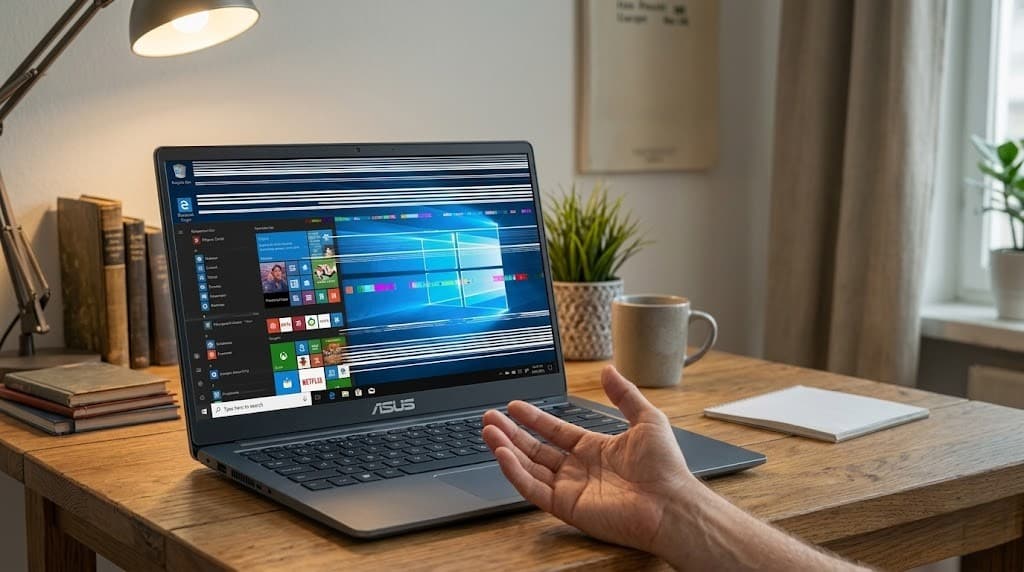
Occasional or short-lived blinking is rarely cause for concern. The situation becomes serious when these specific signs appear:
Take the blinking seriously if you notice:
- Continuous flickering that never stops — present during every session regardless of what software fixes have been attempted
- Visible horizontal or vertical lines across the display — indicating LCD panel damage or GPU hardware degradation
- Screen artifacts or color distortion — patches of incorrect color, pixel clusters, or image ghosting pointing to GPU or panel failure
- Partial or full black screen episodes — display cutting out entirely rather than flickering suggests a failing backlight or display cable severance
- Blinking present inside BIOS — confirms hardware fault before Windows even loads, eliminating all software causes immediately
Rule of thumb: Blinking that responds to software fixes is a software problem. Blinking that persists through every fix, appears in BIOS, or arrives alongside visual artifacts is a hardware problem — and continuing to use the laptop without professional assessment risks permanent display damage.
How to Prevent Screen Flickering on Asus Laptop
Most Asus laptop screen blinking issues are preventable with four consistent habits that address the most common triggers before they cause problems.
Keep Graphics Drivers Updated — From the Right Source
Check for GPU driver updates monthly — but always download from asus.com/support or your GPU manufacturer’s official site directly. Avoid automatic driver updates from third-party tools, which frequently install incompatible versions.
Manage System Temperature Actively
Clean cooling vents every 3–6 months using compressed air. Use HWMonitor to track GPU temperatures during heavy workloads — sustained readings above 90°C indicate a cooling problem that will eventually destabilize the display signal.
Always Use Your Panel’s Native Refresh Rate
Check your exact Asus model’s display specification before changing refresh rate settings. Gaming models support higher rates — standard panels are optimized at 60Hz. Pushing beyond the rated specification produces instability.
Install Only Trusted Software
Every application that installs a background display-related process is a potential conflict source. Avoid system optimization tools from unverified sources — they are among the most common triggers of software-related screen flickering on Asus laptops.
Prevention principle: The three leading causes of Asus laptop screen blinking — driver conflicts, overheating, and incompatible software — are all detectable and addressable before they produce a single flicker. Monthly driver checks, temperature monitoring, and careful software habits eliminate the vast majority of display issues entirely.
Frequently Asked Questions: Asus Laptop Blinking Screen
Q1. Why is my Asus laptop screen blinking randomly?
An Asus laptop screen blinking randomly is most commonly caused by an outdated or corrupted graphics driver, an incorrect refresh rate setting, or a third-party application conflicting with the display driver. Open Task Manager while the blinking occurs — if Task Manager itself flickers, the cause is driver-related; if it remains stable, a software conflict is responsible. Update your graphics driver first and test for stability before moving to other fixes.
Q2. Can I fix Asus laptop screen flickering without replacing hardware?
Yes — the majority of Asus laptop screen flickering cases are resolved entirely through software fixes without any hardware replacement. Updating or reinstalling the graphics driver, correcting the refresh rate, and removing conflicting applications resolve most blinking screen issues completely. Hardware replacement only becomes necessary when blinking persists through all software fixes and is confirmed present inside the BIOS screen.
Q3. Does Asus laptop screen blinking mean my display is damaged?
Screen blinking does not automatically mean your Asus laptop display is physically damaged. In most cases the cause is a driver conflict, an incorrect refresh rate, or a software issue — all of which are fully fixable without touching the hardware. Physical display damage becomes the likely cause only when blinking appears inside BIOS, follows lid movement consistently, or arrives alongside visible lines and screen artifacts.
Q4. How do I stop my Asus laptop screen from flickering permanently?
To permanently stop Asus laptop screen flickering, identify whether the cause is hardware or software using the external monitor test and BIOS screen check first. If software is confirmed as the cause — reinstall the GPU driver from Asus’s official support page, set the refresh rate to your panel’s native specification, and remove any recently installed applications that run background display processes. Addressing the root cause rather than applying random fixes is the only path to a permanent resolution.
Q5. Why does my Asus laptop screen flicker only during gaming?
An Asus laptop screen that flickers specifically during gaming is almost always caused by a GPU driver conflict, a GPU mode configuration issue, or thermal throttling under high graphics load. Check whether your laptop is running in Hybrid GPU Mode through Asus Armoury Crate — switching to dedicated GPU mode resolves display flickering during gaming on many Asus ROG and TUF models. If the issue persists after a clean GPU driver reinstall, monitor GPU temperatures using HWMonitor to confirm whether overheating is triggering display instability under load.