
Getting the Dell SupportAssist no bootable devices found error simply means your system’s BIOS cannot locate a hard drive or SSD with a working operating system. While it looks scary, your data is usually safe. This boot failure typically points to one of three root causes: incorrect BIOS/UEFI settings, a drive that is loosely connected or failing, or a corrupted Windows installation. The good news is that most cases are easily fixable without replacing your hardware. This guide walks you through every solution, from a 60-second BIOS check to an advanced OS repair, so you can get your Dell back up and running.
What Does “Dell SupportAssist No Bootable Devices Found” Mean?
When you press the power button on your Dell, the BIOS (Basic Input/Output System) or UEFI firmware wakes up first. Its job is to locate a storage drive (your SSD or HDD) that contains a working operating system like Windows.
When it cannot find one, it throws the “No Bootable Devices Found” error.
Think of it like a car ignition searching for an engine. If the engine is missing, disconnected, or damaged, the car simply will not start.
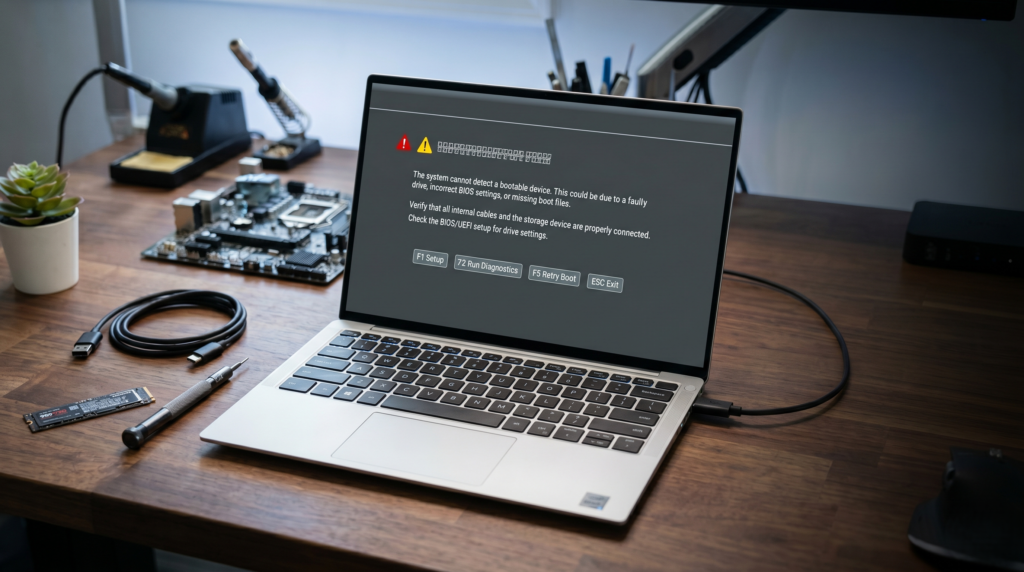
A bootable device is any storage drive loaded with an OS that your system can launch from. When BIOS fails to detect it, your laptop stops at a black screen with this error.
This does not always mean your drive is dead. It often means something is misconfigured or disconnected.
Why Dell SupportAssist Shows “No Bootable Devices Found” Error
Several underlying issues can trigger this error. Here are the five most common causes, along with real-world scenarios where each typically appears.
1. Incorrect Boot Mode (UEFI vs Legacy)
Dell systems support two boot modes: UEFI (modern) and Legacy BIOS (older). If your Windows was installed in UEFI mode but your BIOS is set to Legacy (or vice versa), the system cannot recognize the drive as bootable.
Real-world scenario: This often happens after a BIOS reset or when a technician changes boot settings during an unrelated repair.
2. Hard Drive or SSD Not Detected
If your SSD or HDD is physically disconnected, failing, or not recognized by the BIOS, the system has no drive to boot from. This can occur due to a loose cable, a worn connector, or early-stage drive failure.
Real-world scenario: Users frequently report this after dropping their laptop or after a rough transit, since internal connectors can loosen from physical impact.
3. Corrupted or Missing Operating System
Even when your drive is physically healthy and fully detected, a damaged or missing OS will still trigger this error. Windows system files can get corrupted during a failed update, a sudden power loss mid-installation, or a malware infection.
Real-world scenario: A very common trigger is a Windows update that stalls or fails halfway, leaving the OS in an unbootable state on an otherwise healthy drive.
4. Incorrect Boot Order
Your BIOS boots devices in a set priority sequence. If an external USB drive, a DVD, or a network boot option is placed above your internal SSD in that sequence, the system attempts to boot from the wrong source and fails.
Real-world scenario: This often catches users off guard after they plug in a USB drive for file transfer and forget to remove it before restarting.
5. Hardware Failure (SSD, HDD, or Motherboard)
A physically failing drive, or in rare cases a faulty motherboard storage controller, will cause the BIOS to report no bootable device. Signs of this include the drive not appearing in BIOS at all, unusual clicking sounds, or repeated DST check failures in Dell Diagnostics.
Real-world scenario: Older HDDs (3 to 5 years of heavy use) are particularly prone to this. Users who ignored earlier warning signs, like slow boot times or freezing, often encounter this error as the final stage of drive failure.
How to Fix Dell SupportAssist No Bootable Devices Found (Quick Fix)
Before jumping into advanced troubleshooting, try these steps first. Most users resolve the error right here.
How to fix Dell no bootable device error:
- Press F2 at startup to enter BIOS settings
- Set Boot Mode to UEFI under the Boot Configuration tab
- Confirm your SSD or HDD appears in the BIOS device list
- Set Windows Boot Manager as the first boot priority device
- Disable Secure Boot if your drive is still not detected, then re-enable after saving
- Press F10 to save all changes and restart your Dell
Result: If your drive is healthy and the issue was a misconfigured BIOS, your Dell should boot normally after step 6.
Step-by-Step Fix Guide: Dell SupportAssist No Bootable Devices Found
Work through these fixes in order, starting from the least invasive and moving toward advanced solutions only if needed.
Fix 1: Change Boot Mode to UEFI
Why it works: Most modern Dell systems and Windows installations require UEFI mode. A Legacy BIOS setting causes the system to overlook a perfectly healthy UEFI-formatted drive.
Steps:
- Restart your Dell and press F2 to enter BIOS
- Navigate to Boot Configuration
- Locate Boot Mode and switch it to UEFI
- Press F10 to save and exit
- Check if your system boots normally
Fix 2: Check Hard Drive Detection in BIOS
Why it works: If your SSD or HDD does not appear inside BIOS, the OS cannot load, regardless of any software fix. Confirming detection first eliminates hardware as a variable.
Steps:
- Press F2 at startup to open BIOS
- Go to the System Information or Storage tab
- Look for your drive name (e.g., Samsung SSD, WD HDD) in the list
- If the drive appears, proceed to Fix 3
- If the drive does not appear, skip to Fix 6 (hardware issue likely)
Fix 3: Reset BIOS to Default Settings
Why it works: Incorrect or corrupted BIOS configurations, often caused by failed updates or accidental changes, can block drive detection. Restoring defaults clears all misconfigurations instantly.
Steps:
- Press F2 at startup to enter BIOS
- Look for Restore Settings or Load Defaults option
- Confirm the reset when prompted
- Press F10 to save and restart
- Check whether the error clears
Fix 4: Run Dell SupportAssist Diagnostics
Why it works: Dell’s built-in diagnostics run a DST (Drive Self Test) that checks your SSD or HDD for physical errors, bad sectors, and firmware issues, without needing a working OS.
Steps:
- Restart your Dell and press F12 at the Dell logo
- Select Diagnostics from the boot menu
- Let SupportAssist run both the Quick Test and Full Test
- Note any error codes displayed
- If the DST fails, your drive has a hardware fault and needs replacement
- If the DST passes, your drive is healthy. Proceed to Fix 5
Fix 5: Repair Windows Using a Bootable USB
Why it works: When your drive is detected but Windows is corrupted, the OS repair tool rebuilds damaged system files without touching your personal data.
Steps:
- On a working PC, download the Windows Media Creation Tool from Microsoft
- Create a bootable USB drive (minimum 8GB)
- Plug the USB into your Dell and restart
- Press F12 and select the USB drive from the boot menu
- Choose Repair your computer → Troubleshoot → Startup Repair
- Let the repair process complete and restart
Fix 6: Reinstall Windows (Last Option)
Why it works: When system file corruption is too severe to repair, a clean OS reinstall restores full functionality. Note: this erases all data on the drive.
Steps:
- Boot from the Windows USB created in Fix 5
- Select Install Now instead of Repair
- Choose Custom Installation
- Select your drive partition and proceed
- Complete the Windows setup process
Important: Back up your data before this step wherever possible. If your drive is not detected at all, contact a professional data recovery service before attempting a reinstall.
Dell SupportAssist Onboard Diagnostics No Bootable Devices Found
Many users run Dell’s onboard diagnostics, see a “passed” result, and then feel completely confused when the boot error still appears. This section explains exactly why that happens.
What Is Dell SupportAssist Onboard Diagnostics?
Dell’s onboard diagnostics is a built-in hardware testing tool that runs independently of your operating system. You access it by pressing F12 at startup and selecting Diagnostics from the one-time boot menu.
It tests your physical hardware components (the SSD or HDD, RAM, battery, and motherboard) to check whether they are functioning at a hardware level.
This tool runs even when Windows cannot load, making it one of the first places to check when your Dell refuses to boot.
Why Diagnostics Pass But the Boot Error Still Appears
This is where most people get confused, since the distinction isn’t obvious at first.
Onboard diagnostics tests hardware. It does not test your operating system. Here is the key difference:
| What Diagnostics Tests | What Diagnostics Does NOT Test |
| Drive is physically working | Windows boot files are intact |
| Drive is readable at hardware level | Boot partition is correctly configured |
| No bad sectors or DST failure | UEFI/Legacy boot mode is correct |
| RAM and motherboard are functional | Boot order is properly set |
So when diagnostics reports “No errors found,” it simply means your drive is physically healthy. It says nothing about whether Windows is installed correctly, whether boot files are intact, or whether your BIOS is pointed at the right partition.
The Real Reason the Error Persists
When your Dell shows “No Bootable Devices Found” after passing diagnostics, the root cause is almost always one of these:
- Corrupted Windows boot files: drive is healthy but OS cannot launch
- Wrong boot mode: UEFI drive detected but BIOS set to Legacy
- Damaged boot partition: partition table is broken despite healthy drive sectors
- Boot order misconfiguration: system is looking at the wrong device first
What To Do After Diagnostics Pass
If your DST test passes but the boot error remains, your hardware is not the problem. Your software or configuration is.
Follow these steps:
- Go back to BIOS (F2) and confirm boot mode is set to UEFI
- Verify Windows Boot Manager is first in boot priority
- Use a Windows bootable USB to run Startup Repair
- If Startup Repair fails, consider a clean OS reinstall
Key takeaway: A passed diagnostic result is good news. It means your SSD or HDD is physically intact. The fix now lives in your BIOS settings or Windows boot configuration, not in your hardware.
How to Fix Dell Laptop Hard Drive Not Detected
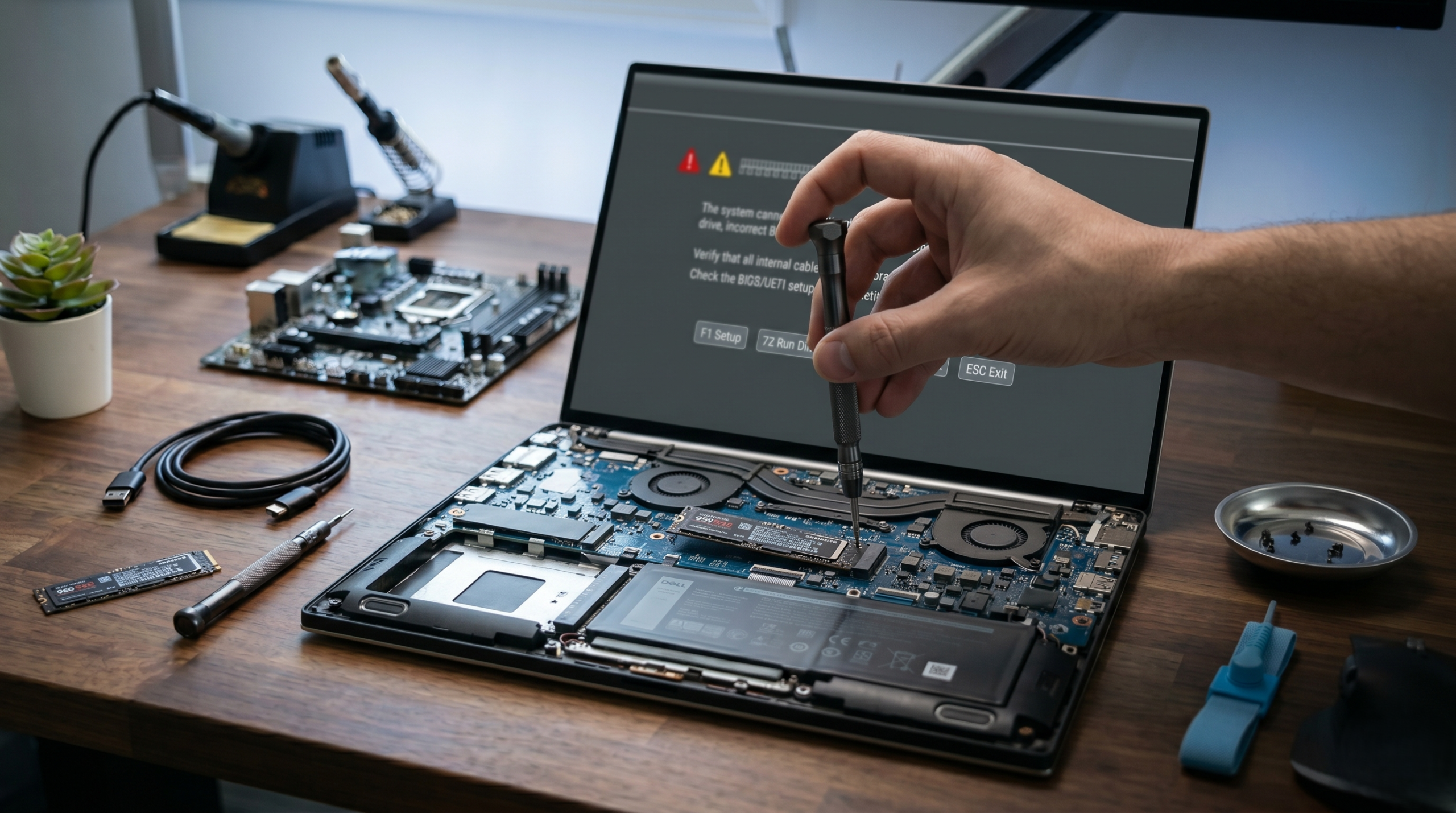
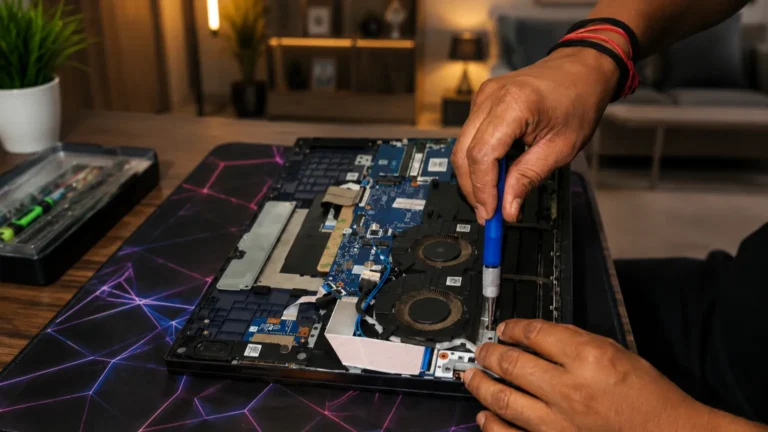
Checking the internal SSD storage connections after experiencing a boot failure error.
When your SSD or HDD does not appear in BIOS at all, the issue goes beyond software. Here are the most likely causes and their fixes.
Common Causes and Fixes
- Loose Internal Connection. A physically dislodged SSD or HDD cable is one of the most overlooked causes. If you recently opened your laptop or dropped it, the drive connector may have shifted.
- Power off completely
- Reseat the SSD or HDD connector firmly
- Restart and check BIOS detection
- Incorrect SATA Mode (AHCI vs RAID). Dell systems use AHCI mode for standard SSD and HDD operation. If SATA mode is incorrectly set to RAID, Windows may fail to detect the drive entirely.
- Enter BIOS via F2
- Navigate to Storage → SATA Operation
- Switch from RAID to AHCI
- Save with F10 and restart
- Failed or Dying Drive. If reseating and SATA mode changes do not resolve detection, the drive itself may be failing.
- Run Dell DST check via F12 Diagnostics
- If DST fails, replace the drive immediately
- Consult a professional before replacing if data recovery is a priority
Rule of thumb: If your drive is not visible in BIOS, no software fix will work. Resolve hardware detection first. Everything else follows.
Real-World Scenarios: Dell No Bootable Device Found Error
Sometimes the best way to diagnose a problem is to recognize your own situation in someone else’s experience. Here are three scenarios that Dell users commonly face, along with what actually caused the error and how to address it.
Scenario 1: The Error Appeared Right After a Windows Update
A user powers on their Dell laptop the morning after a Windows update ran overnight. Instead of the familiar login screen, they are greeted with a black screen and the “No Bootable Devices Found” message.
What likely happened: The Windows update either failed mid-installation or modified critical boot configuration files during the process. The drive is physically healthy, but the OS can no longer point BIOS to a valid boot partition.
What to do:
- Boot from a Windows USB and run Startup Repair first
- If that fails, use Command Prompt → bootrec /fixmbr and bootrec /fixboot commands
- A clean reinstall is the last option if repair tools cannot restore the boot partition
Scenario 2: The SSD Vanished from BIOS Overnight
A user shuts down their Dell normally in the evening. The next morning, the laptop boots to the error screen. They enter BIOS and notice their SSD is no longer listed anywhere. The drive has completely disappeared from the device list.
What likely happened: This points to either a loose M.2 or SATA connection, a sudden firmware fault on the SSD, or the early stage of drive failure. Users on tech forums frequently report this happening with SSDs between two and four years old, often without any prior warning signs.
What to do:
- Reseat the SSD physically if comfortable opening the laptop
- Check SATA mode. Switch to AHCI if currently set to RAID
- Run F12 Diagnostics to confirm whether the drive responds at hardware level
- If the drive remains invisible in both BIOS and diagnostics, treat it as a hardware failure and prioritize data recovery before attempting any fix
Scenario 3: Sudden Shutdown or Overheating Mid-Session
A user is working on their Dell when it suddenly powers off, either from overheating, a dead battery, or an accidental power cut. On restart, the “No Bootable Devices Found” error appears.
What likely happened: A forced shutdown during an active read/write cycle can corrupt the Windows Master Boot Record or damage critical system files mid-operation. The drive remains physically intact but the OS entry point is broken.
What to do:
- Enter BIOS via F2 and confirm the drive is still detected
- If detected, boot from a Windows USB and run Startup Repair
- Run chkdsk /f /r from Command Prompt to identify and mark any bad sectors created during the abrupt shutdown
- Monitor drive health closely after recovery. Repeated forced shutdowns accelerate drive wear significantly
Pattern to note: In Scenarios 1 and 3, the drive is healthy and software fixes work well. In Scenario 2, the drive has vanished entirely, making hardware inspection and data recovery the immediate priority before any other step.
When Should You Replace Your SSD or Hard Drive?
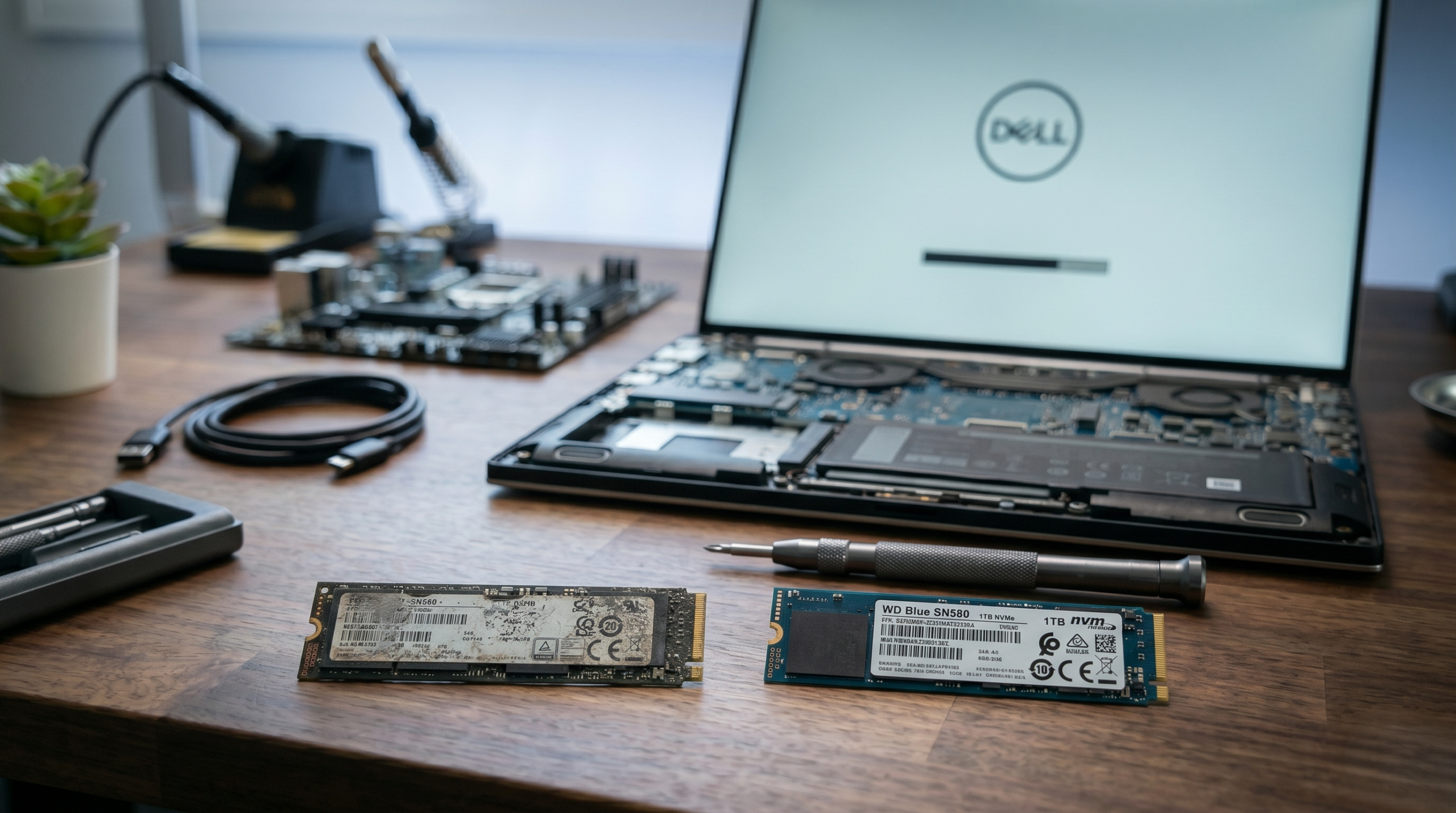
Preparing to clone and swap the system storage drive after experiencing a persistent no bootable device boot failure.
Not every boot error means your drive needs replacing, but certain signs make it clear that replacement is the only path forward.
Replace your drive if you notice any of these:
- Drive not visible in BIOS, even after reseating and SATA mode correction
- DST check fails in Dell SupportAssist Diagnostics
- Clicking or grinding noises coming from the drive area, a classic sign of mechanical HDD failure
- Frequent crashes or blue screens that persist even after a clean OS reinstall
- Extreme slowness during boot or file access that worsens progressively over weeks
- Drive disappears intermittently from BIOS across multiple restarts
Important: Before replacing any drive, consult a data recovery professional if your files have not been backed up. Replacing a failing drive without first recovering data may result in permanent file loss.
Frequently Asked Questions
Q1. How do I fix Dell SupportAssist no bootable devices found?
Press F2 to enter BIOS, set Boot Mode to UEFI, and confirm your SSD or HDD appears in the device list. Set Windows Boot Manager as the first boot priority, save with F10, and restart. If the error persists, boot from a Windows USB and run Startup Repair.
Q2. Why is my Dell laptop not detecting the hard drive?
Your Dell laptop may not detect the hard drive due to a loose internal connection, incorrect SATA mode, or a failing drive. Enter BIOS via F2 and check whether your drive appears under the Storage tab. If it does not appear at all, reseat the drive or run F12 Diagnostics to test for hardware failure.
Q3. Can BIOS settings cause the no bootable device error on Dell?
Yes. Incorrect BIOS settings are one of the most common causes of this error on Dell laptops. A mismatched boot mode (Legacy instead of UEFI), wrong boot order, or disabled storage controller can all prevent your system from detecting a healthy drive. Resetting BIOS to default settings often resolves the issue immediately.
Q4. Does “no bootable devices found” mean my SSD is dead?
Not necessarily. This error does not always indicate a dead SSD. In many cases the drive is physically healthy but misconfigured BIOS settings or corrupted Windows boot files are preventing detection. Run Dell SupportAssist Diagnostics via F12 to confirm whether your SSD passes the DST check before assuming hardware failure.
Q5. What is the difference between Dell onboard diagnostics passing and a boot error still appearing?
Dell onboard diagnostics tests whether your drive is physically functional. It does not check your operating system or boot configuration. A passed DST result means your hardware is intact, but corrupted Windows files or incorrect BIOS settings can still prevent booting. In this case the fix lies in Startup Repair or BIOS reconfiguration, not hardware replacement.
Conclusion
The “Dell SupportAssist No Bootable Devices Found” error looks alarming, but in most cases, it is entirely fixable without replacing any hardware.
Whether the cause is a misconfigured BIOS, an incorrect boot mode, corrupted Windows files, or a loose drive connection, every scenario covered in this guide has a clear solution path.
Start here: Press F2, enter BIOS, and confirm your drive is detected. That single step resolves the majority of cases.
If your drive fails the DST check or remains invisible in BIOS, prioritize data recovery before attempting any further fix.