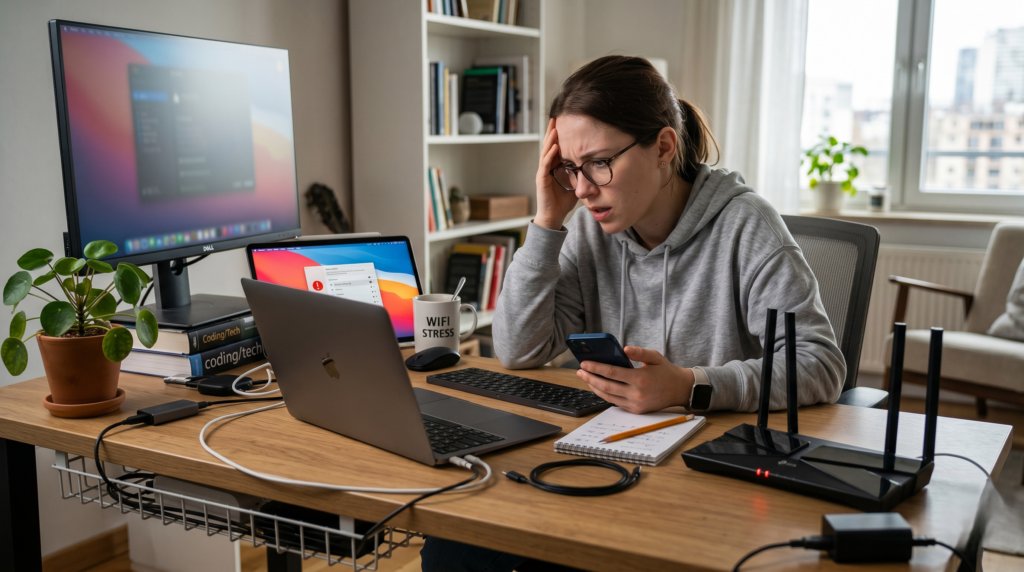


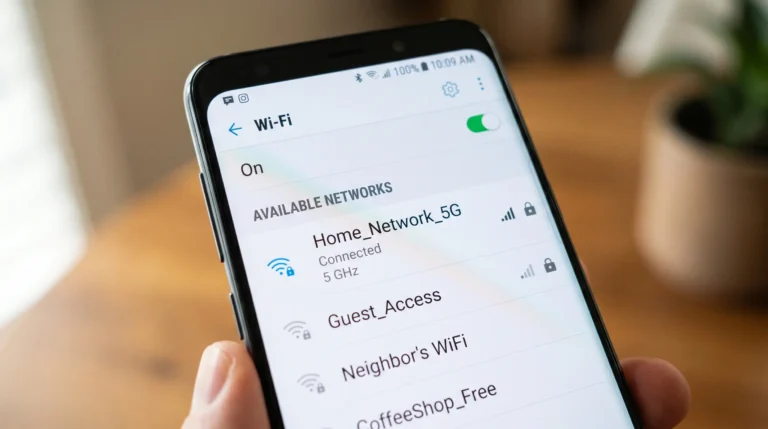
Are you stuck offline with the authentication problem WiFi error? This simply means your device and the router failed to verify each other’s credentials to establish a connection. The most common culprits are an incorrect password, a temporary network glitch, or a security protocol mismatch (like WPA2 vs. WPA3). The fastest way to fix this is by “forgetting” the network and reconnecting, but if that doesn’t work, this guide covers 12 proven solutions to get you back online on any home, school, or hotel network.
What Does “authentication problem WiFi” Actually Mean?
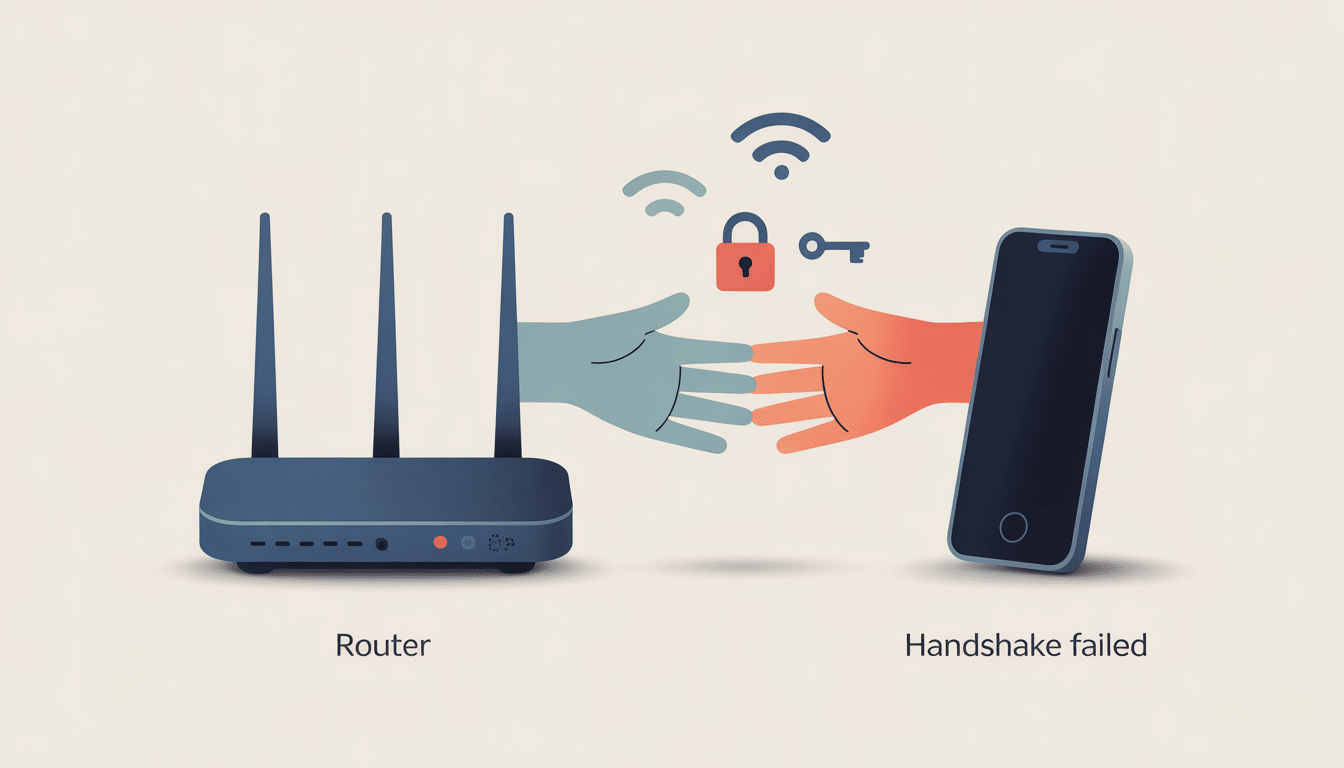
A failed network handshake is the primary cause of an “authentication problem WiFi” error.
When you connect to a WiFi network, your device and router go through a quick verification process called a handshake. Your device sends credentials (the password), the router checks them, and if everything matches, the connection is approved.
A WiFi authentication problem happens when this handshake fails. Your device and router simply cannot agree, and the connection gets blocked before it even starts.
This is different from a “connected but no internet” error. With an authentication error, your device never gets past the login stage. You’ll typically see messages like:
- “Authentication error occurred”
- “WiFi authentication failed”
- “Obtaining IP address…” (stuck in a loop)
- “Unable to connect to network”
Knowing what triggers this failure makes it a lot easier to fix.
Most Common Causes of a WiFi Authentication Problem
Before running through fixes, it helps to know what actually causes authentication failures. Here are the most frequent culprits:
Wrong or changed password. This is the most obvious cause. If someone updated the router password and your device still has the old one saved, authentication fails every time.
Security protocol mismatch (WPA2 vs WPA3). Newer routers default to WPA3, but many older devices only support WPA2. This incompatibility breaks the handshake silently.
DHCP server issues. Your router assigns IP addresses through DHCP. If it runs out of addresses or has a configuration error, your device gets stuck at “Obtaining IP address.”
MAC address filtering. Some routers only allow specific devices to connect. If your device’s MAC address isn’t on the approved list, authentication fails.
IP address conflict. Two devices on the same network sharing an IP address causes connection problems, including authentication errors.
Outdated network drivers. On Windows PCs, old or corrupted network adapter drivers frequently cause authentication failures, especially after OS updates.
OS or firmware update. A recent system update on your phone, laptop, or router can reset or change network settings without warning.
Too many connected devices. Most consumer routers cap connections at 32 to 50 devices. Hitting that limit means new devices cannot authenticate.
Frequency band issues (2.4GHz vs 5GHz). Connecting an older device to a 5GHz-only network, or a mismatch in band settings, can cause repeated auth errors.
Corrupted saved network profile. Your device’s saved data for a network can become corrupted over time, especially after router changes, causing every connection attempt to fail.
How to Fix a WiFi Authentication Problem: 12 Step-by-Step Solutions
Fix 1: Forget the Network and Reconnect
This clears any corrupted saved credentials and forces a fresh connection attempt.
On Android: Go to Settings → WiFi → long press the network → tap “Forget.” Then reconnect and re-enter the password carefully.
On iPhone: Go to Settings → WiFi → tap the (i) icon next to the network → tap “Forget This Network.” Reconnect from scratch.
On Windows: Go to Settings → Network & Internet → WiFi → Manage Known Networks → select the network → Forget. Then reconnect.
On Mac: Go to System Settings → WiFi → click the three-dot menu next to the network → Forget This Network.
This fix resolves roughly 40% of authentication problems on its own, so it’s always worth trying first.
Fix 2: Restart Your Router and Device
Power cycling clears temporary memory errors in both your router and device that can silently block authentication.
Step 1: Turn off your device completely (do not just lock the screen).
Step 2: Unplug your router from the power outlet. Wait a full 30 seconds, not just 5.
Step 3: Plug the router back in. Wait 2 minutes for it to fully restart.
Step 4: Turn your device back on and try connecting.
This also refreshes your router’s DHCP table, which often clears “Obtaining IP address” loops.
Fix 3: Double-Check the WiFi Password
It sounds basic, but password errors account for the majority of authentication failures. A few things to check:
- Passwords are case-sensitive. “Password123” and “password123” are completely different.
- Check for the number “0” vs the letter “O,” and “1” vs lowercase “l.”
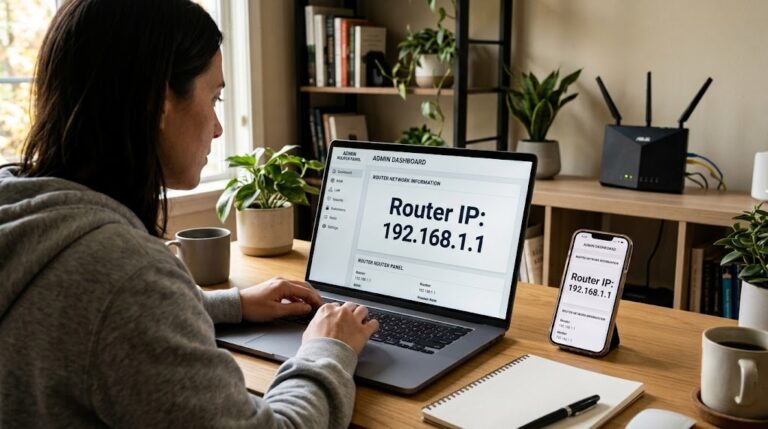
- If you don’t know the current password, log into your router’s admin panel (usually at 192.168.1.1 or 192.168.0.1) and view or reset it.
- On Android specifically, try typing the password into a notes app first to verify it, then copy-paste it into the WiFi password field.
Fix 4: Switch Between WPA2 and WPA3 on Your Router
This fix gets overlooked a lot, and it solves a good chunk of authentication errors on older devices.
WPA3 is the latest WiFi security standard. Many routers shipped in 2022 and later default to WPA3-only mode. But devices running Android 9 and below, Windows 7/8, and older smart TVs or IoT gadgets do not support WPA3.
How to fix it:
Step 1: Open a browser and go to your router’s admin page (typically 192.168.1.1 or 192.168.0.1).
Step 2: Log in with your admin credentials (often printed on the router label).
Step 3: Go to Wireless Settings → Security.
Step 4: Change the security mode from “WPA3” to “WPA2/WPA3 Mixed” or simply “WPA2.”
Step 5: Save and restart the router.
Mixed mode lets both WPA2 and WPA3 devices connect without forcing an incompatible handshake.
Fix 5: Fix the “Obtaining IP Address” Loop
If your device connects but gets stuck on “Obtaining IP address,” the DHCP server is failing to assign an IP to your device. Here’s how to break the loop:
On Android:
Step 1: Go to Settings → WiFi → long press the network → Modify Network.
Step 2: Tap “Advanced Options.”
Step 3: Change IP settings from “DHCP” to “Static.”
Step 4: Enter an IP address manually, something like 192.168.1.100 (make sure it’s not already taken by another device).
Step 5: Set Gateway to 192.168.1.1 and DNS 1 to 8.8.8.8 (Google DNS).
Step 6: Save and reconnect.
On Windows:
Step 1: Open Command Prompt as Administrator.
Step 2: Type netsh winsock reset and press Enter.
Step 3: Type netsh int ip reset and press Enter.
Step 4: Type ipconfig /release then ipconfig /renew.
Step 5: Restart your PC and reconnect.
Fix 6: Update or Reinstall Network Drivers (Windows)
Outdated or corrupted network adapter drivers are a leading cause of WiFi authentication errors on Windows 10 and Windows 11, particularly after major OS updates.
Step 1: Right-click the Start button → Device Manager.
Step 2: Expand “Network Adapters.”
Step 3: Right-click your WiFi adapter → Update Driver → Search automatically.
Step 4: If no update is found, visit your laptop manufacturer’s website (Dell, HP, Lenovo, etc.) and download the latest WiFi driver manually.
Step 5: If the driver seems corrupted, right-click → Uninstall Device → restart your PC. Windows will reinstall it automatically.
Fix 7: Change the WiFi Channel on Your Router
When too many nearby networks use the same channel, interference can disrupt the authentication process. This is common in apartments and office buildings.
Step 1: Log into your router admin panel.
Step 2: Go to Wireless Settings → Channel.
Step 3: Change from “Auto” to a specific channel. For 2.4GHz, try channels 1, 6, or 11. For 5GHz, try channels 36 or 40.
Step 4: Save and reconnect.
Use a free app like WiFi Analyzer (Android) or NetSpot (Mac/Windows) to see which channels nearby networks are using, and pick the least crowded one.
Fix 8: Check and Disable MAC Address Filtering
If your router has MAC address filtering turned on, only pre-approved devices can connect. Any new device, even with the correct password, will get an authentication error.
Step 1: Log into your router admin panel.
Step 2: Look for “MAC Filtering” or “Access Control” under wireless settings.
Step 3: Either disable MAC filtering entirely, or add your device’s MAC address to the allowed list.
How to find your device’s MAC address:
- Android: Settings → About Phone → Status → WiFi MAC Address
- iPhone: Settings → General → About → WiFi Address
- Windows: Open Command Prompt → type ipconfig /all → look for “Physical Address” under your WiFi adapter
Fix 9: Reset Network Settings on Your Device
If multiple fixes haven’t worked, resetting your device’s network settings wipes all saved networks, VPN settings, and Bluetooth pairings and starts fresh. This often resolves deep software conflicts.
On Android: Settings → General Management → Reset → Reset Network Settings.
On iPhone: Settings → General → Transfer or Reset iPhone → Reset → Reset Network Settings.
On Windows: Settings → Network & Internet → Advanced Network Settings → Network Reset.
Note: You will need to re-enter passwords for all saved WiFi networks after this reset.
Fix 10: Update Router Firmware
Router manufacturers regularly release firmware updates that fix bugs, patch security vulnerabilities, and improve compatibility with newer devices. Running outdated firmware is a common but overlooked cause of authentication failures.
Step 1: Log into your router admin panel.
Step 2: Look for “Firmware Update,” “Router Update,” or “Advanced → Administration.”
Step 3: Check for available updates and install them.
Step 4: The router will restart automatically. Reconnect your devices afterward.
Most modern routers (TP-Link, Netgear, Asus, D-Link) also have a companion app that lets you update firmware from your phone.
Fix 11: Adjust Your Device’s Date and Time Settings
This one surprises most people: an incorrect date or time on your device can directly cause WiFi authentication failures, especially on networks that use security certificates. Certificate validation checks timestamps, and if your device clock is off by more than a few minutes, the certificate check fails.
On Android: Settings → General Management → Date and Time → enable “Automatic date and time.”
On iPhone: Settings → General → Date & Time → enable “Set Automatically.”
On Windows: Settings → Time & Language → Date & Time → enable “Set time automatically.”
Fix 12: Check If Your Router Has Hit Its Device Limit
Most consumer routers support a maximum of 32 to 50 simultaneous connections. In a home with smart TVs, phones, laptops, tablets, smart speakers, security cameras, and thermostats, that limit gets hit faster than most people expect.
Log into your router admin panel and look for “Connected Devices” or “DHCP Client List.” If the list is full, disconnect devices you are not using or upgrade to a router with higher device capacity.
Device-Specific WiFi Authentication Fixes
Android Phone: WiFi Authentication Error Fix
Android devices run into authentication errors often, largely because of how Android handles saved network profiles.
The most effective fix sequence for Android:
- Forget the network and reconnect.
- If stuck on “Obtaining IP address,” switch to a static IP (Fix 5 above).
- Go to Developer Options → enable “WiFi Verbose Logging” to see exactly where the connection is failing.
- If you recently updated Android, go to Settings → Apps → show system apps → find “WiFi Service” and clear its cache.
iPhone / iOS: WiFi Authentication Error Fix
On iPhone, authentication errors often appear as “Unable to Join Network” or the device connects but immediately drops.
The most effective fix sequence for iPhone:
- Forget the network and reconnect.
- Turn off WiFi, wait 10 seconds, turn it back on.
- Toggle Airplane Mode on for 15 seconds, then off.
- Go to Settings → General → VPN & Device Management. If there’s a network profile installed, remove it and try reconnecting.
- If the issue appeared after an iOS update, go to Settings → General → About. If a carrier update is available, install it.
Windows 11 / Windows 10: WiFi Authentication Fix
Windows authentication errors are often driver-related or caused by network profile corruption after updates.
The most effective fix sequence for Windows:
- Forget the network via Settings → Network & Internet → WiFi → Manage Known Networks.
- Run the Network Troubleshooter: Settings → System → Troubleshoot → Other Troubleshooters → Internet Connections.
- Update network drivers (Fix 6 above).
- Open Command Prompt as Administrator and run:
- netsh wlan delete profile name=”NetworkName”
- netsh winsock reset
- Restart and reconnect.
MacBook / macOS: WiFi Authentication Fix
On Mac, authentication errors are commonly caused by a corrupted network keychain entry.
The most effective fix sequence for Mac:
- Forget the network via System Settings → WiFi.
- Open Keychain Access (search in Spotlight). Search for your network name. Delete any saved entries for it. Try reconnecting.
- Create a new Network Location: System Settings → Network → click the location dropdown → New Location. This resets all network configuration without affecting other settings.
- If the issue persists, go to System Settings → Network → WiFi → Details → TCP/IP → click “Renew DHCP Lease.”
Smart TV: WiFi Authentication Fix
Smart TVs rarely show detailed error messages, which makes authentication failures harder to diagnose.
Steps to fix authentication errors on a smart TV:
- Go to Network Settings → Forget the WiFi network → reconnect.
- Restart the TV completely (unplug from power, don’t just use the remote).
- On your router, switch security from WPA3 to WPA2 or WPA2/WPA3 Mixed, since many smart TVs don’t support WPA3.
- Check that your TV’s software is up to date (Settings → Support → Software Update on most Samsung/LG TVs).
- As a last resort, connect via Ethernet cable to confirm it’s a WiFi-specific issue and not a broader network problem.
Gaming Consoles (PS5, Xbox Series X): WiFi Authentication Fix
Gaming consoles are particularly sensitive to WPA3 and 5GHz band issues.
Steps for PS5:
- Settings → Network → Settings → Set Up Internet Connection → forget and re-add.
- Switch your router to WPA2 or mixed mode.
- If using 5GHz, try switching to 2.4GHz for more reliable connectivity at longer ranges.
Steps for Xbox Series X:
- Settings → General → Network Settings → Forget → reconnect.
- Press the Xbox button → Profile & System → Settings → General → Network Settings → Advanced Settings → Alternate MAC Address → Clear. Restart the console.
WiFi Authentication Problems on Hotel and Public Networks
Hotel and airport WiFi networks use a system called a captive portal, the login page that appears in your browser after you connect. Authentication errors on these networks are usually a different kind of problem than home WiFi issues.
Common problems and fixes:
Captive portal not loading. Connect to the hotel WiFi, open a browser, and try navigating to http://neverssl.com. This forces the captive portal to appear, since it only triggers on HTTP (not HTTPS) requests.
Certificate warning on public WiFi. This is normal on many public networks and isn’t necessarily a sign of a problem. You can safely proceed past the warning on a hotel or airport network you trust.
Authentication keeps failing at the portal. Try forgetting the network and reconnecting. Make sure your device’s date and time are correct, since certificate checks fail otherwise.
VPN blocking hotel WiFi login. Disconnect your VPN before attempting to connect. Log in to the hotel portal first, then reconnect your VPN.
School and University WiFi Authentication Issues
Campus networks are technically more complex than home WiFi. Most universities use 802.1X authentication, which requires a username and password (your student credentials), not just a WiFi password. They also use security certificates to verify the network is legitimate.
Common issues and fixes:
Certificate error on first connection. Your device needs to trust the university’s security certificate. Follow your IT department’s setup guide exactly, since most universities have a downloadable configuration profile for this.
Authentication fails after a semester break. Your university password may have expired. Reset it through the student portal before trying to connect.
Personal device not connecting (BYOD issues). Some universities require you to register your device’s MAC address through a web portal before it’s allowed to connect. Check with your IT department.
Eduroam not working. If your university uses Eduroam (the international campus network), download the Eduroam CAT app and use it to configure your device automatically rather than setting it up manually.
WiFi Authentication Problems on Corporate Networks
Corporate WiFi authentication errors are more complex than home network issues because they involve enterprise security infrastructure.
RADIUS server issues. Most corporate WiFi networks use a RADIUS server to handle authentication. If the RADIUS server is down, overloaded, or misconfigured, no employee can authenticate, regardless of whether their credentials are correct. This requires IT intervention.
Expired security certificates. Corporate networks use digital certificates to verify identity. When these certificates expire (which happens on a schedule), authentication fails silently for all affected users. IT teams should monitor certificate expiry dates proactively.
802.1X configuration problems. Enterprise WiFi uses IEEE 802.1X for port-based access control. After a device update or re-enrollment, 802.1X settings can reset, causing authentication failure. Your IT team can push a new configuration profile to fix this.
Account lockouts. After multiple failed login attempts, Active Directory may lock your account. Contact IT to unlock it. You cannot fix this yourself.
When to self-troubleshoot vs. contact IT:
- Wrong password or expired credentials: try resetting your password through the company portal first.
- Everyone in the office is affected: this is a server-side issue, so contact IT immediately.
- Only your device is affected: try forgetting the network, re-entering credentials, and restarting. If that fails, contact IT.
WiFi Authentication Error After a Software Update
A system update on your phone, laptop, or router is one of the most common triggers for sudden WiFi authentication failures. Here’s why it happens and how to fix it.
Why updates break WiFi authentication: Operating system updates sometimes reset network settings, change security protocol preferences, or install new network drivers that conflict with existing router configurations. Router firmware updates can change default security settings, renaming or reconfiguring the WiFi network in ways that confuse connected devices.
Fixes after a device OS update:
On Android: Go to Settings → Apps → show system apps → WiFi Service → Clear Cache. Then forget and reconnect.
On Windows: After a major update, go to Device Manager → Network Adapters → right-click your WiFi adapter → Update Driver. Also run netsh winsock reset in Command Prompt.
On iPhone/iOS: If the issue started after an iOS update, go to Settings → General → VPN & Device Management and remove any outdated profiles. Then reset network settings if needed.
Fixes after a router firmware update: Log back into the router admin panel. Check if the security mode changed (some updates reset it to WPA3-only). Check if the network name (SSID) or password was reset to factory defaults. Reconfigure as needed, then forget and reconnect on all devices.
How WiFi Authentication Problems Affect Productivity
Authentication failures are not just a minor inconvenience. In work and business environments, the impact is measurable.
Lost work time. A 2023 study by Connectivity Standards Alliance found that network connectivity issues, including authentication failures, cost office workers an average of 38 minutes per incident when IT support is involved.
Remote work disruption. For remote employees, a WiFi authentication problem means complete disconnection from work tools, video calls, cloud files, and communication platforms, all at once.
Revenue impact for businesses. For e-commerce operations or customer-facing teams, even a 30-minute WiFi outage can translate directly to missed orders, failed transactions, and poor customer experience.
Increased IT support burden. Authentication errors are among the top five most-reported IT helpdesk tickets in mid-size companies. Each ticket takes an average of 20 to 45 minutes to resolve, diverting IT resources from higher-priority projects.
Employee frustration and morale. Repeated connectivity issues create measurable stress. Research from the University of California, Irvine, shows that tech-related interruptions take an average of 23 minutes to fully recover from in terms of focus and concentration.
Prevention is the most cost-effective approach here, and that’s what the next section covers.
How to Prevent WiFi Authentication Problems
Most authentication errors are preventable with a few good habits and simple maintenance routines.
Keep router firmware updated. Set a calendar reminder to check for router firmware updates every 3 months. Most modern routers support automatic updates, so enable this in your admin panel.
Use a password manager for network credentials. Tools like Bitwarden, 1Password, or Apple Keychain store your WiFi passwords securely and eliminate manual entry errors.
Use WPA2/WPA3 mixed mode. Instead of forcing WPA3-only, set your router to mixed mode. This maintains strong security while ensuring compatibility with all your devices.
Schedule a weekly router restart. Router memory fills up over time, causing connection degradation. Setting an automatic restart (available in most router admin panels under “Reboot Scheduler”) keeps performance stable.
Monitor your connected device count. Periodically review your router’s connected device list and remove devices you no longer use, especially old phones, tablets, and smart home gadgets.
Use separate SSIDs for IoT devices. Smart home devices (bulbs, cameras, thermostats) are notorious for consuming connection slots and occasionally causing IP conflicts. Put them on a separate WiFi network (most modern routers support a guest or secondary SSID).
Set static IP addresses for critical devices. For desktop computers, smart TVs, and game consoles that need consistent connectivity, assign static IP addresses in your router’s DHCP settings. This eliminates IP conflict errors permanently.
When to Replace Your Router
Sometimes the router itself is the problem, not your device or its settings. Here are clear signs that repeated authentication errors are pointing to a hardware issue:
The router is more than 5 years old. Older routers struggle with the number of connected devices in modern homes and may not support current security standards properly.
Multiple devices experience authentication errors simultaneously. If several different devices all started having problems around the same time, the router is almost certainly the common factor.
Admin panel is slow, unresponsive, or shows errors. A sluggish admin interface is a sign of an overloaded or failing router processor.
Overheating. Routers that run hot (you can feel heat from the casing, or vents are clogged) perform poorly and drop connections frequently. Keep your router in a ventilated spot, not inside a cabinet.
Factory reset doesn’t fix repeated authentication failures. If you’ve done a full factory reset and multiple devices still can’t authenticate reliably, it’s time for a hardware replacement.
A mid-range router from brands like TP-Link (Archer series), Asus (RT series), or Netgear (Nighthawk series) in the $80 to $150 range will handle a modern household without issue.
Frequently Asked Questions
Why does my phone keep showing an authentication error on WiFi?
The most common reason is a corrupted saved network profile on your phone. Forget the network completely and reconnect from scratch. If the problem continues, check whether your router is using WPA3-only security, which older Android phones can’t handle. Switching the router to WPA2/WPA3 mixed mode usually resolves it.
How do I fix a WiFi authentication error without forgetting the network?
Try turning WiFi off on your device, waiting 10 seconds, and turning it back on. If that doesn’t work, restart your router. On Android, you can also go to Developer Options → WiFi Verbose Logging to see the exact failure point without forgetting the network.
Does a VPN cause WiFi authentication problems?
A VPN doesn’t usually cause the initial authentication to fail, because your device needs to connect to WiFi first before the VPN activates. However, some VPN apps have an “auto-connect” feature that activates before the WiFi handshake is complete, which can occasionally interfere. Try disabling auto-connect in your VPN settings.
Why does WiFi authenticate but show no internet?
This is a different problem from an authentication error. If your device connects successfully but has no internet, the issue is either with your ISP’s service, your router’s WAN connection, or DNS settings. Try changing your DNS to 8.8.8.8 (Google) or 1.1.1.1 (Cloudflare) in your network settings.
How long should WiFi authentication take?
Normal WiFi authentication takes less than 3 seconds. If your device shows “Authenticating…” for more than 10 to 15 seconds before failing, that points to a security protocol mismatch, a RADIUS server issue (on corporate networks), or an IP address conflict rather than a simple password error.
Can too many devices cause authentication errors?
Yes. Most consumer routers cap connected devices at 32 to 50. Once that limit is reached, new devices can’t complete authentication. Log into your router admin panel, check the connected device list, and remove devices you aren’t using.
Conclusion
A WiFi authentication problem is frustrating, but in most cases it has a clear, fixable cause. Start with the simplest steps (forget and reconnect, restart your router), then work through more specific fixes based on your device type and network environment.
If you’re on a home network, the WPA2/WPA3 mismatch and DHCP loop fixes alone will resolve the majority of cases. If you’re on a school, hotel, or corporate network, the issue is usually credential-related or certificate-related and may need IT support.
Going forward, the single best thing you can do is keep your router firmware updated and set it to WPA2/WPA3 mixed mode. Those two steps alone prevent most authentication errors before they start.